4.2 Auto Scroll Text
The goal of this example is to show you how to make text scroll automatically across an LCD display using the Soldered LCD library.
This builds directly on the previous lesson (4.1 Print Message), but instead of showing static text, the LCD will scroll the message continuously across the screen.
In this documentation you will learn:
- How to connect and initialize a 16×2 Qwiic LCD display.
- How to display text longer than the LCD width.
- How to make text scroll automatically using
lcd.scrollDisplayLeft(). - How to adjust scroll speed using
delay().
Hardware required
- 1× Soldered NULA MINI board
- 1× 16×2 Qwiic LCD display
- 1× Qwiic connector
- Breadboard (optional, only for mounting)
- USB-C cable
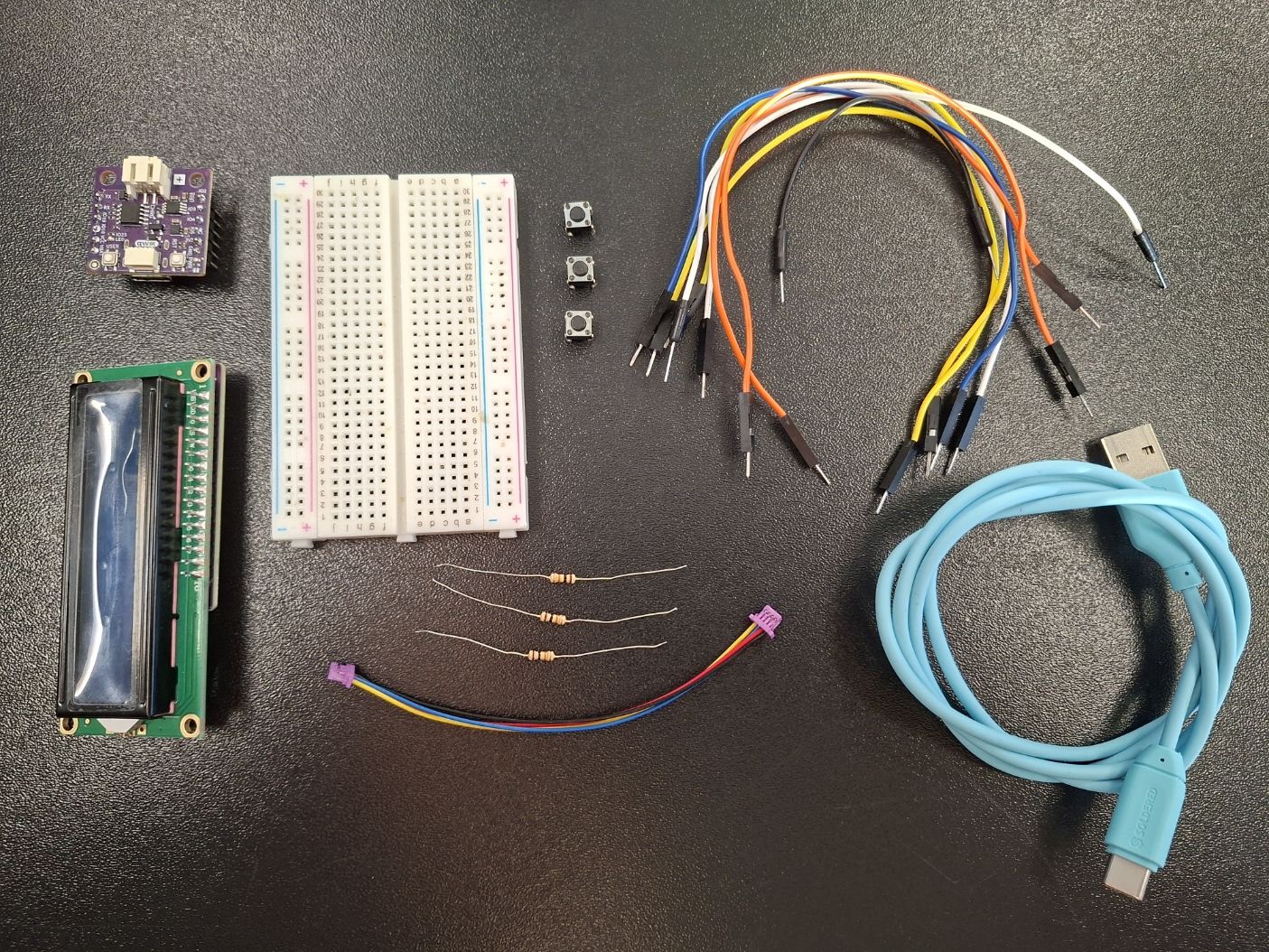
Putting the components together
1. Connect the LCD
Use a Qwiic cable to connect the LCD module to the NULA MINI board.
The Qwiic connector automatically carries power (3.3V), ground (GND), and I²C communication lines (SDA and SCL) through a single plug — no extra wiring is needed.
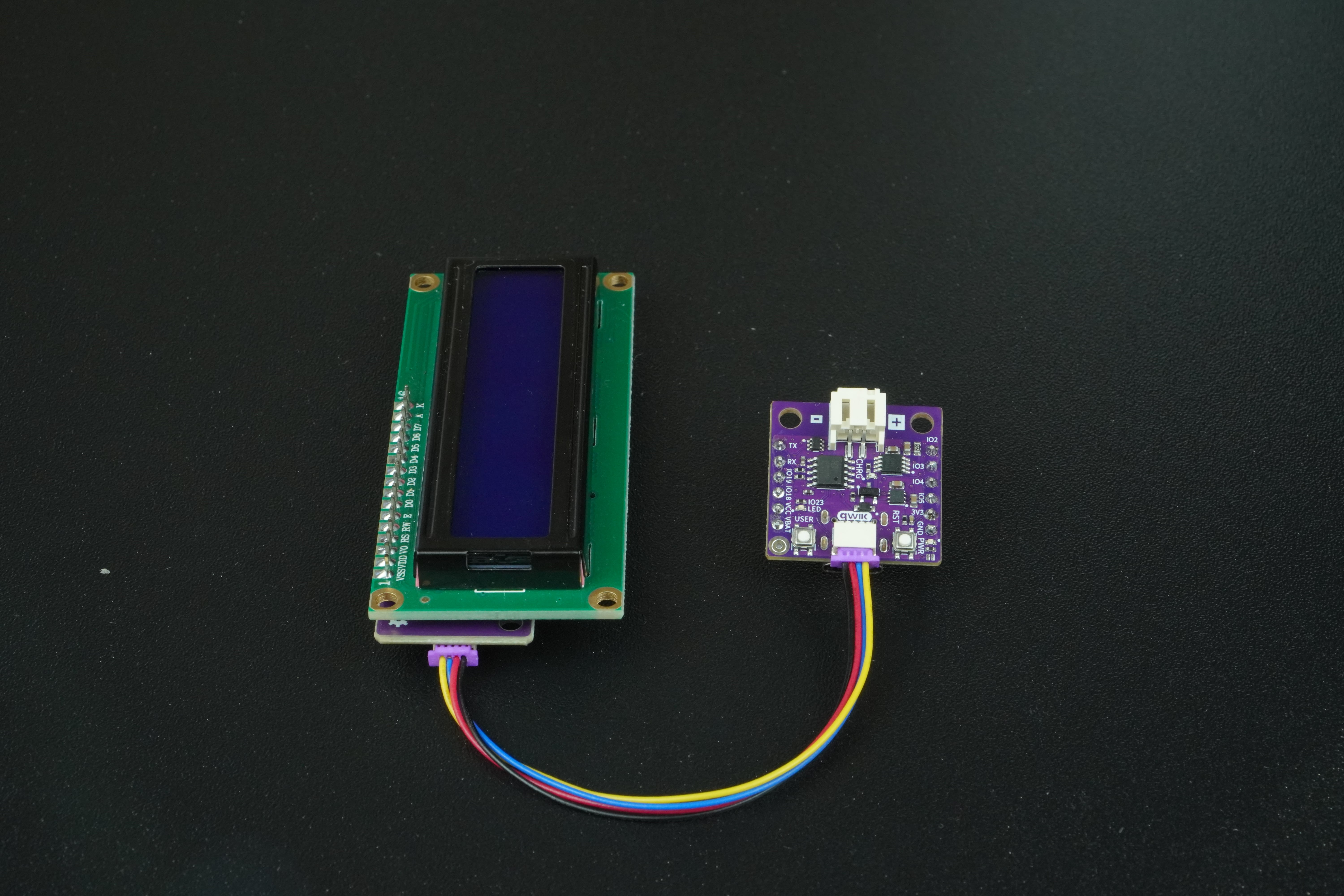
Setting up the LCD library
Before you can start using the LCD, you need to install the Soldered LCD Library.
It provides simple functions for printing, positioning, and scrolling text.
- Visit https://github.com/SolderedElectronics/Soldered-LCD-Library
- Download the repository as a ZIP file.
- In Arduino IDE, go to
Sketch->Include Library→Add .ZIP Library... - Locate and select the ZIP file you downloaded.
- You’re ready to use the library.
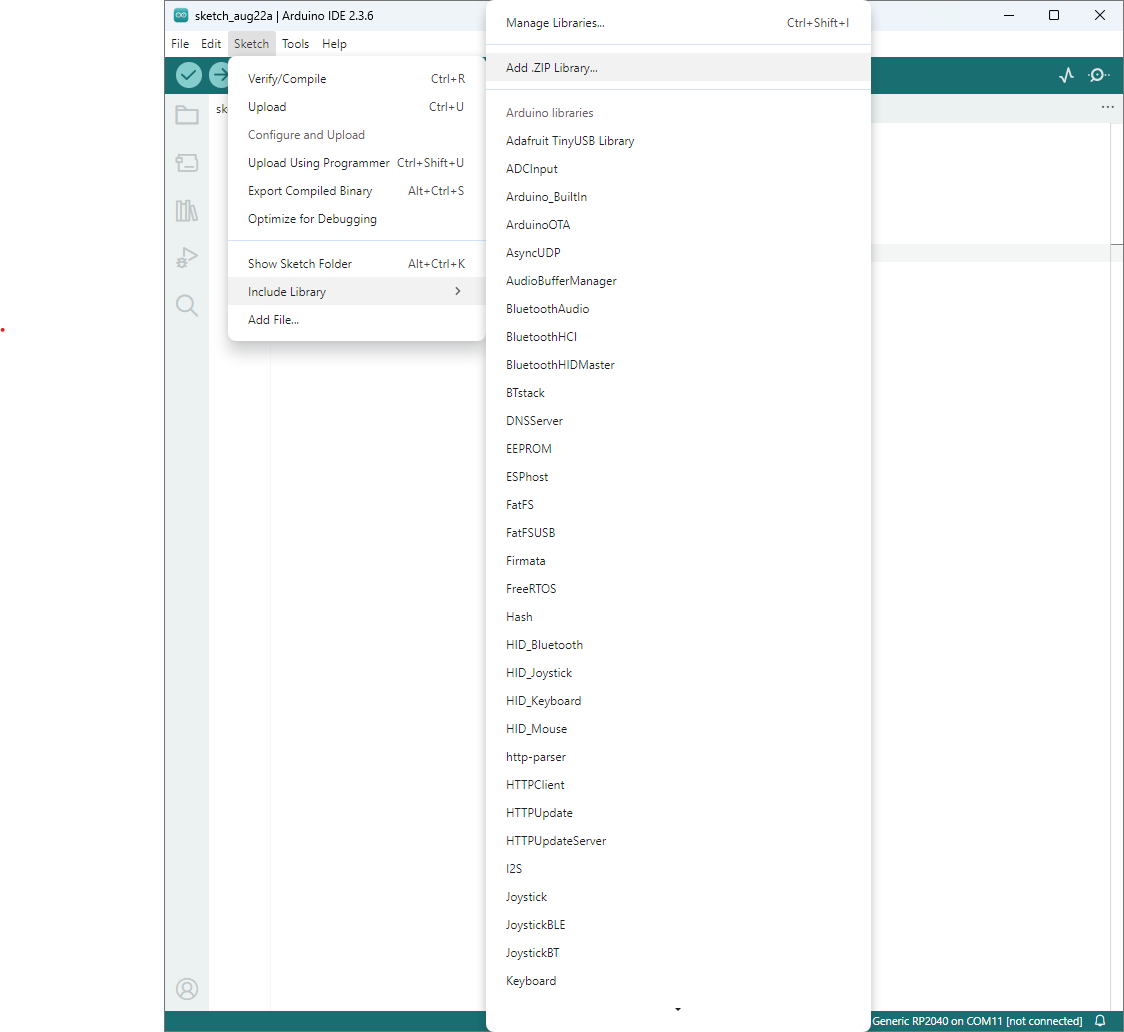
Why use auto scroll?
A 16×2 LCD can show only 16 characters per line at once.
If you print a longer message, the rest of it exists in memory but is hidden offscreen.
The lcd.scrollDisplayLeft() function lets you move all visible characters left by one column at a time, making the text appear to scroll.
Repeating this action continuously creates a smooth moving effect.
The scroll speed depends on the delay between each scroll step.
A smaller delay means faster scrolling, while a larger delay makes it slower and easier to read.
Code
Below is the full example code that scrolls a message across the screen.
#include "LCD-SOLDERED.h"   // Include the Soldered LCD library

/*
Create an LCD object with 16 columns and 2 rows.
These parameters correspond to your display size.
*/
LCD lcd(16, 2);

/*
Create a message that will scroll across the display.
*/
String message = " Hello from NULA MINI! ";

/*
The speed of scrolling in milliseconds. Higher number = slower scroll.
*/
const int scrollDelay = 300;

void setup() {
  /*
  Initialize the LCD and turn on the backlight.
  */
  lcd.begin();
  lcd.backlight();

  /*
  Print the message once. Only the visible part will show initially.
  */
  lcd.print(message);
}

void loop() {
  /*
  Scroll the text one position to the left, creating a moving effect.
  */
  lcd.scrollDisplayLeft();

  /*
  Wait a short time before the next movement to control scrolling speed.
  */
  delay(scrollDelay);
}
Full example
Check out the full example code on the link below:
4.2_Auto_Scroll_Text.ino
Example that shows how to use the Soldered LCD library to scroll text across the screen automatically.