1.2 LED Blink
The goal of this example is to teach you how to control an LED with the Soldered NULA MINI board. This is usually the very first project when learning microcontrollers because it introduces you to the most fundemental concept: making a pin go HIGH (on) or LOW (off).
In this documentation you will learn:
- How to assign a pin to a variable for easier code management.
- How to configure a pin as an output using
pinMode(). - How to control pin states with
digitalWrite()(HIGH and LOW) - How to use
delay()to pause program execution
Hardware required:
- 1x Soldered NULA MINI board
- 1x Breadboard
- 1x LED (any color)
- 1x 330 ohm resistor
- Jumper wires
- USB-c cable

Putting the components toghether
We will start this example by connecting all the components. Just follow the steps provided below for a no hassle experience.
1. insert the NULA MINI board on the breadboard
If your board has male connectors soldered to its pins, we recommend placing it on the breadboard to make it easier and tidyer for yourself to connect other components.
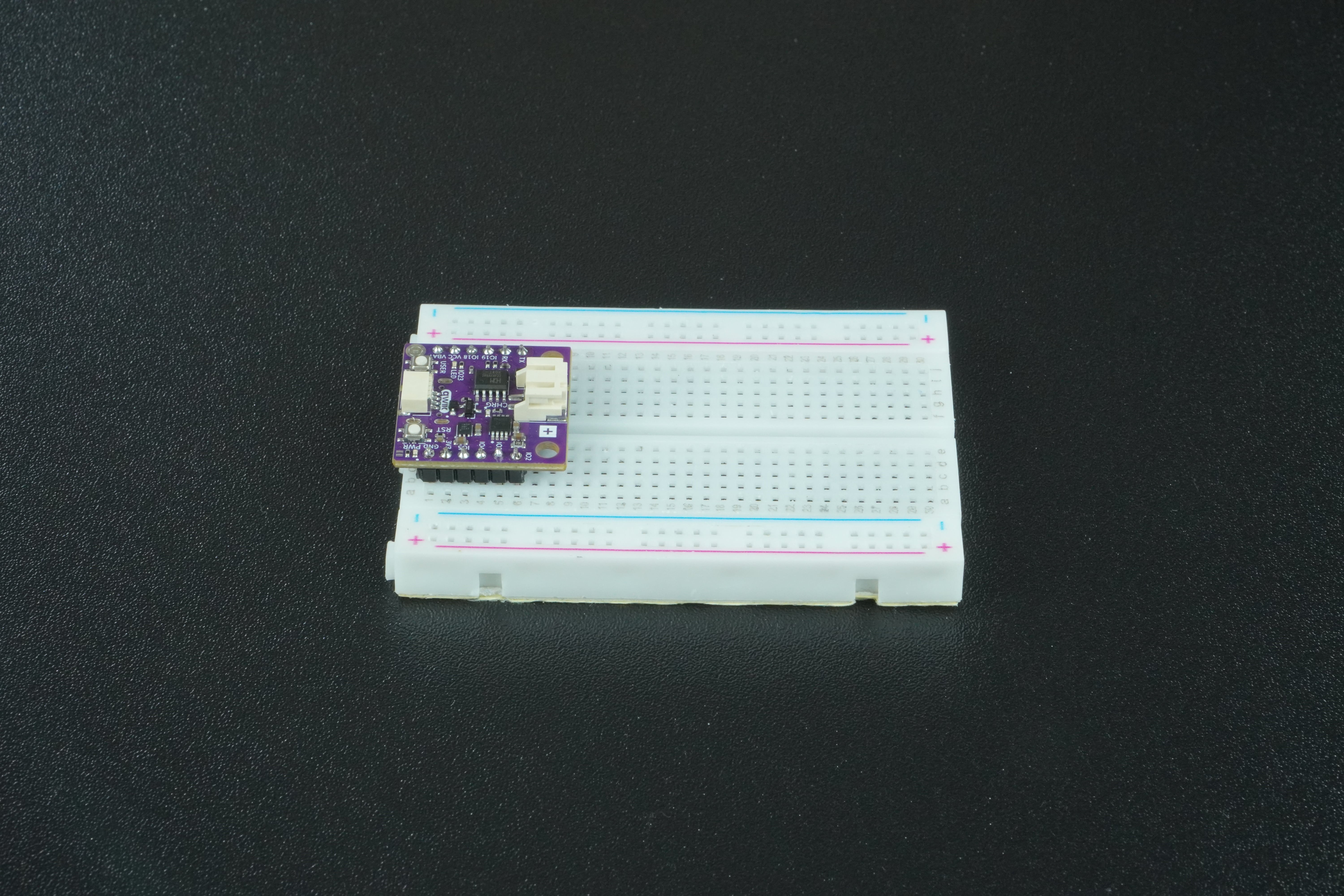
If not, no worry. You can just connect the board with components by wire. It will be a bit messier but will do the job just fine.
2. Connect the LED to the NULA MINI board
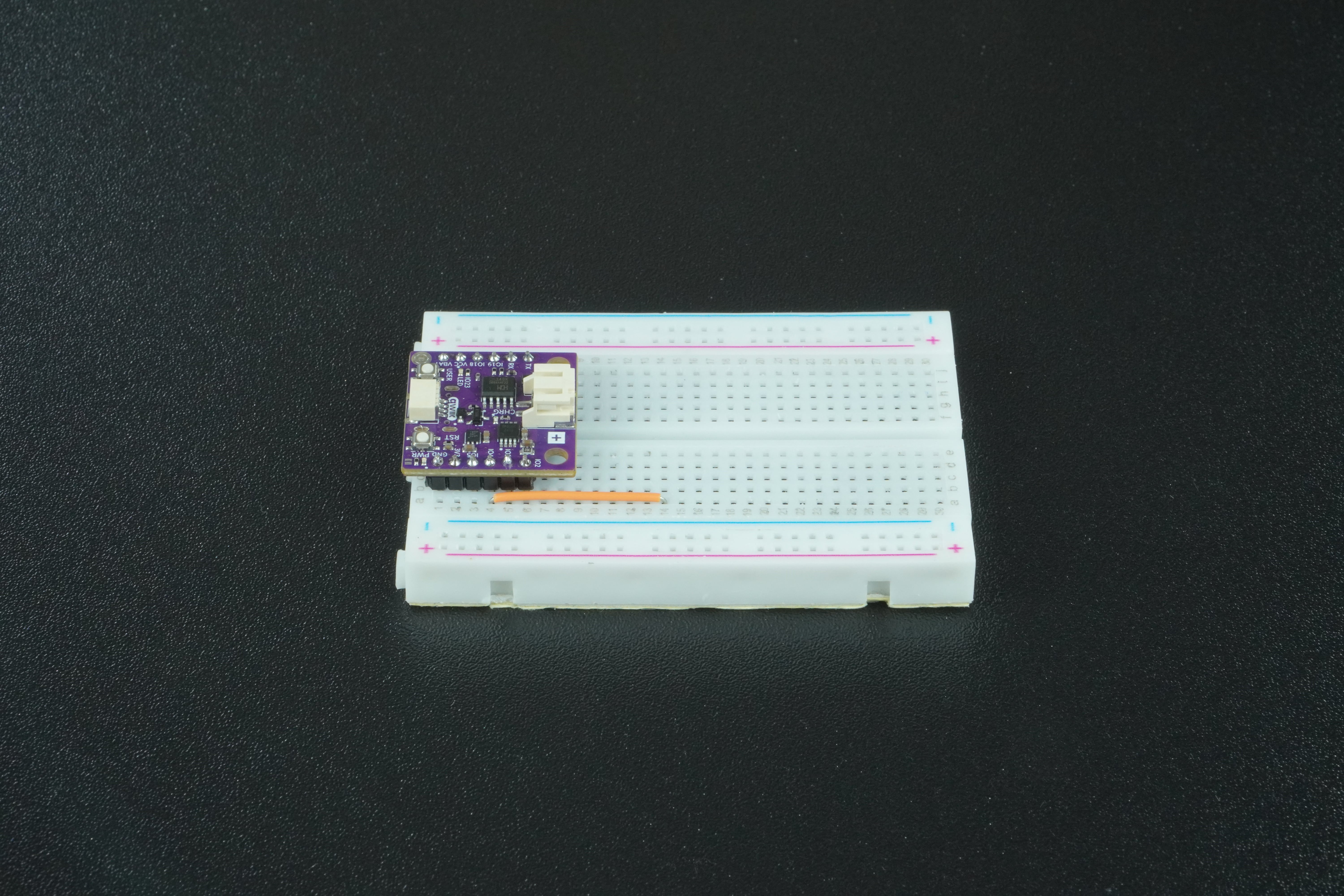
Take a piece of jumper wire and connect one end to an available GPIO pin on the board. For the needs of this example, we will be using IO4 pin. Connect the other end to any free (meaning nothing is connected to it!) power rail on the breadboard.
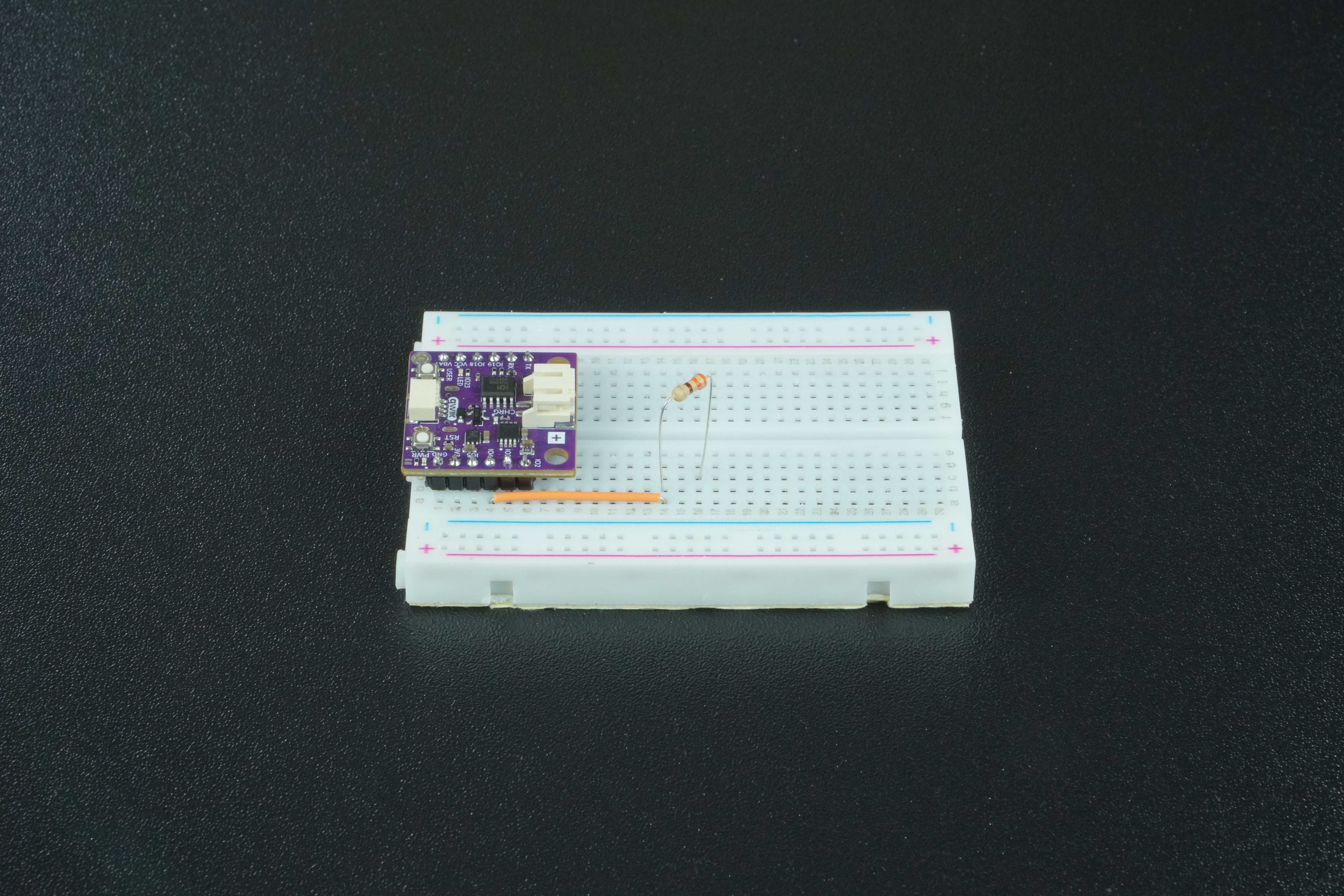
Take one 330 ohm resistor and connect one end to the same power rail as the wire.Connect the other end of the resistor to some other free power rail.
Take the LED and inspect its pins, there should be one longer than the other like this:
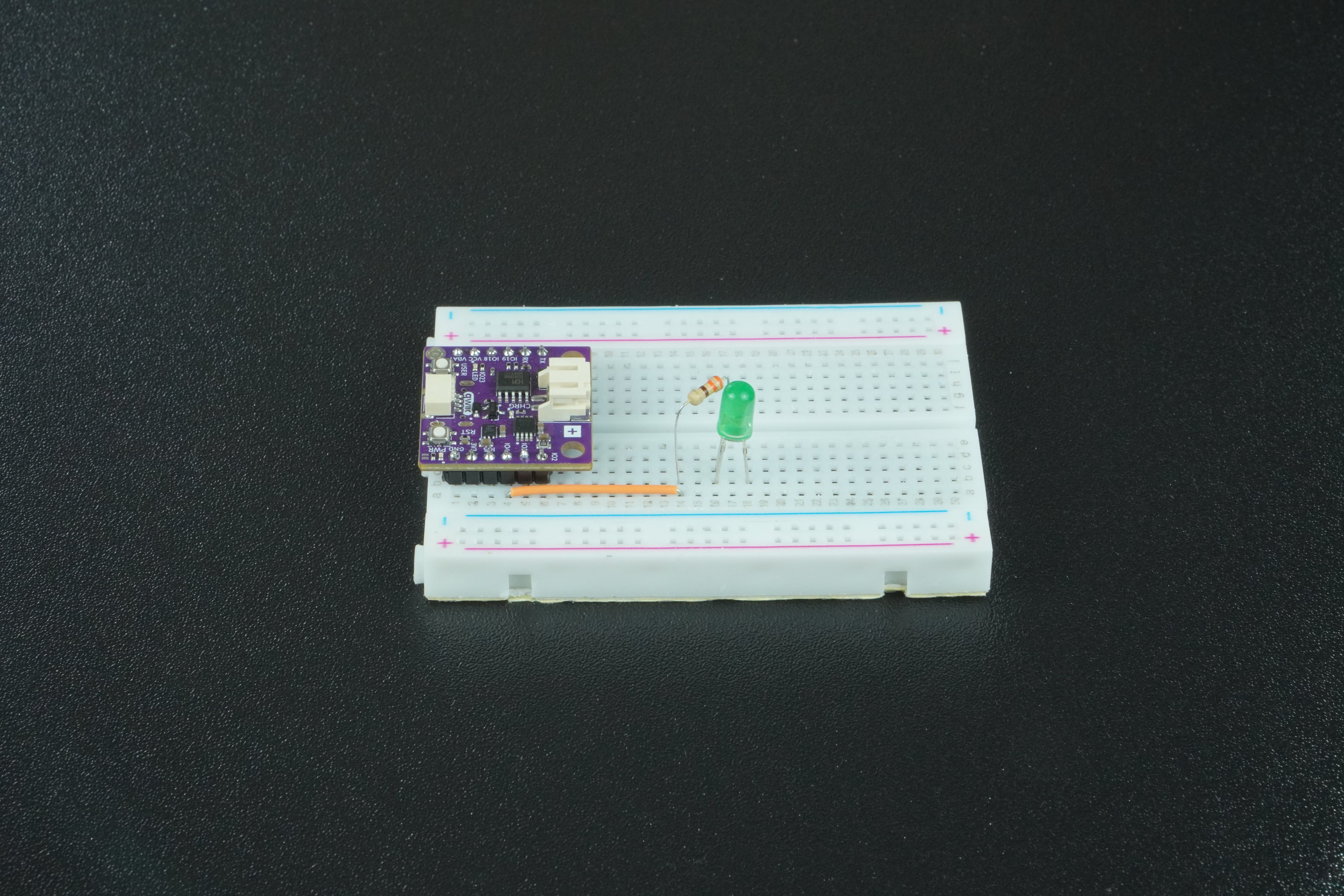
Connect the longer one (Anode) to the power rail that is connected to the other end of the 330 ohm resistor.
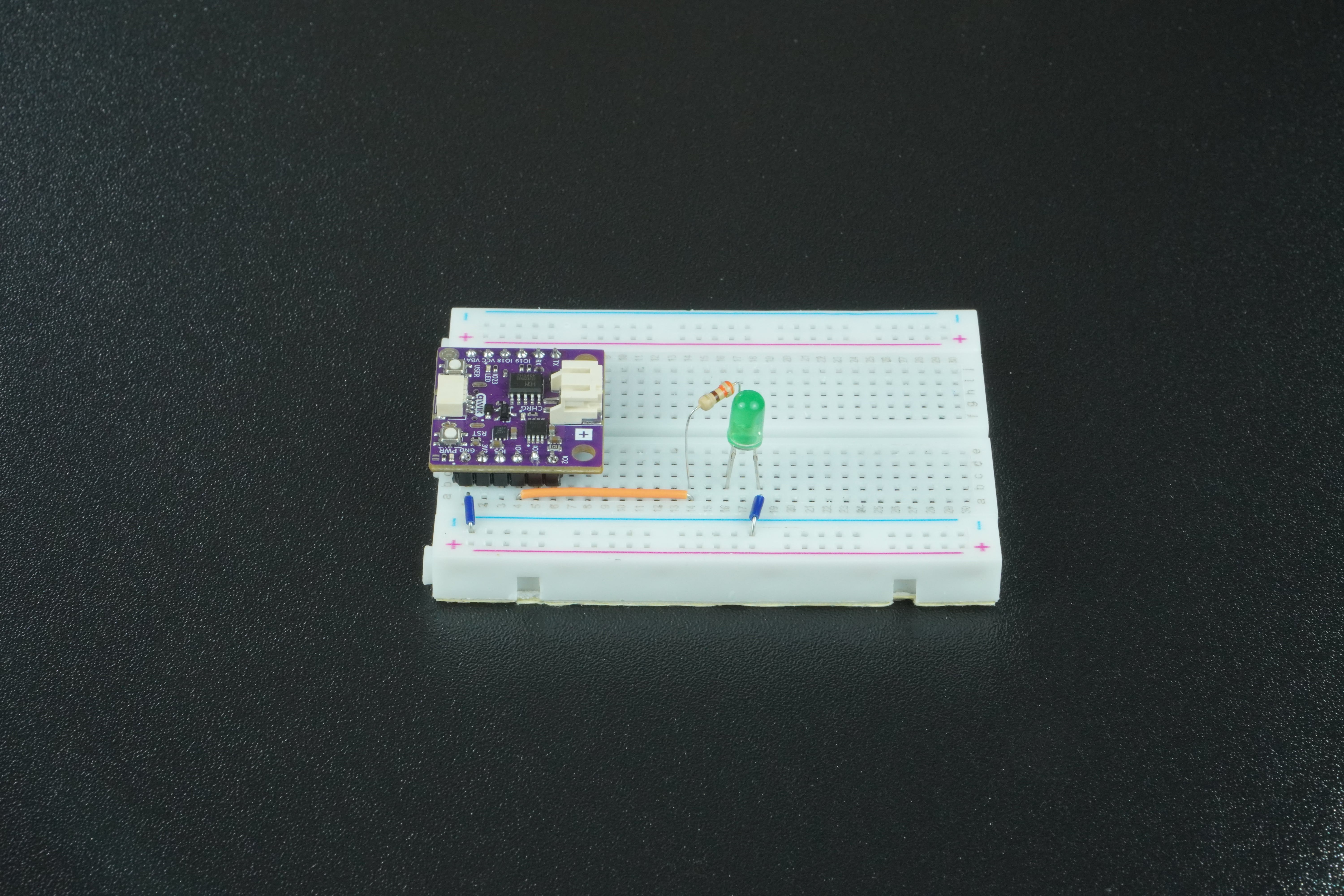
The shorter end of the LED (Cathode) needs to be connected to the GND pin on the NULA board.
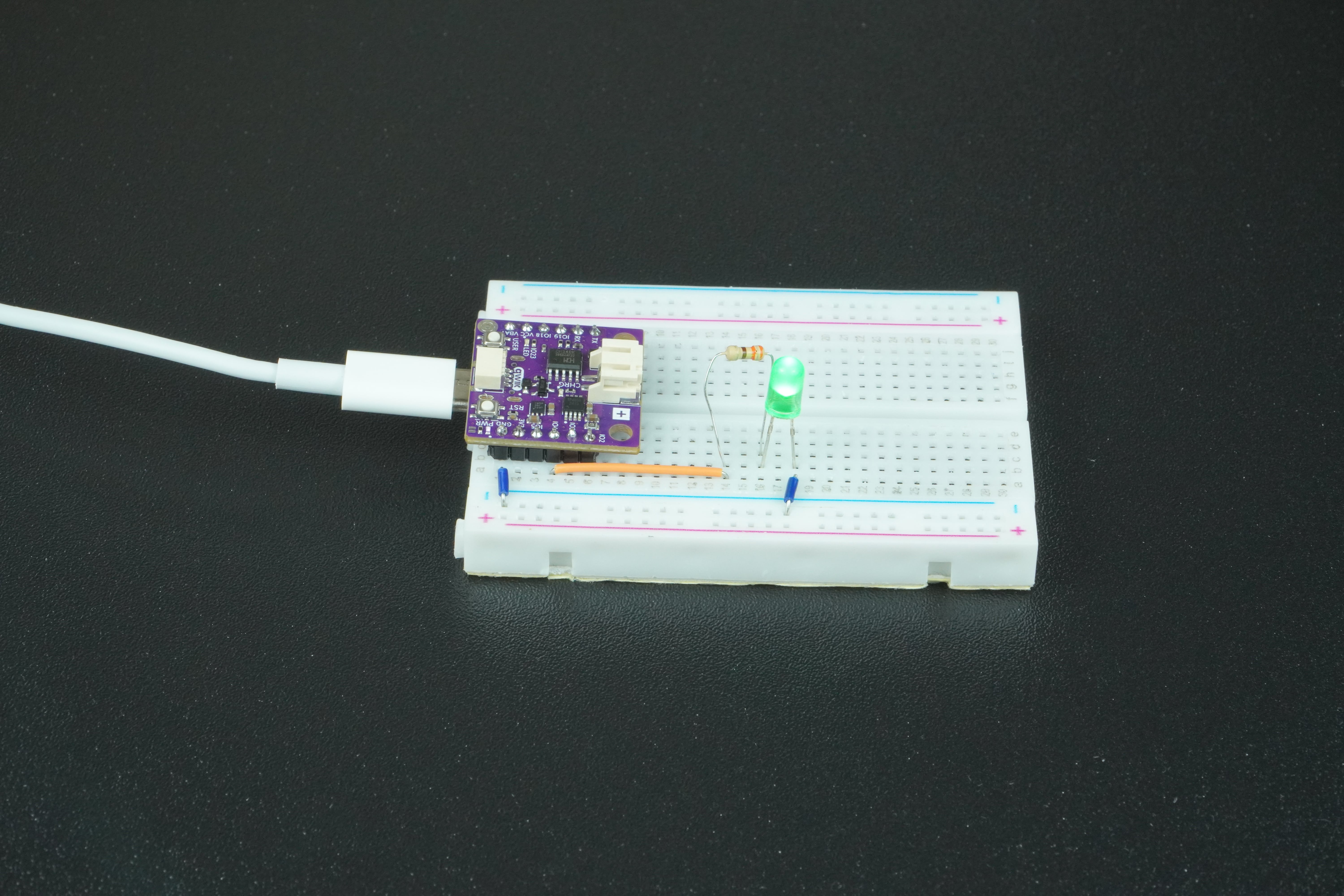
Connect the NULA MINI board to your computer via USB-c cable:
Assigning pins to variables
Instead of writing the pin number directly into every function call, you can store it in a variable for better readability. In this example, the variable pinNumber is assigned the value 4, which corresponds to the IO4 pin on the NULA board. If you decide to change the LED to another pin later, you only need to modify the variable in one place, and the rest of the code will still work.
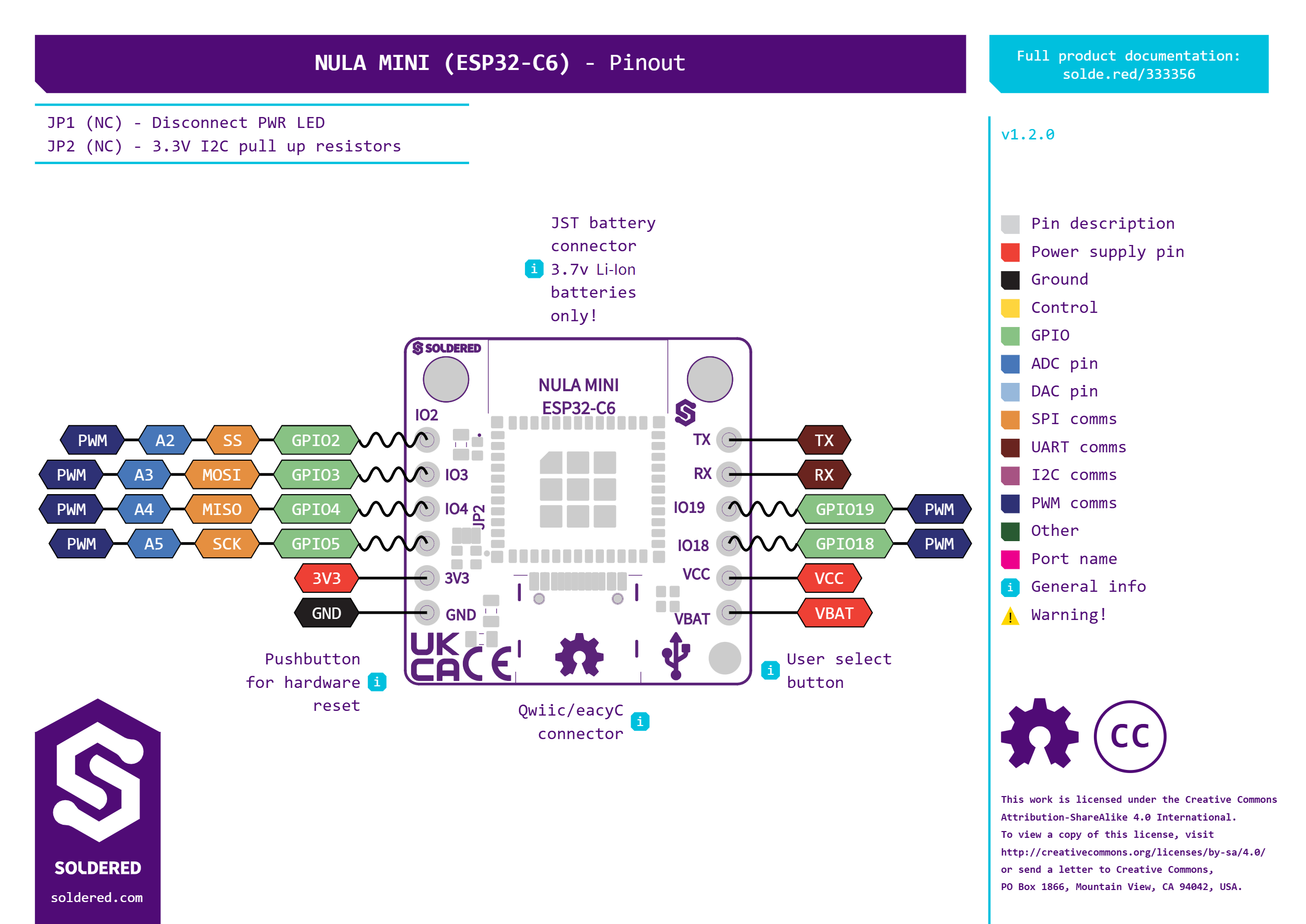
You can basically use any IO marked pin on the board, below is the picture with all GPIO pins that you can use on the NULA board:
We will declare variables pinNumber and delayMS before setup():
/*
This is a variable to which we pass the number of pin that we connected the LED to.
The NULA board has a pin naming logic as follows: IO4, where 4 is the number that we give to the variable.
If you wish to use a different pin, make sure you are using a IO__ marked pin.
*/
int pinNumber = 4;

/*
This is a variable that defines the blinking time, in milliseconds.
Feel free to experiment with this value.
*/
int delayMS=1000;
Configuring pins as inputs or outputs
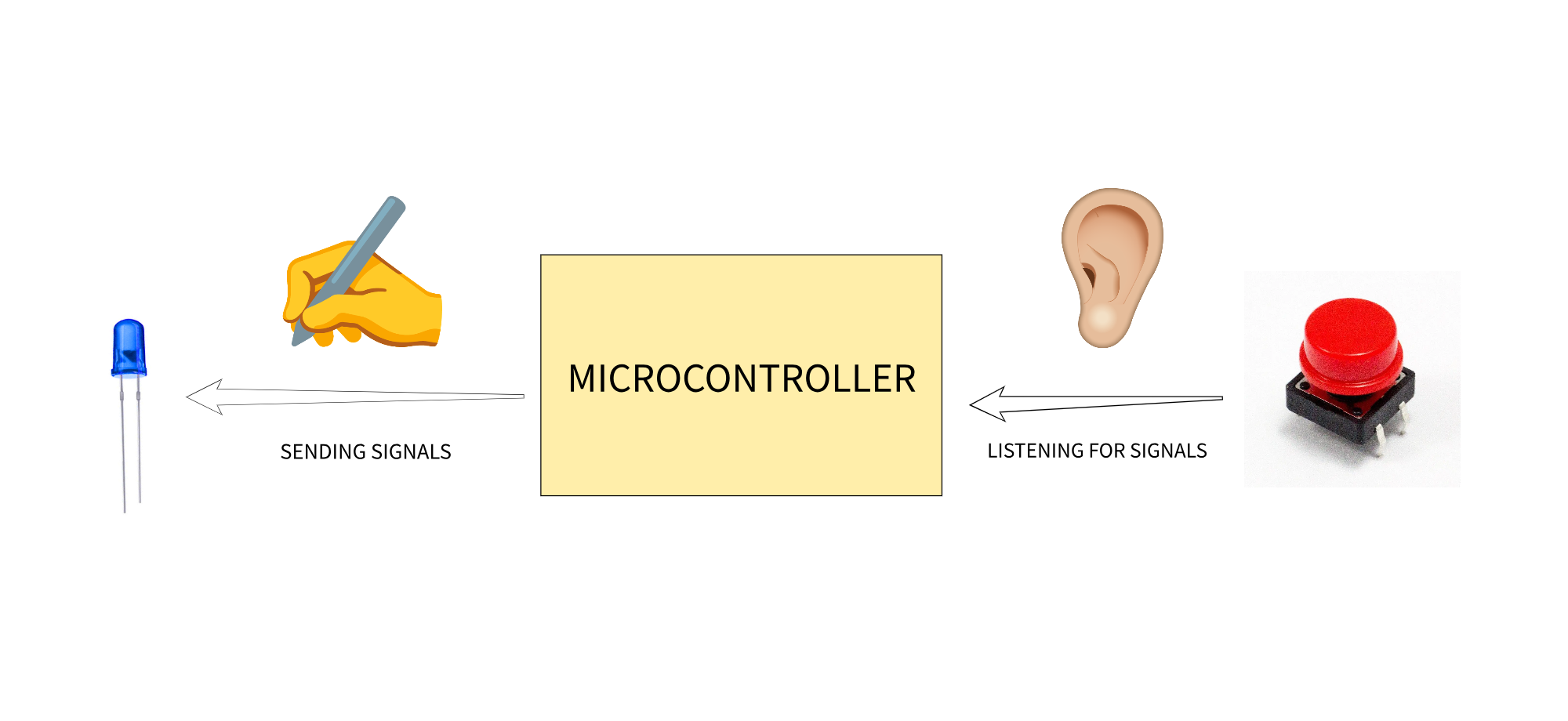
Every IO pin on the NULA RP2040 can act as either an input (reading signals from buttons, sensors, ect.) or an output (sending signals to LEDs, buzzers, motors, ect.). In this project, since the LED is a component we want to control, the pin must be set as an output. By default, pins don't "know" whether they should listen for signals or send out signals, this is where the pinMode() function comes in.
The function pinMode(pinNumber, mode) tells the microcontroller how a specific pin should behave. If you set the mode to OUTPUT, the pin is able to provide voltage (HIGH) or no voltage (LOW) to connected components such as LEDs, buzzers, or motors. If you set it to INPUT, the pin listens for signals coming from the outside, such as the state of a pushbutton or the level of a sensor. There is also INPUT_PULLUP, which activates an internal resistor to keep the pin in a known state when nothing is connected, more about this in a later [chapter].
We will call the pinMode() function inside the setup():
void setup() {

  /*
  pinMode() is a function that configures the specified pin to behave either as an input or in this case as an output.
  This simply means that the pin "reads" the available data when in input mode, and "writes" data when in output mode.
  As our pin needs to turn on the LED, we will put the pin in OUTPUT mode.
  */
  pinMode(pinNumber,OUTPUT);
}
Controlling pin states with digitalWrite()
Once the pin has been configured as an output, you can control its state with the digitalWrite() function. The syntax is digitalWrite(pinNumber, value), where value can be either HIGH or LOW.
Writing HIGH sets the pin in a logic high level (3.3V on the NULA MINI board), which allows current to flow through the connected circuit, in this case, turning the LED on.
Writing LOW sets the pin to 0V, which stops the current flow and turns the LED off.
We will call the digitalWrite() function inside the loop():
void loop(){
    /*
  digitalWrite() is a function that gives us the ability to change the value that our pin (previously set as OUTPUT pin)
  writes. As the name of the function tells us, we can only switch between digital values, high and low. Those values
  are represented by different voltage levels, high is 5V while low is 0V. We will start with putting the pin in HIGH
  mode, giving the LED 5V and lighting it up.
  */
  digitalWrite(pinNumber,HIGH);
  //We put the pin in LOW mode, turning the LED off.
  digitalWrite(pinNumber,LOW);
}
Pausing program execution
If you simply turned the LED on and off in rapid succession, the changes would happen so quickly that your eyes would not detect them. To make the blinking visible, you will use the delay() function. The syntax is delay(milliseconds), where the number represents how long the program should pause.
In this example, the variable delayMS is set to 1000, which means each delay lasts one second. The code first turns the LED on with digitalWrite(pinNumber, HIGH), then pauses with delay(delayMS). After that, it turns the LED off with digitalWrite(pinNumber, LOW) and pauses again for one second. This loop continues forever, producing a visible blinking pattern.
We call delay() function after every digitalWrite() call:
void loop() {

  /*
  digitalWrite() is a function that gives us the ability to change the value that our pin (previously set as OUTPUT pin)
  writes. As the name of the function tells us, we can only switch between digital values, high and low. Those values
  are represented by different voltage levels, high is 5V while low is 0V. We will start with putting the pin in HIGH
  mode, giving the LED 5V and lighting it up.
  */
  digitalWrite(pinNumber,HIGH);

  /*
  delay() is a function that starts a pause in the code. Duration of the pause is defined with the ms parameter.
  In this case, we want to wait for a bit after we turned on the LED.
  */
  delay(delayMS);

  //We put the pin in LOW mode, turning the LED off.
  digitalWrite(pinNumber,LOW);

  //Leave the LED turned off for a bit.
  delay(delayMS);
}
Full example
Check out the full example code on the link below:
1.1_LED_blinking.ino
Example that shows how to control the blinking of a simple LED