1.1 Hello World
The goal of this example is to introduce you to the Serial communication between the Soldered NULA MINI board and your computer. This allows the board to "talk back" to you, making it possible to debug, monitor sensor values, or simply print text.
This is often called the "Hello World" of microcontrollers because it is the simplest way to confirm that everything is working and that you can communicate with the board.
In this documentation you will learn:
- How to set up a serial connection using
Serial.begin(). - How to print a message to the Serial Monitor with
Serial.println().
Hardware required:
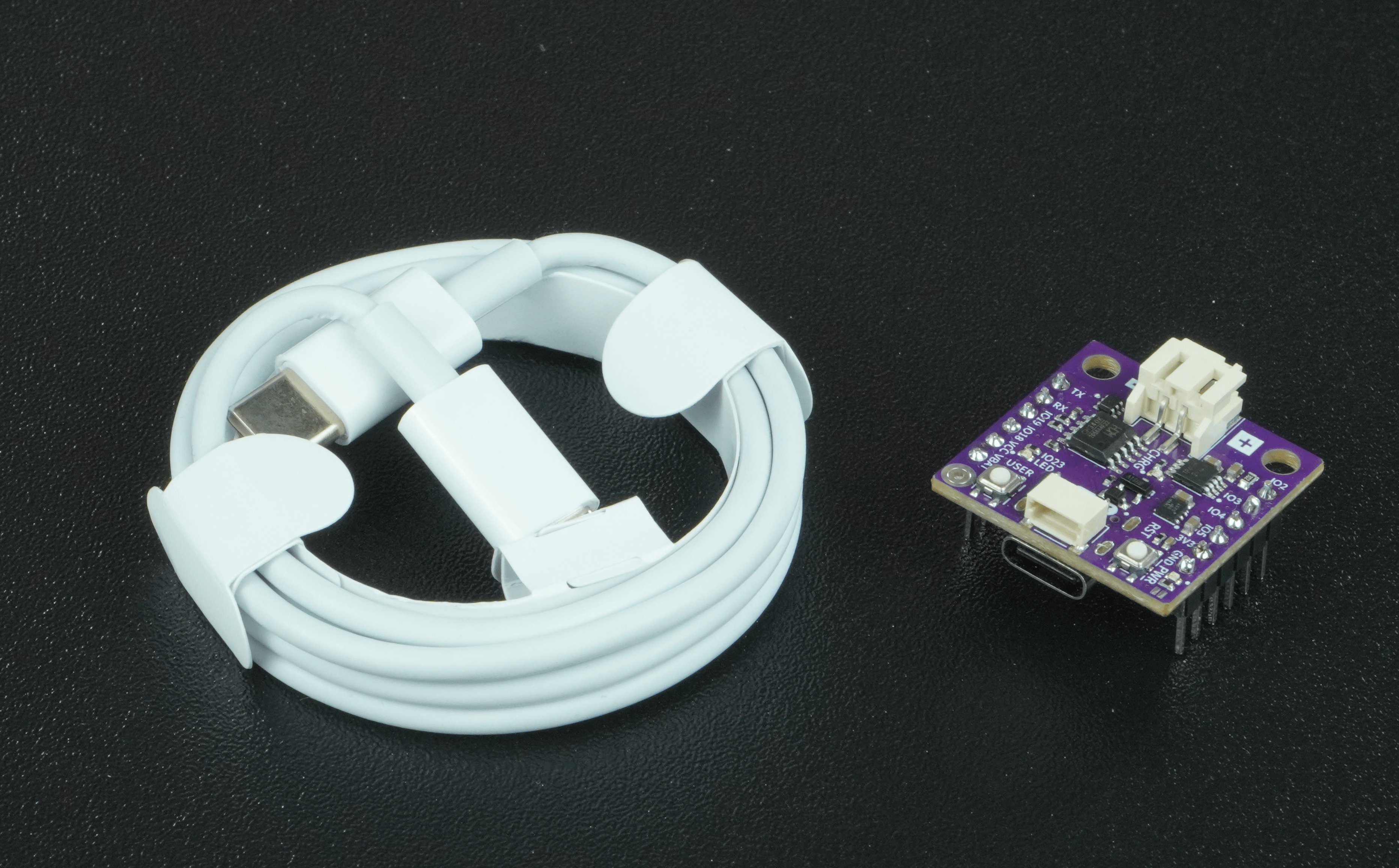
- 1x Soldered NULA MINI board
- 1x USB-c cable
Connecting the board
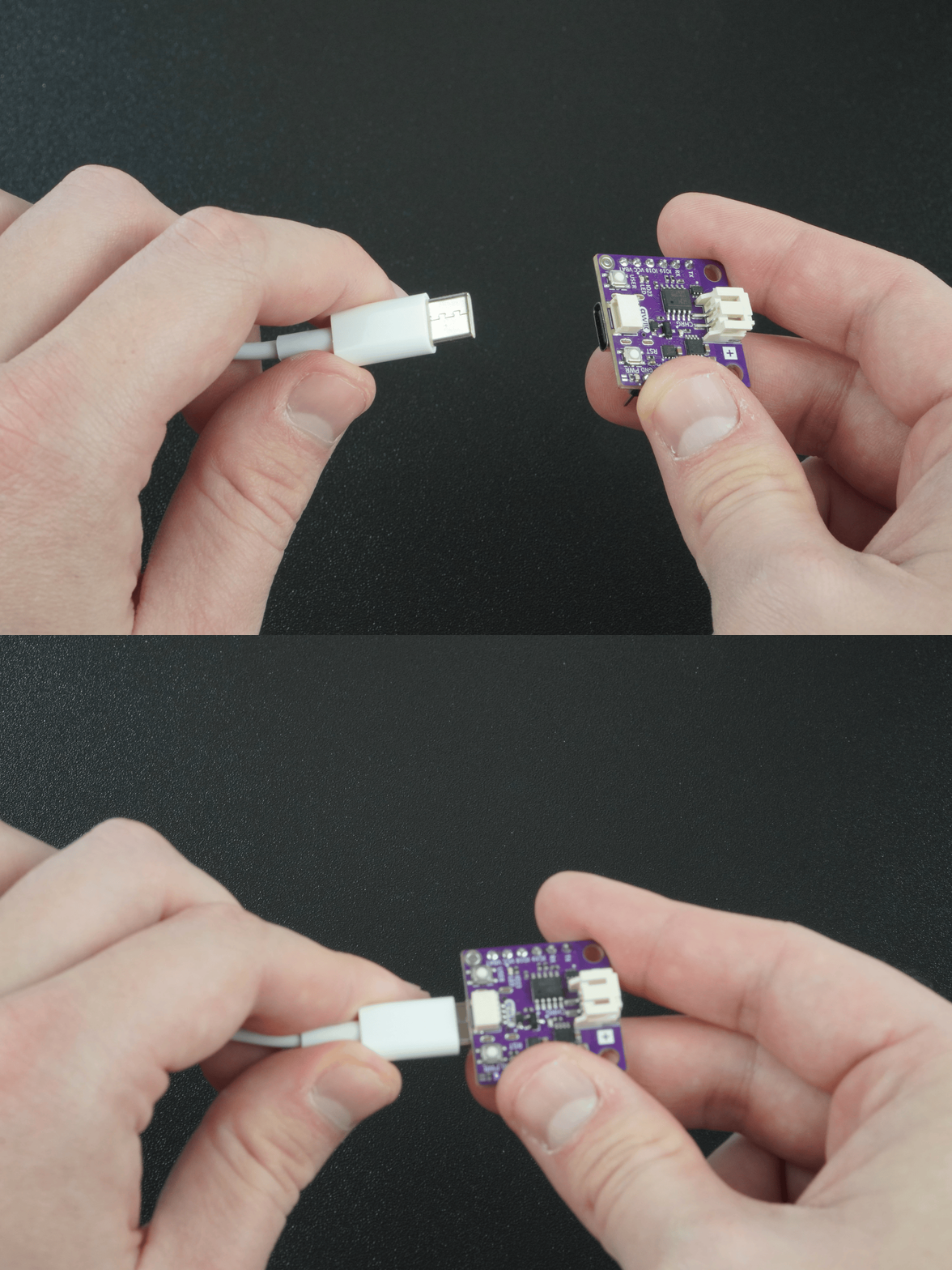
Simply connect your Soldered NULA MINI to your computer using a USB-c cable. Once connected, select the correct COM port in Arduino IDE.
What is Serial Communication
Serial communication is a way for your NULA MINI board and your computer to talk to each other using text messages. Imagine you and your friend are passing notes in class, but instead of giving the whole note at once, you send it one letter at a time in the right order. That's what serial means, information is sent one piece after another, very quickly. Your board sends characters like 'H','e','l','l','o' to your computer, and the Arduino IDE's Serial Monitor puts them together so you can read "Hello". This communication happens through the USB cable, and both sides have to "agree" on the speed (the baud rate), like making sure you both speak the same language and at the same pace.
Setting up Serial communication
To enable Serial communication, you need to initialize it inside the setup() function with
Serial.begin(baudRate). BaudRate is the speed of communication. For this example, 115200 baud is used. This function tells the board to start communicationg with the computer at the defined speed.
void setup() {
  /*
  Serial.begin() establishes serial communication between your board and another device, in this
  example, to your computer via a USB cable. In this example we will be communicating with the Serial Monitor, so ensure
  that the baud variable is set to one of the baud rates listed in the Serial Monitor's baud rate dropdown menu.
  */
  Serial.begin(115200);
}
Printing a message
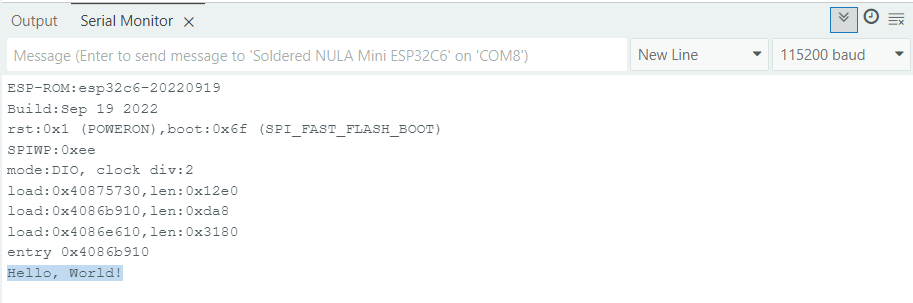
We use function Serial.println("text") to print a string of text to the Serial Monitor, followed by a new line. in this example, the board will print "Hello, World!" once, immediately after startup. This is because the function is called in the setup(), if you want to print it in a loop, call the function inside the loop() function.
Serial.print() function instead.void setup() {
/*
Serial.begin() establishes serial communication between your board and another device, in this
example, to your computer via a USB cable. In this example we will be communicating with the Serial Monitor, so ensure
that the baud variable is set to one of the baud rates listed in the Serial Monitor's baud rate dropdown menu.
*/
Serial.begin(115200);
/*
Serial.println() Prints data to serial port as human-readable ASCII text followed by a carriage return character ('\r')
and a newLine character ('\n'). In other words, function prints the text and then skips to the next line.
*/
Serial.println("Hello, World!");
}
Full example
Check out the full example code on the link below:
1.2_Serial_Print_Hello_World.ino
Example that shows how to initialize the Serial monitor and write data to it