6.2 Wi-Fi LED Control
The goal of this example is to show you how to control an LED on the NULA MINI board through a Wi-Fi network using a simple web interface.
Once the board connects to your network, you can access it by visiting http://nulamini.local/ in your browser and toggle the LED ON or OFF wirelessly.
In this documentation you will learn:
- How to connect the NULA MINI to a local Wi-Fi network.
- How to make your device accessible as nulamini.local using mDNS.
- How to host a simple web page directly on the NULA MINI.
- How to control the built-in LED from a browser interface.
Hardware required
- 1× Soldered NULA MINI board
- 1× USB-C cable
- Wi-Fi network with internet access
- 330 ohm resistor
- 1x LED (any color)
Putting the components together
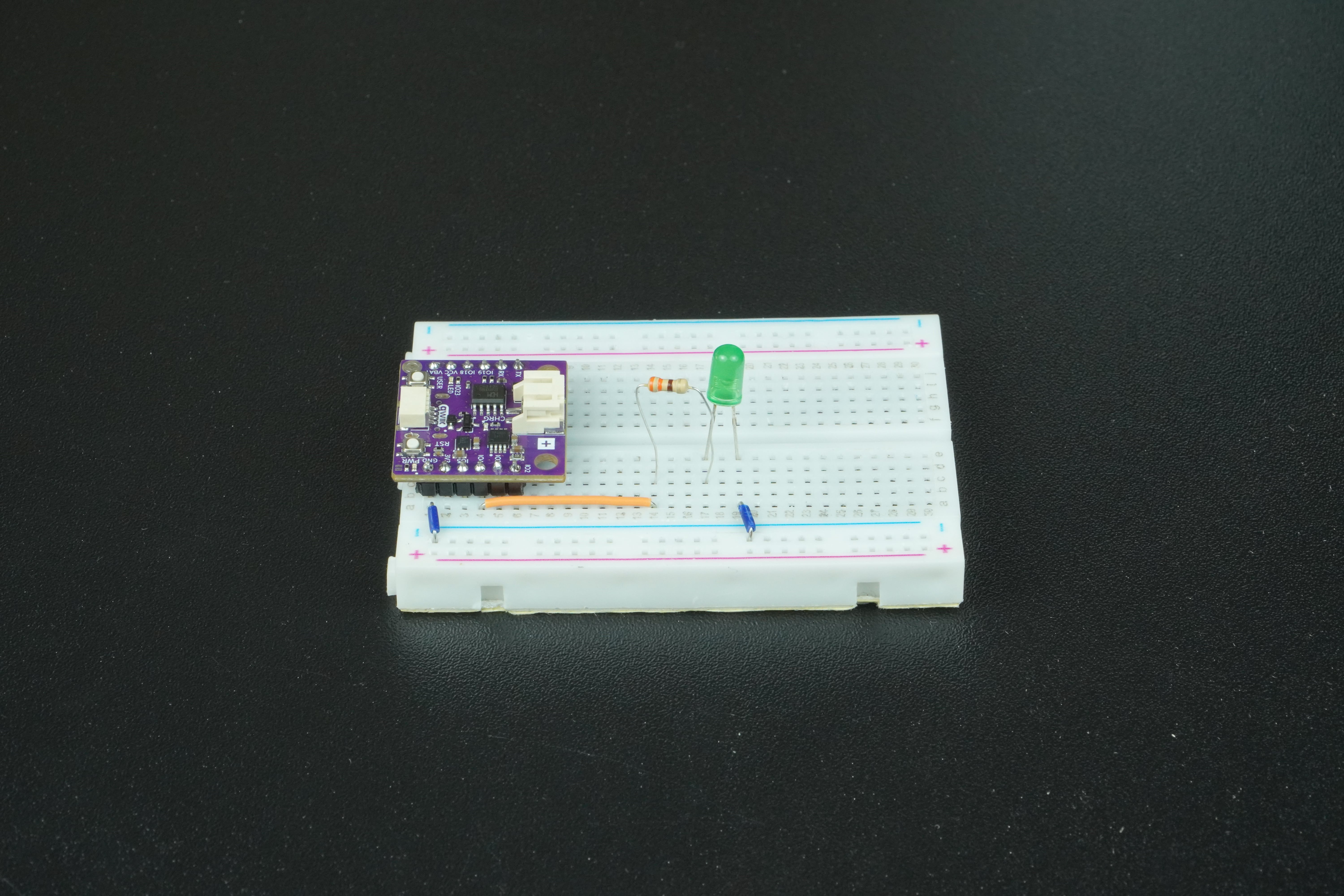
onnect IO4 on the NULA MINI to one leg of a 330Ω resistor on the breadboard. Attach the LED’s anode (long leg) to the other side of the resistor, and connect the cathode (short leg) directly to GND on the board. Your completed circuit should look like this:
How it works
The NULA MINI connects to your Wi-Fi network using the provided SSID and password.
Once connected, it registers itself on the local network as nulamini.local using the mDNS protocol (Multicast DNS).
This means that instead of typing an IP address, you can simply open your browser and go to:
http://nulamini.local/
he board hosts a small web server that serves an HTML page with two buttons:
one to turn the LED ON, and one to turn it OFF.
When you press a button, your browser sends an HTTP request (/led/on or /led/off) to the board,
and the LED changes state instantly.
A small JavaScript snippet on the web page automatically updates the LED status every two seconds.
Setting up Wi-Fi credentials
In the code, change the lines below to match your own Wi-Fi network:
const char* ssid = "Your_SSID";
const char* password = "Your_PASSWORD";
Code
Below is the complete code for this example:
#include <WiFi.h>          // Wi-Fi connection
#include <WebServer.h>     // Web server functionality
#include <ESPmDNS.h>       // mDNS to access nulamini.local

const char* ssid = "Your_SSID";
const char* password = "Your_PASSWORD";

const int LED_PIN = 4;
WebServer server(80);

const char htmlPage[] PROGMEM = R"rawliteral(
<!DOCTYPE html>
<html>
<head>
  <meta name="viewport" content="width=device-width, initial-scale=1">
  <title>NULA MINI LED Control</title>
  <style>
    body { font-family: Arial; text-align: center; margin-top: 50px; }
    h1 { color: #222; }
    button {
      padding: 15px 30px;
      margin: 10px;
      font-size: 18px;
      border: none;
      border-radius: 8px;
      cursor: pointer;
    }
    .on { background-color: #00C04B; color: white; }
    .off { background-color: #E63946; color: white; }
    .status { font-size: 22px; margin-top: 20px; }
  </style>
</head>
<body>
  <h1>NULA MINI LED Control</h1>
  <p>Use the buttons below to control the LED.</p>
  <button class="on" onclick="fetch('/led/on').then(()=>updateStatus())">Turn ON</button>
  <button class="off" onclick="fetch('/led/off').then(()=>updateStatus())">Turn OFF</button>
  <div class="status" id="status">Loading status...</div>

  <script>
    async function updateStatus() {
      let res = await fetch('/led/status');
      let text = await res.text();
      document.getElementById('status').innerHTML = 'LED is ' + text.toUpperCase();
    }
    updateStatus();
    setInterval(updateStatus, 2000);
  </script>
</body>
</html>
)rawliteral";

void handleRoot() {
  server.send(200, "text/html", htmlPage);
}

void handleLedOn() {
  digitalWrite(LED_PIN, HIGH);
  server.send(200, "text/plain", "on");
  Serial.println("LED turned ON");
}

void handleLedOff() {
  digitalWrite(LED_PIN, LOW);
  server.send(200, "text/plain", "off");
  Serial.println("LED turned OFF");
}

void handleLedStatus() {
  String status = digitalRead(LED_PIN) ? "on" : "off";
  server.send(200, "text/plain", status);
}

void setup() {
  Serial.begin(115200);
  pinMode(LED_PIN, OUTPUT);
  digitalWrite(LED_PIN, LOW);

  Serial.println("Connecting to Wi-Fi...");
  WiFi.begin(ssid, password);

  while (WiFi.status() != WL_CONNECTED) {
    delay(500);
    Serial.print(".");
  }

  Serial.println("\nWi-Fi connected!");
  Serial.print("IP address: ");
  Serial.println(WiFi.localIP());

  if (MDNS.begin("nulamini")) {
    Serial.println("mDNS responder started!");
    Serial.println("Access at: http://nulamini.local/");
  } else {
    Serial.println("Error starting mDNS!");
  }

  server.on("/", handleRoot);
  server.on("/led/on", handleLedOn);
  server.on("/led/off", handleLedOff);
  server.on("/led/status", handleLedStatus);

  server.begin();
  Serial.println("HTTP server started");
}

void loop() {
  server.handleClient();
}
Full example
Check out the full example code on the link below:
6.2_Wi-Fi_LED_Control.ino
Example that shows how to control an LED on the NULA MINI via a local web page accessible through nulamini.local.