2.1. Button Counter

Another fundamental concept in embedded systems, alongside controlling pin states, is reading the state of a pin. By declaring a pin as an input, we can determine its state (HIGH or LOW), we can also read analog values, detect edges (FALLING, RISING), interrupts and more. This example focuses on reading basic digital input from a pushbutton.
At the end of this example you will learn:
- How a pushbutton works
- How to read digital inputs
- PULL-UP / PULL-DOWN concept
Parts required:
- Soldered NULA Mini Board
- Breadboard
- 1 x Pushbutton
- Some jumper wires
Pushbutton
- Before you assemble the circuit it's important to know how a pushbutton works.
- A pushbutton is a simple switch that remains open when it is not pressed, but closes the circuit when it is pressed allowing current to flow.
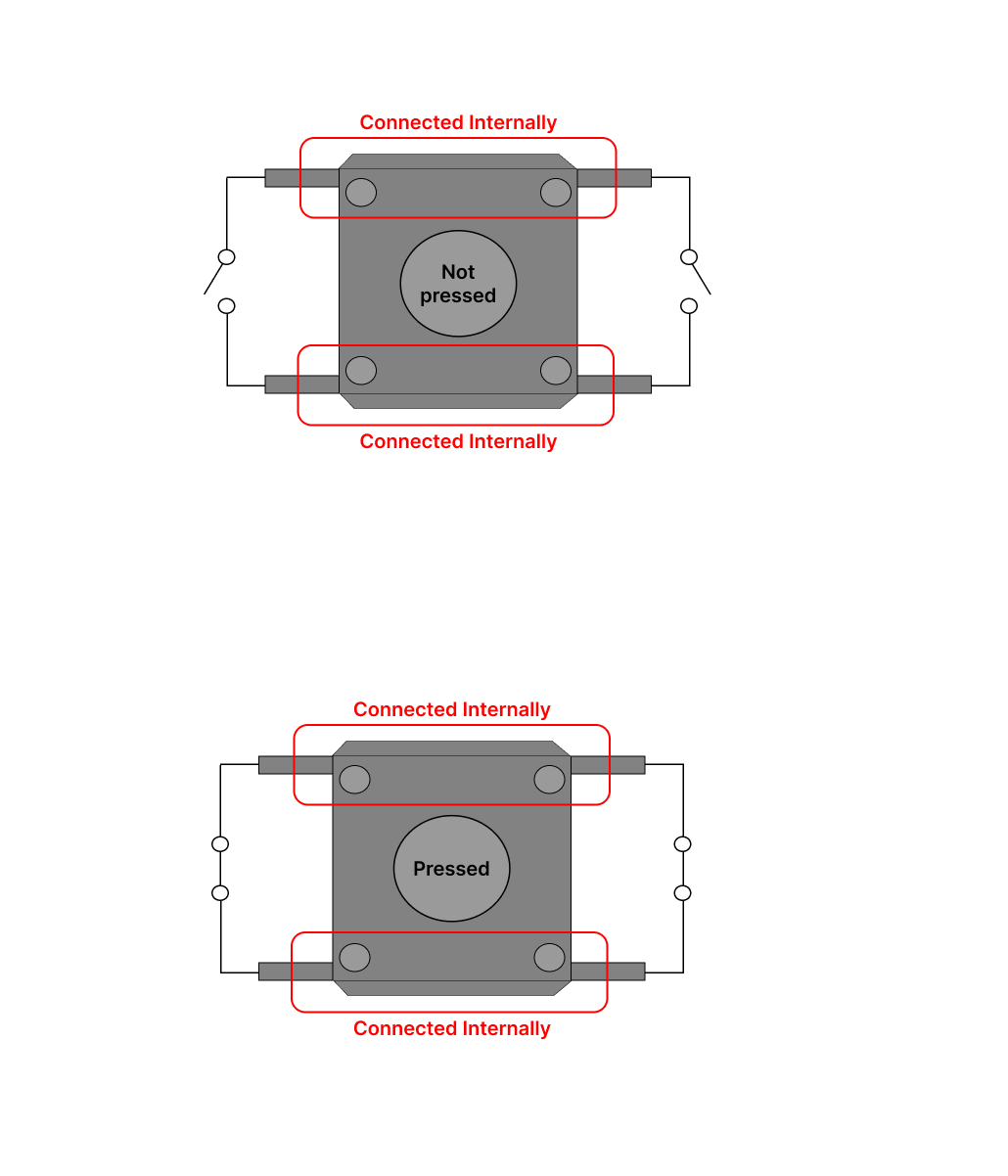
- Pushbuttons are "momentary", meaning they only make contact while being pressed, so to ensure stable reading and avoid floating values (changing from HIGH to LOW and vice versa), a PULL-UP or PULL-DOWN resistor is used. See this blog post for an in-depth tutorial on this concept.
Putting the components together
- Place the pushbutton on the breadboard, connect one terminal of the button to pin 19, and the other terminal to 3.3V or VCC.
Code Example
Import Pin module for button pin setup.
from machine import Pin
import time
Declare the pin number connected to pushbutton and create a Pin object set as an input with PULL-DOWN resistor so the pin reads LOW (0) when the button is not pressed.
button_pin = 19
btn = Pin(button_pin, Pin.IN, Pin.PULL_DOWN)
Initialize counter variable to keep track of number of times the button was pressed.
counter = 0
Main loop that constantly reads currnt voltage level of the button pin, checks the moment when button is pressed (when the value is HIGH) and then increments the counter variable.
while True:
    # Read current voltage level of the button pin (0 when not pressed, 1 when pressed)
    current_state = btn.value()

    # Check for moment when button is pressed, pull-down configuration reads LOW (0) when not pressed
    # and HIGH (1) when pressed
    if current_state == 1:
        # Increment counter variable and print its value to the console
        counter += 1
        print("Button pressed, count:", counter)

    time.sleep_ms(10) # Pause the program briefly to allow some time for CPU