Arduino - Clear Arduino Boards and Cache
This page provides a short guide for clearing compiler errors and generally resetting the software to its default state. If you're familiar with the issue, you can just jump to the Windows, macOS or Linux sections of the guide.
Why Clear Arduino Boards and Cache?
When installing or updating a board (like ESP32, STM32, etc.), the download process can sometimes fail or install incorrectly. This can lead to several issues, such as:
- Compiler errors
- Missing tools or definitions
- Unexpected bugs that don’t match your code
The Arduino IDE stores tools (like compilers, uploaders, and scripts) in these folders. If any of these tools are:
- Not fully downloaded
- Mismatched with the board version
- Corrupted
You may encounter strange compile errors unrelated to your code. Clearing these folders forces the IDE to re-download the correct tools and ensures everything functions as expected. This guide explains how to safely delete these files step by step.
For Windows Users
Step 1: Show Hidden Folders
- Open any folder (e.g., “This PC” or “Documents”).
- Click the View tab at the top.
- Check Hidden items to make hidden folders visible.

Step 2: Go to the Arduino Cache Folder
- Press Windows + R on your keyboard.
- In the box that appears, type:
%LOCALAPPDATA%\\Arduino15
- Click OK.

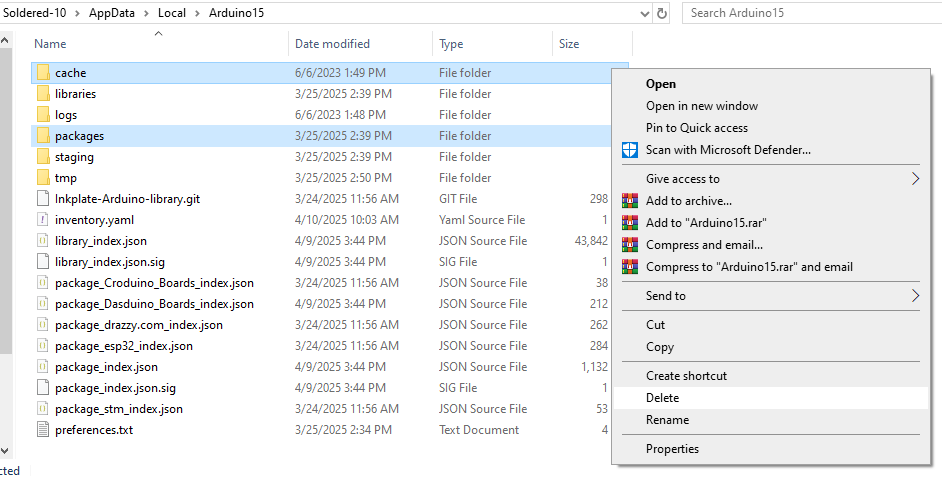
- In this folder, delete the following:
- The packages folder.
- The cache folder. (Right-click each folder and select Delete.)
For macOS Users
Step 1: Open the Library Folder
- Open Finder and click Go in the top menu bar.
- Hold down the Option (⌥) key – you’ll see “Library” appear in the list.
- Click Library.
Step 2: Find and Open the Arduino15 Folder
- In the Library folder, scroll down and open Arduino15.
- Inside, delete:
- The packages folder.
- The cache folder. (Right-click each folder and select Delete.)
Step 3: Optionally Clean Preferences
- Navigate to Documents > Arduino.
- If you see a file named preferences.txt, you can delete it to reset personal settings (not usually necessary).
For Linux Users (Ubuntu, Fedora, etc.)
Step 1: Show Hidden Files
- Open your Home folder.
- Press Ctrl + H to show hidden folders.
- Alternatively, use the menu to select “Show Hidden Files.”
Step 2: Navigate to the Arduino Cache Folder
- Open the hidden folder called .arduino15. (The dot at the beginning means it’s usually invisible.)
- Delete:
- The packages folder.
- The cache folder.
Step 3: Optional Sketchbook Cleanup
- Still in your Home folder, open the Arduino folder.
- If there’s a file called preferences.txt, you can delete it to reset settings.