Inkplate Projects - e Reader
Overview
The Inkplate 6FLICK e Reader transforms your e-paper display into an open source e-reader (e-book reader). By using the provided Python script that converts the EPUB file into an easier-to-manage and usable format on the ESP32, the device allows you to read your e-books on the Inkplate 6FLICK itself.
The code smartly implements dynamic allocation for most of the files being stored on the Micro SD card. The code intends to use as little space as possible, so that there is space for as many books as possible.
Requirements
For this project, you need:
- Inkplate 6FLICK (because the UI is touchscreen-based)
- Micro SD card (ESP32 on its own doesn't have enough memory to store large amounts of data, a single book is several MB at best!)
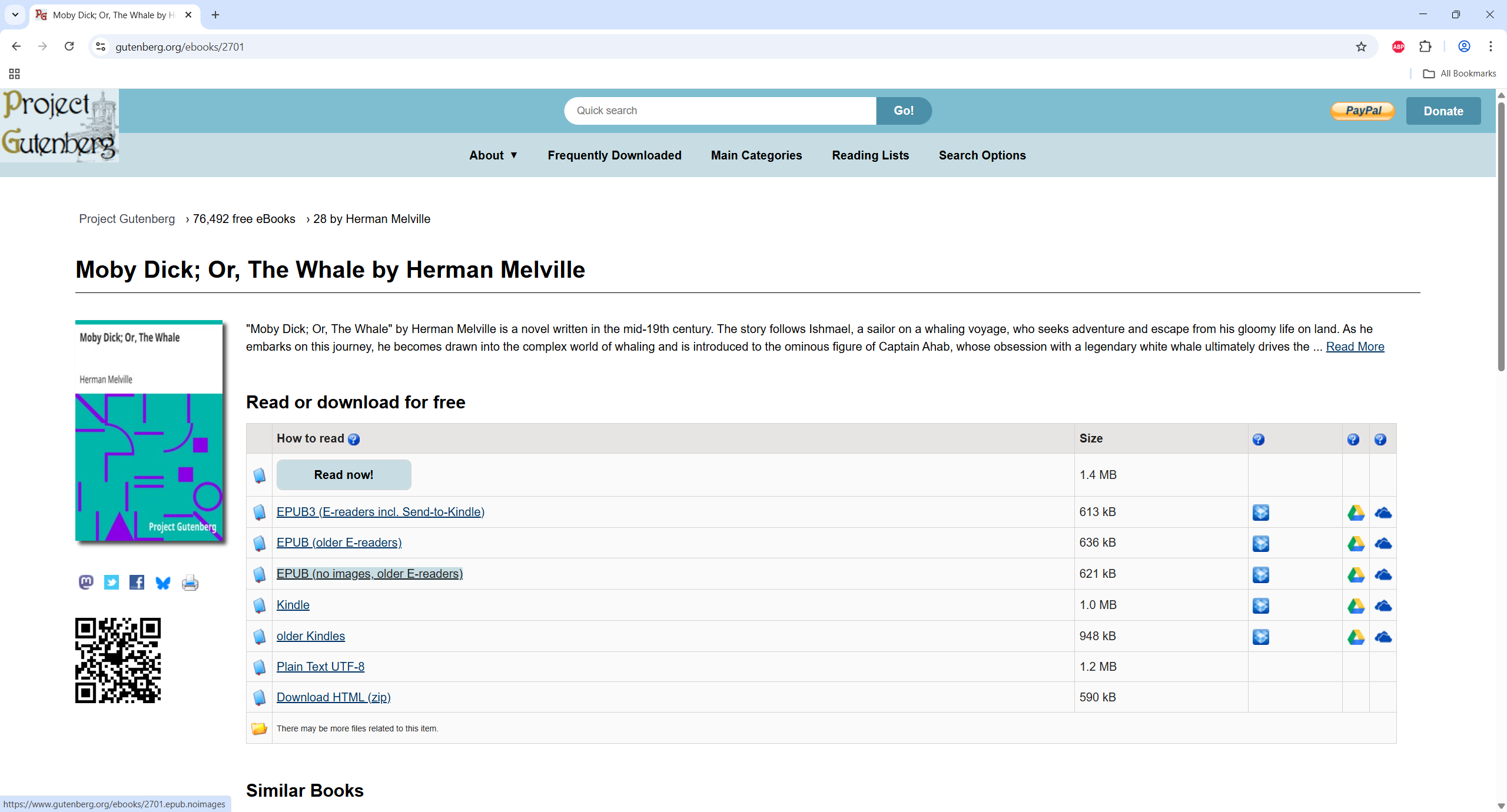
- e-books (We recommend The Gutenberg Project as a legal way to get free e-books)
Setting up
Inkplate 6FLICK E-Reader example
Link to the official github page of the inkplate6FLICK_E_Reader example
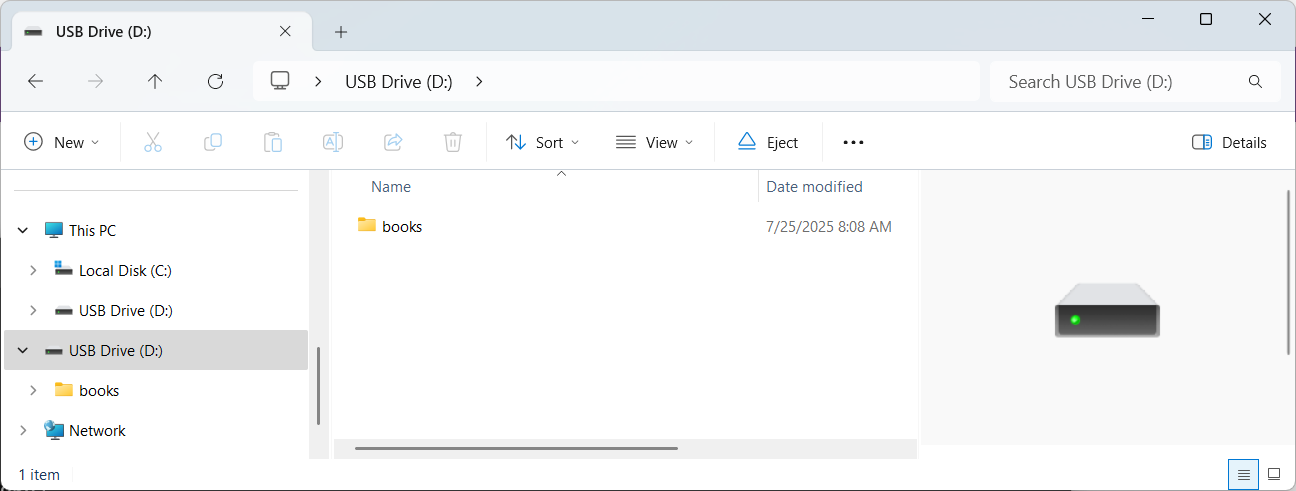
Create a /books folder on your Micro SD card; it will be used to store all of the books that you convert. The Micro SD card structure should look something like this: D:/books.
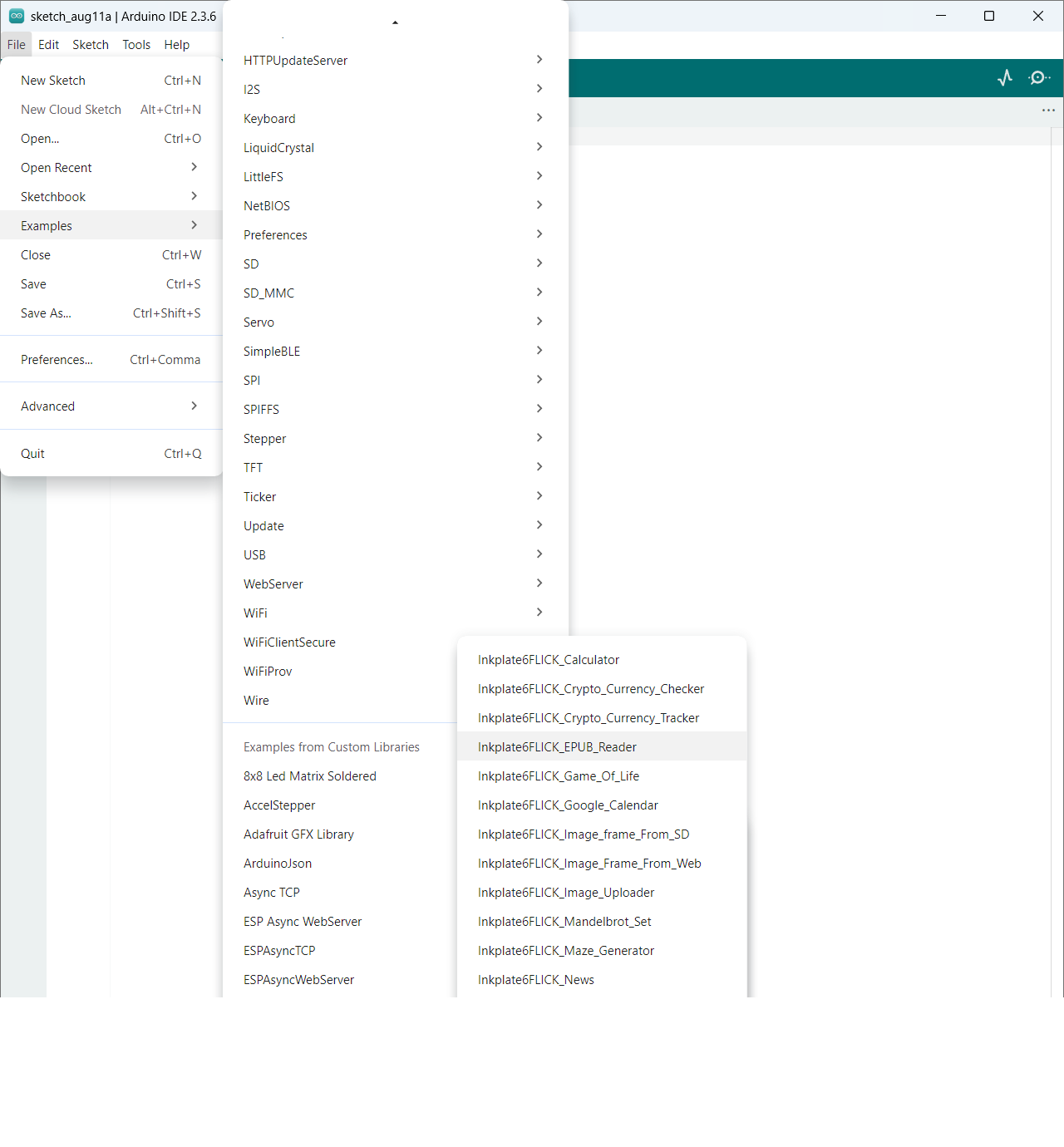
The Arduino sketch doesn't have to be modified in order to work. First, open the Arduino IDE and navigate to
File->Examples->InkplateLibrary->Inkplate6FLICK->Projects->Inkplate_e_Reader:
Uploading the code
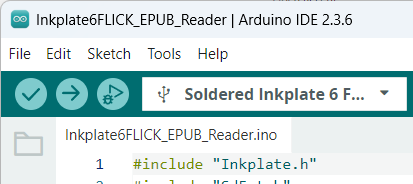
After completing all the previous steps, uploading the project to the Inkplate is as simple as pressing the Upload button in the Arduino IDE:
Converting the .epub file
Download the Python script epubToImg.py that is provided with the project.
After that, download the .epub file and copy its absolute path. (.epubs without pictures are preferred because they will not be displayed).
Script is built on Python 3.13.2
Go inside the script folder and run pip install -r requirements.txt from Terminal/Command Prompt to install all dependencies used by the script. After that, run the script. Command structure looks as follows:
python .\epubToImg.py [book absolute path] [destination path + **BOOK NAME**] --width 758 --height 930 --text-size "[size]"
Here is an example of how the script is called:
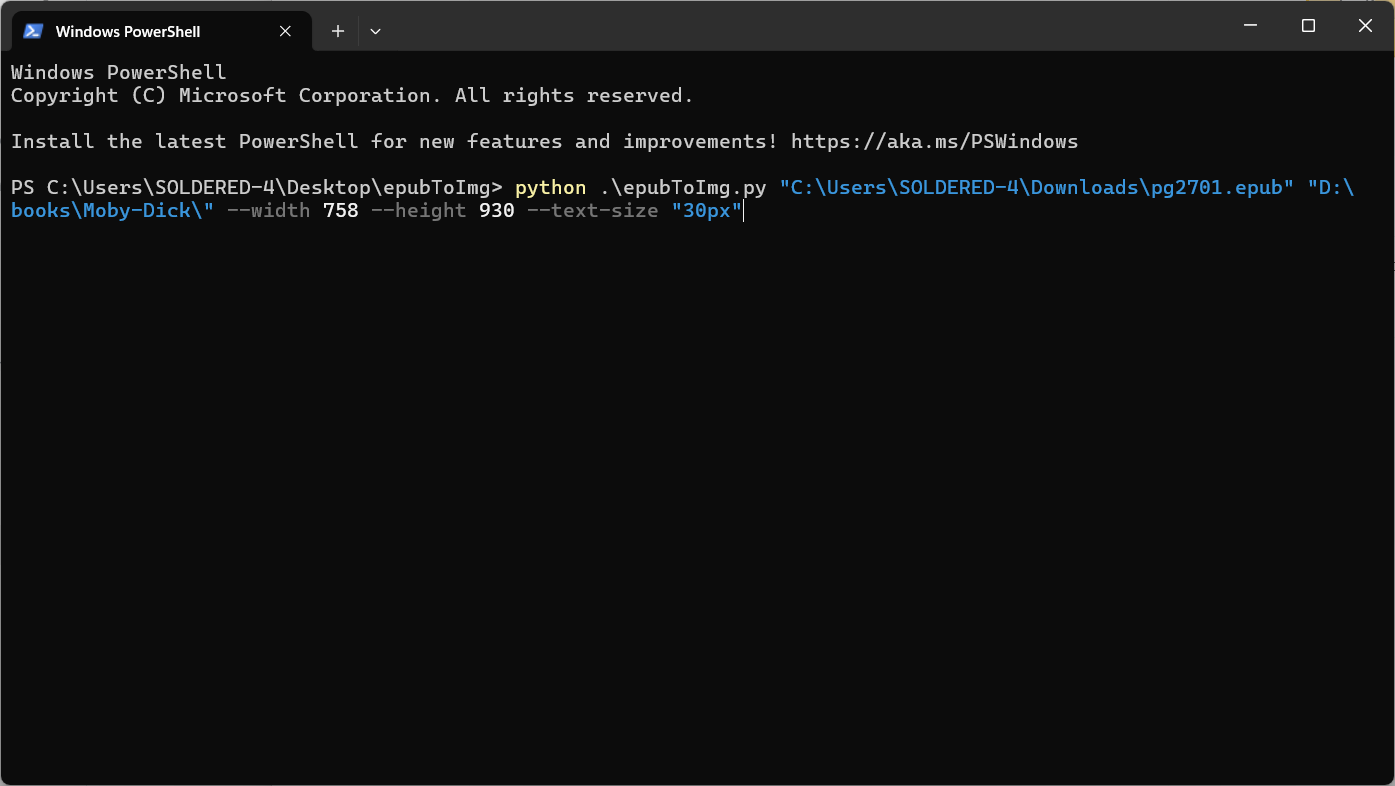
After the conversion is complete, you will get a message in the terminal:
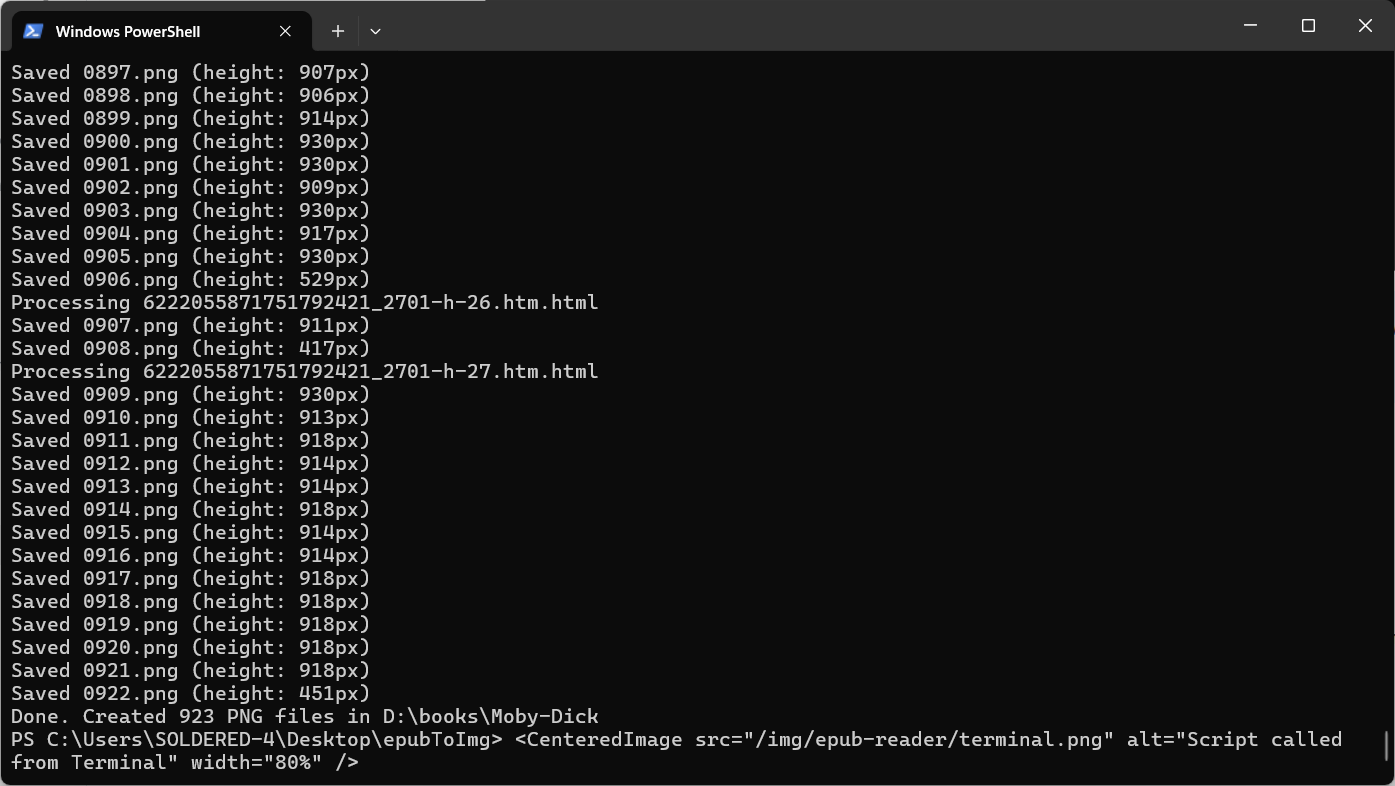
Reading on Inkplate 6FLICK
After completing all the steps from the Setting up part, you can put the Micro SD card in the onboard Micro SD card slot on the device. After inserting the Micro SD card, power on your Inkplate. If all is correct, you should get to the HOME menu for available books (the ones you converted and placed on the Micro SD card):
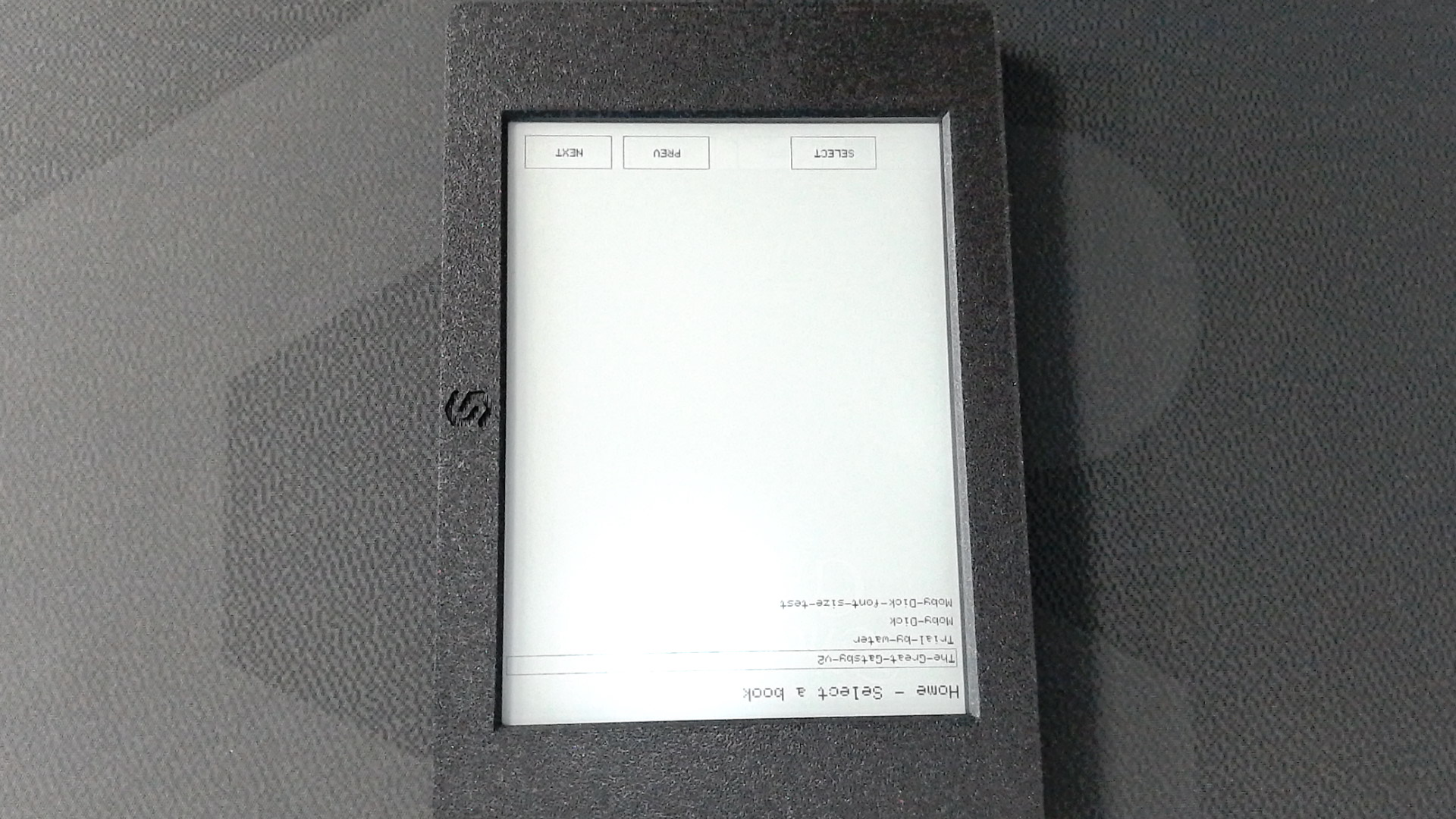
By using the PREV and NEXT buttons, you can traverse the books. When you get to your desired book, press the SELECT button to "open" it.
You can traverse the book page-by-page using the PREV and NEXT buttons, or you can go to a specific page using the GOTO button.
To return to the Home menu, press the HOME button.