Inkplate 10 – Printing Text
Printing text on Inkplate is simple and requires only a few functions. The library also supports custom fonts.
Simple Text Printing
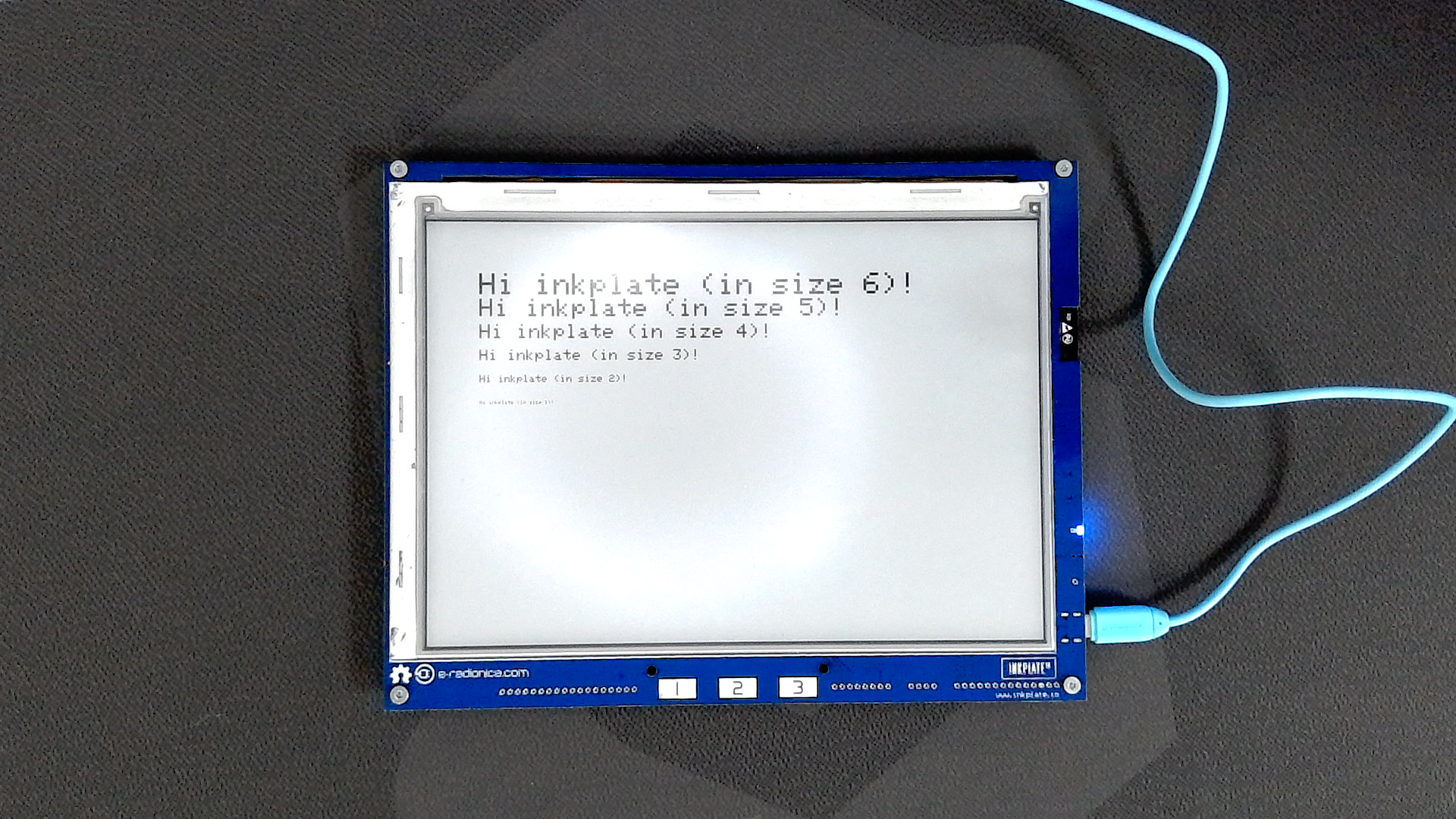
To print text, use setCursor followed by print. If you're using the default font, you may want to use setTextSize to increase the font size:
#include "Inkplate.h"
Inkplate inkplate(INKPLATE_3BIT);
void setup() {
  inkplate.begin();
  inkplate.clearDisplay();
  inkplate.display();
  inkplate.setTextColor(BLACK);
  inkplate.setCursor(100,100);
  inkplate.setTextSize(6);
  inkplate.print("Hi inkplate (in size 6)!");
  inkplate.setCursor(100,150);
  inkplate.setTextSize(5);
  inkplate.print("Hi inkplate (in size 5)!");
  inkplate.setCursor(100,200);
  inkplate.setTextSize(4);
  inkplate.print("Hi inkplate (in size 4)!");
  inkplate.setCursor(100,250);
  inkplate.setTextSize(3);
  inkplate.print("Hi inkplate (in size 3)!");
  inkplate.setCursor(100,300);
  inkplate.setTextSize(2);
  inkplate.print("Hi inkplate (in size 2)!");
  inkplate.setCursor(100,350);
  inkplate.setTextSize(1);
  inkplate.print("Hi inkplate (in size 1)!");
  inkplate.display();
}
void loop() {
}
inkplate.setTextSize()
Increases the text size by a given factor.
Returns value: None
Function parameters:
| Type | Name | Description |
|---|---|---|
uint8_t | s | Size factor. 1 is default size, 2 is twice as large, 3 is three times larger, etc. |
inkplate.print()
Prints text at the previously set cursor position. This is the standard Arduino print function used in many native Arduino objects and libraries.
Returns value: size_t, number of bytes printed.
Function parameters:
| Type | Name | Description |
|---|---|---|
const char * | _c | The C-style string to print on the display. |
Text Background Color
To change the text color, use setTextColor. This function can also optionally set a background color, which prints a rectangle in that color behind the text. This can improve visibility in some cases.
inkplate.setTextColor()
Sets the color of the text. Must be called before printing.
Returns value: None
Function parameters:
| Type | Name | Description |
|---|---|---|
uint16_t | c | Text color. |
uint16_t | bg | Optional background color. Default is transparent. |
Custom Fonts
The default font appears blocky as it is optimized for minimal memory usage. You can use custom fonts by downloading them from the Adafruit GFX official repository. Adafruit provides well-documented examples on using custom fonts here.
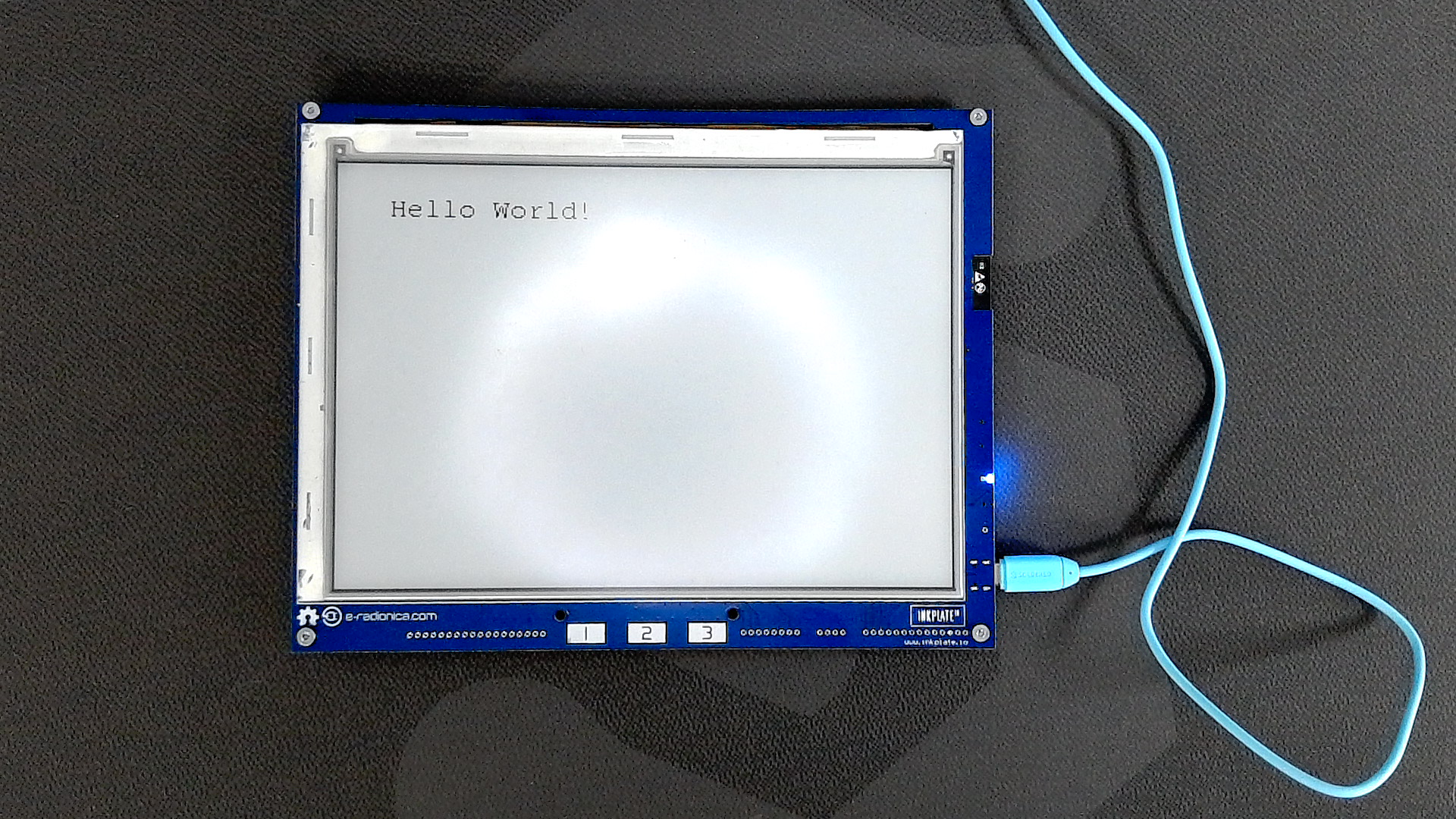
After downloading a font, place it in your sketch folder, include it, and use setFont:
#include "Inkplate.h"
#include "FreeMono9pt7b.h"
Inkplate inkplate(INKPLATE_3BIT);
void setup() {
  inkplate.begin();
  inkplate.clearDisplay();
  inkplate.display();
  inkplate.setFont(&FreeMono9pt7b);
  inkplate.setCursor(100,100);
  inkplate.setTextColor(BLACK);
  inkplate.setTextSize(3);
  inkplate.print("Hello World!");
  inkplate.display();
}
void loop() {
}
inkplate.setFont()
Sets a custom font for text printing. Must be called before printing.
Returns type: None
Function parameters:
| Type | Name | Description |
|---|---|---|
const GFXfont * | f | pointer to the GFXfont structure of the font to be set. |
TextBox
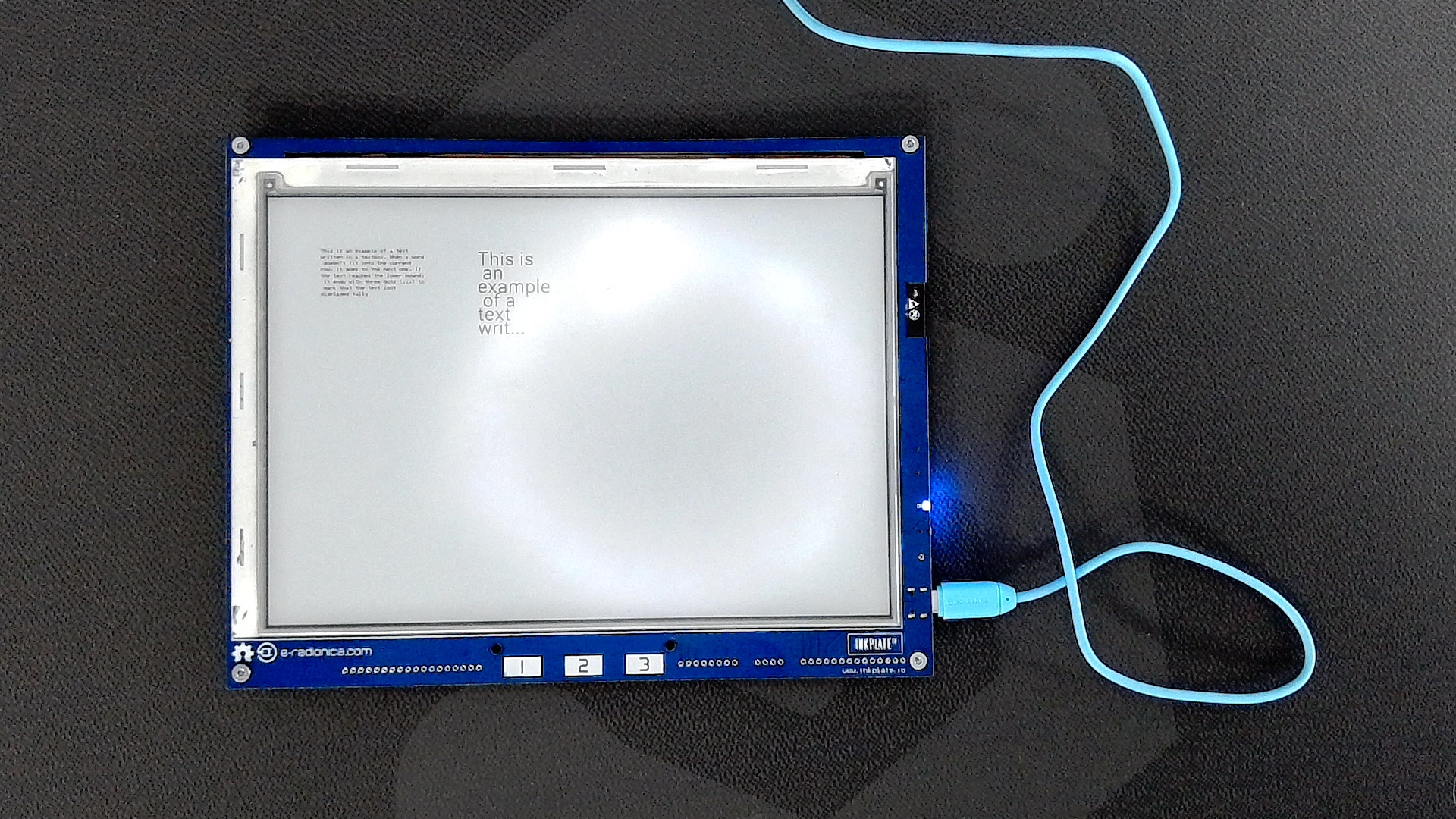
You can manually define the area in which text will appear by using the drawTextBox() function.
#include "Inkplate.h"            //Include Inkplate library to the sketch
#include "Roboto_Light_36.h"
Inkplate inkplate(INKPLATE_1BIT); // Create an object on Inkplate library and also set library into 1 Bit mode (BW)

// Define the text you will show in the text box
const char* text="This is an example of a text written in a textbox. When a word doesn't fit into the current row, it goes to the next one."\
" If the text reaches the lower bound, it ends with three dots (...) to mark that the text isnt displayed fully";

void setup()
{
    inkplate.begin();        // Init Inkplate library (you should call this function ONLY ONCE)
    inkplate.clearDisplay(); // Clear frame buffer of display
    inkplate.display();      // Put clear image on display

    // Create a text box without any optional parameters
    // x0- x coordinate of upper left corner
    // y0- y coordinate of upper left corner
    // x1- x coordinate of bottom right corner
    // y1- y coordinate of bottom right corner
    // text - text we want to display
    inkplate.drawTextBox(100,100,300,300,text);

    // Create a text box with all parameters
    // x0- x coordinate of upper left corner
    // y0- y coordinate of upper left corner
    // x1- x coordinate of bottom right corner
    // y1- y coordinate of bottom right corner
    // text - text we want to display
    // textSizeMultiplier - by what factor we want to enlarge the size of a font
    // font - address of selected custom font
    // verticalSpacing - how many pixels between each row of text
    // showBorder - Create a visible rectangle around the box
    // fontSize - size of the used font in pt
    int offset=32; // Note - some custom fonts are drawn from bottom-to-top which requires an offset, use an offset that best suits the font you use
    inkplate.drawTextBox(400,100+offset,600,300,text,1,&Roboto_Light_36,27,false,36);

    // Display both text boxes
    inkplate.display();
}
void loop()
{
    // Nothing...
}
inkplate.drawTextBox()
This function creates a TextBox.
Returns type: void
Function parameters:
| Type | Name | Description |
|---|---|---|
uint16_t | x0 | X coordinate of upper left corner. |
uint16_t | y0 | Y coordinate of upper left corner. |
uint16_t | x1 | X coordinate of bottom right corner. |
uint16_t | x2 | Y coordinate of bottom right corner. |
const char* | text | Text we want to display. |
uint16_t | textSize | Factor we want to enlarge the size of a font. |
const GFXfont* | font | Address of selected custom font. |
uint16_t | verticalSpacing | How many pixels between each row of text. |
bool | showBorder | Create a visible rectangle around the box. |
uint16_t | fontSize | Size of the used font in pt. |
Full examples
Check out the full examples:
Inkplate10_TextBox.ino
This example will show you how to use the TextBox function with and without special parameters