FAQ and Troubleshooting
Here, we've gathered the most frequently asked questions and answers to help you get the most out of your Inkplate 6Flick. Whether you're new to e-paper development or troubleshooting an issue, this page is here to guide you through common problems and solutions.
If you're having trouble uploading code, try the following steps:
Restart the device
- Disconnect the board and power it off completely.
- Reconnect via USB.
Make sure the device is turned ON
This is a commonly overlooked step. Ensure the ON LED is lit.
Check Arduino IDE version
Inkplate 6Flick requires Arduino IDE 2.0 or newer. Update your IDE if you're using an older version to avoid compatibility issues.
Still having issues?
If none of these steps help, contact our support team here and include details of your setup and what you've tried so far.
If the e-paper display is not updating correctly:
1. Verify successful upload
Enable verbose output in Arduino (File → Preferences) and check the terminal for:
Leaving...
Hard resetting via RTS pin...
2. Test with official examples
Try uploading unmodified Inkplate 6Flick examples to verify that the hardware is working:
Inkplate6FLICK_Black_And_White.ino
Example using black-and-white display mode.
3. Check power supply
- Some USB ports (especially on laptops) may not provide enough power.
- Try a different USB port, cable, or use a powered USB hub.
4. Inspect the display connection
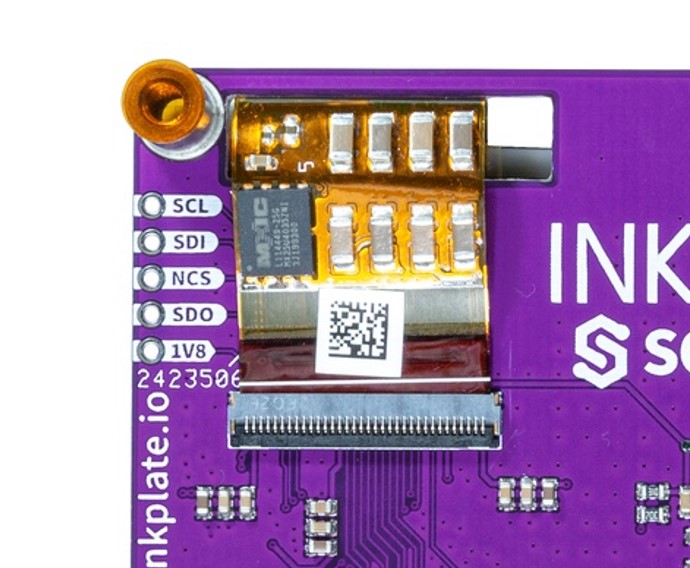
- Check the flat cable connection between the e-paper panel and the board.
- Gently re-seat the cable if needed.
5. Still not working?
Contact Soldered support for further assistance.
If you see streaks, ghosting, or leftover pixels:
1. Run a cleaning cycle
Perform multiple full refreshes to reset the screen and clear artifacts.
2. Check the flat cable
Artifacts may indicate a loose or damaged display cable. Carefully check and re-seat it if necessary.
3. Environmental factors
Cold environments can slow down refresh rates and cause image persistence. Let the device warm up if needed.
Still having issues? Contact support for help.
If you're having trouble with touch input:
1. Make sure you're using your finger
The Inkplate 6Flick uses a capacitive touchscreen, which works best with bare fingers or compatible styluses. Gloves and fingernails won't register properly.
2. Ensure the screen isn't refreshing
Touch input is disabled during screen updates. Wait until the display finishes refreshing before polling for touch.
3. Try a known working example
Test using the official example below to rule out code issues:
Inkplate6FLICK_Touch_In_Area.ino
Example detecting touches in a defined screen area.
4. Check for damage
Inspect the front surface of the screen for cracks or pressure damage. If the issue persists, reach out to support.
The frontlight improves visibility in low-light settings. If it's not working:
1. Verify brightness settings
Make sure your sketch is actually enabling the frontlight and setting the brightness level above 0.
2. Power considerations
The frontlight draws additional current. Ensure you're using a stable power source (USB 5V or battery).
3. Try the example
Use the official brightness control example to confirm hardware functionality:
Inkplate6FLICK_Frontlight.ino
Adjust frontlight brightness in real time.
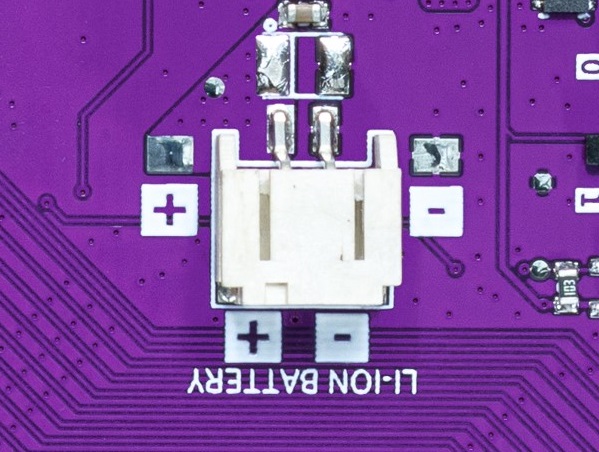
Inkplate 6Flick has a 2-pin 2.0mm JST connector for a 3.7V Li-ion battery. It includes an onboard charger (MCP73831) that charges the battery when USB is connected.
All hardware design files—including schematics, KiCad files, and gerbers—are available in the Inkplate 6Flick hardware GitHub repo.
You can also find documentation on the hardware design page.
We're working on providing 3D printable enclosure models. Once ready, they’ll be available in the Inkplate 6Flick hardware repo. Stay tuned!
Short answer: No.
Inkplate is a microcontroller-based platform designed to run Arduino sketches. It does not function as a traditional monitor or plug-and-play e-reader. However, you can write a sketch that displays data sent over USB or Wi-Fi.
If you’re looking for a real-time e-ink monitor, Inkplate 6Flick is not the right fit.
Currently, Inkplate 6Flick is not officially supported by ESPHome.
We're working on extending support across all Inkplate models, and future firmware or component updates may enable this. Stay tuned for developments on this front!