Inkplate LVGL Library
Light and Versatile Graphics Library (LVGL) is a free and open-source embedded graphics library used to create awesome looking graphical user interfaces (GUIs) for embedded systems that use microcontrollers and microprocessors. It provides a wide range of built-in widgets, animations, and styling options for many different kinds of displays, all designed to be lightweight and efficient since it's targeted for resource-constrained devices. Inkplate LVGL Library brings full LVGL support to the Soldered Inkplate family of e-paper displays.
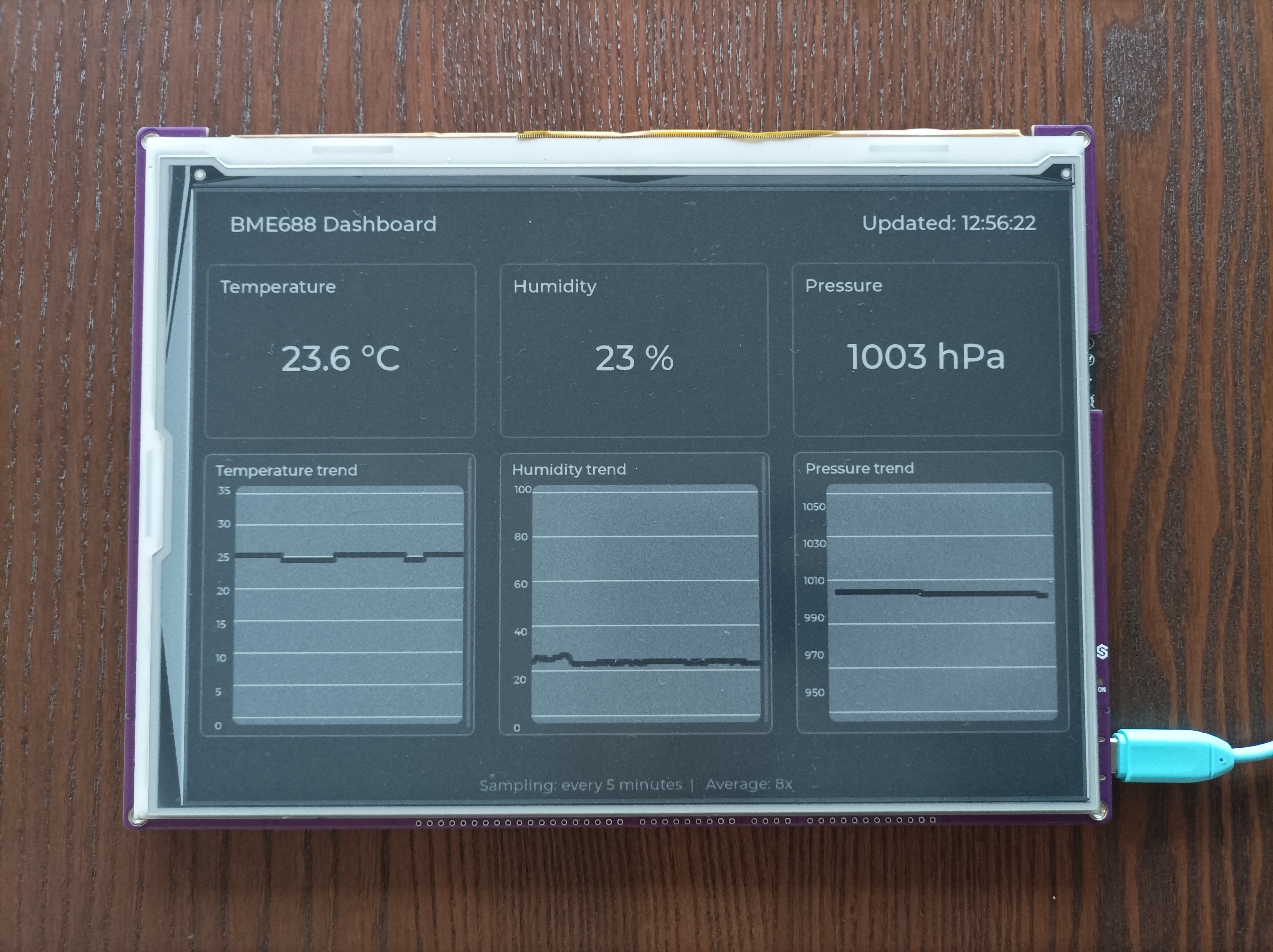
Inkplate BME688 LVGL Dashboard Project
A project utilizing the new Inkplate LVGL library to show data gathered from BME688 sensor.
Getting started
1. Installing Inkplate board definition
Add this URL:
https://github.com/SolderedElectronics/Inkplate-Board-Definitions-for-Arduino-IDE/raw/refs/heads/main/package_Inkplate_Boards_index.json
to File -> Preferences -> Additional Boards Manager URLs in your Arduino IDE Preferences.
2. Install Inkplate LVGL Library
To install the library manually, download the repository contents as .zip file from the GitHub link. After downloading navigate to your Arduino -> Libraries folder and place the zip file contents there.
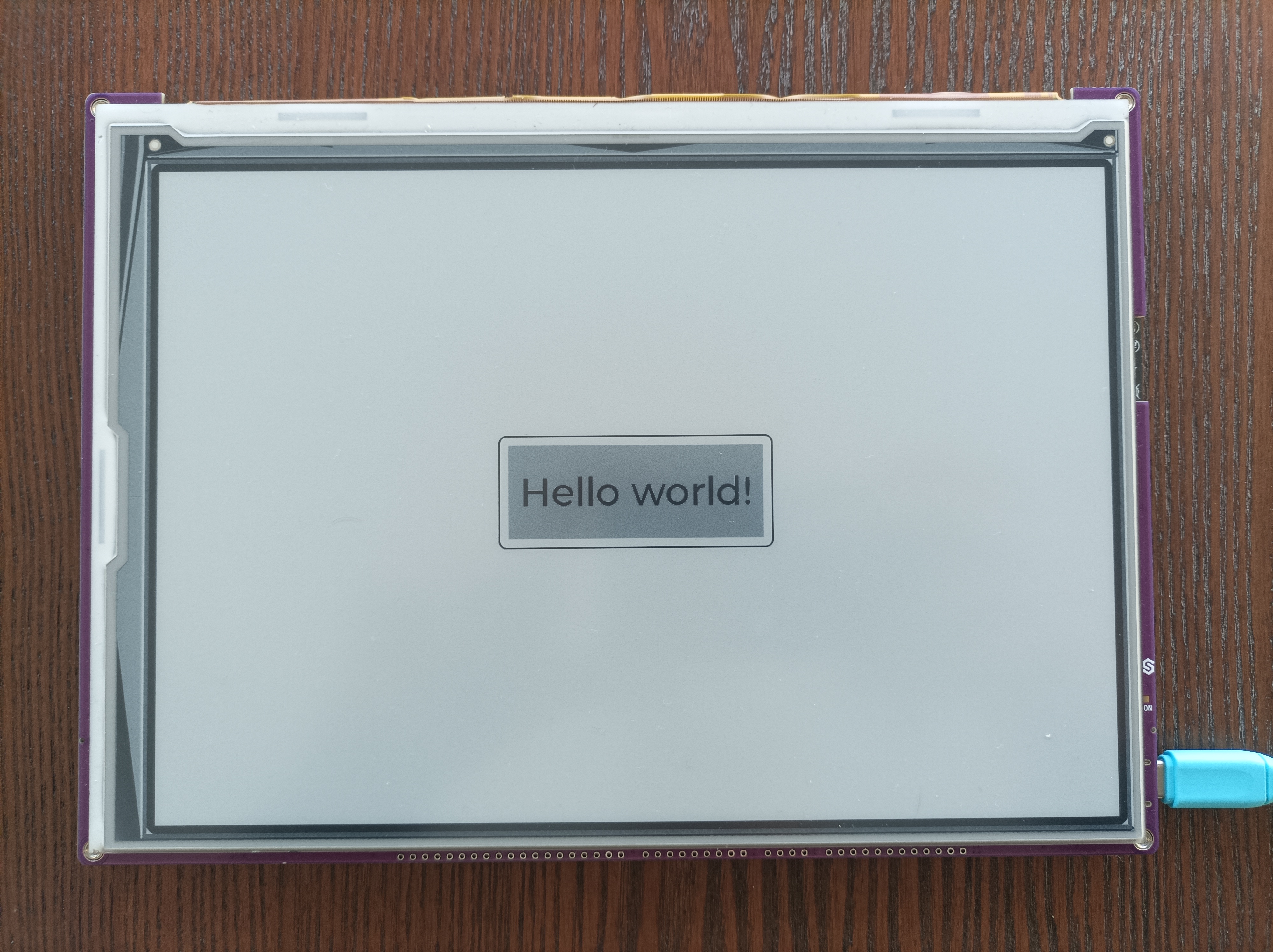
Simple drawing example
// Include the Inkplate LVGL Library
#include <Inkplate-LVGL.h>

// Create an instance of Inkplate display in 3-bit mode
Inkplate inkplate(INKPLATE_3BIT);

void setup()
{
    /*
      Initialize the display as well as LVGL itself in FULL render mode,
      other possibilities are PARTIAL (fastest) and DIRECT (not currently supported)
      NOTE: Dithering is only supported in FULL render mode
    */
    inkplate.begin(LV_DISP_RENDER_MODE_FULL);
    // Clear the screen before drawing
    inkplate.clearDisplay();

    // Pointer to the currently active LVGL screen
    lv_obj_t *scr = lv_scr_act();

    // Change the active screen's background color to white
    lv_obj_set_style_bg_color(scr, lv_color_hex(0xFFFFFF), LV_PART_MAIN);

    /* Create a black label object, set its text and font and align it to the center */
    lv_obj_t * label = lv_label_create(scr);
    lv_label_set_text(label, "Hello world!");
    lv_obj_set_style_text_color(label, lv_color_hex(0x000000), LV_PART_MAIN);
    lv_obj_set_style_text_font(label,  &lv_font_montserrat_48, 0);
    lv_obj_align(label, LV_ALIGN_CENTER, 0, 0);

    /* Draw a semi-transparent rectangle with an outline */
    static lv_style_t style;
    lv_style_init(&style);
    lv_obj_t *rect = lv_obj_create(scr);
    // Styling parameters
    lv_obj_set_size(rect, 320, 120);
    lv_obj_set_style_radius(rect, 0, 0);
    lv_obj_set_style_bg_color(rect, lv_color_black(), 0);
    lv_obj_set_style_bg_opa(rect, LV_OPA_20, 0);
    lv_style_set_outline_width(&style, 2);
    lv_style_set_outline_pad(&style, 8);
    lv_obj_add_style(rect, &style, 0);
    lv_obj_align(rect, LV_ALIGN_CENTER, 0, 0);

    /* Draw a frame on the outer edges of the display */
    lv_obj_t *frame = lv_obj_create(scr);
    lv_obj_set_size(frame, LV_HOR_RES, LV_VER_RES);
    lv_obj_set_style_bg_opa(frame, LV_OPA_TRANSP, 0);
    lv_obj_set_style_border_width(frame, 10, 0);
    lv_obj_set_style_border_color(frame, lv_color_black(), 0);

    // Tick the LVGL timer by 50
    lv_tick_inc(50);

    // Handle the new label and write it into the framebuffer
    lv_timer_handler();

    // Display the content from the framebuffer
    inkplate.display();
}

void loop()
{
  // Stays empty, we only draw once on the screen
}
Check out Inkplate LVGL Library
Inkplate-LVGL-Library
Full examples using LVGL library for all Inkplate models.