Inkplate Projects - OpenAI text prompt
Overview
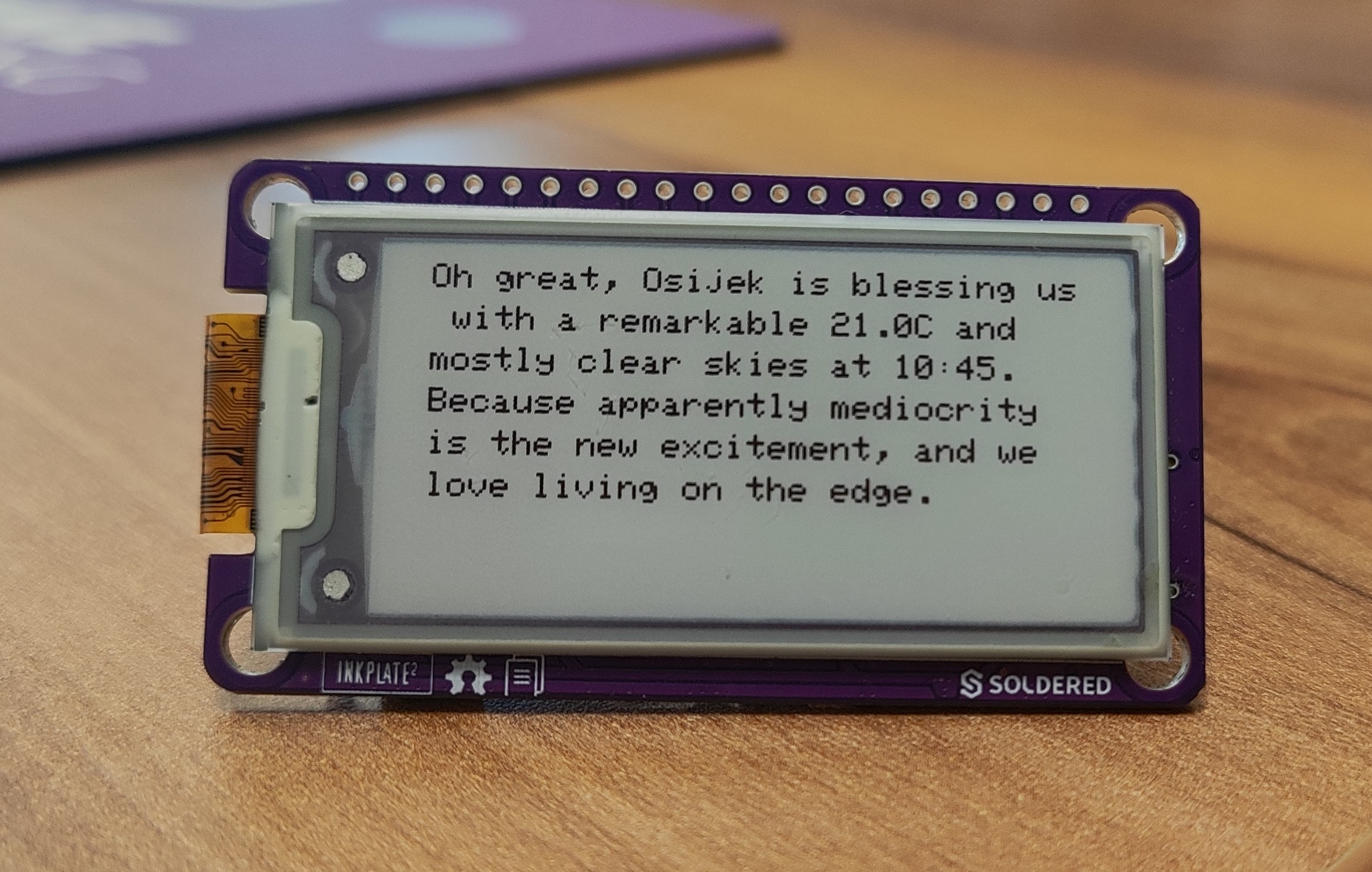
The OpenAI Text Prompt Generator project is a playful and intelligent weather display that combines live data from the Open-Meteo API with witty text generated by OpenAI. Designed to run entirely on the Inkplate's low-power e-paper hardware, this sketch fetches current weather conditions for your chosen location and then uses that information to craft a sarcastic, snarky one-liner summary—perfect for adding personality to your desk or wall display.
Once connected to Wi-Fi, the device queries the temperature, sky condition, and local time, then sends a cleverly composed prompt to OpenAI’s chat API. The resulting humorous weather quip is rendered on the Inkplate screen using a bold, legible font. Thanks to the energy-efficient design and e-paper technology, the display remains readable without constant power, and the device enters deep sleep between updates to conserve battery life.
This project demonstrates Inkplate's secure networking capabilities, integration with real-time APIs, and creative use of AI-generated content—turning a simple weather update into a source of daily amusement. It's ideal for those who want a smart display with a sense of humor, all powered by a single USB cable or battery and a few lines of code.
This project is possible because of the Open-Meteo API, which is free and doesn't require an API key. Check it out here
Requirements
For this project, you have to:
- Have a stable Wi-Fi connection
- Have an OpenAI API key
Every Inkplate device can run the OpenAI Text Prompt project. For this example, we will use the Inkplate 2.
Setting up
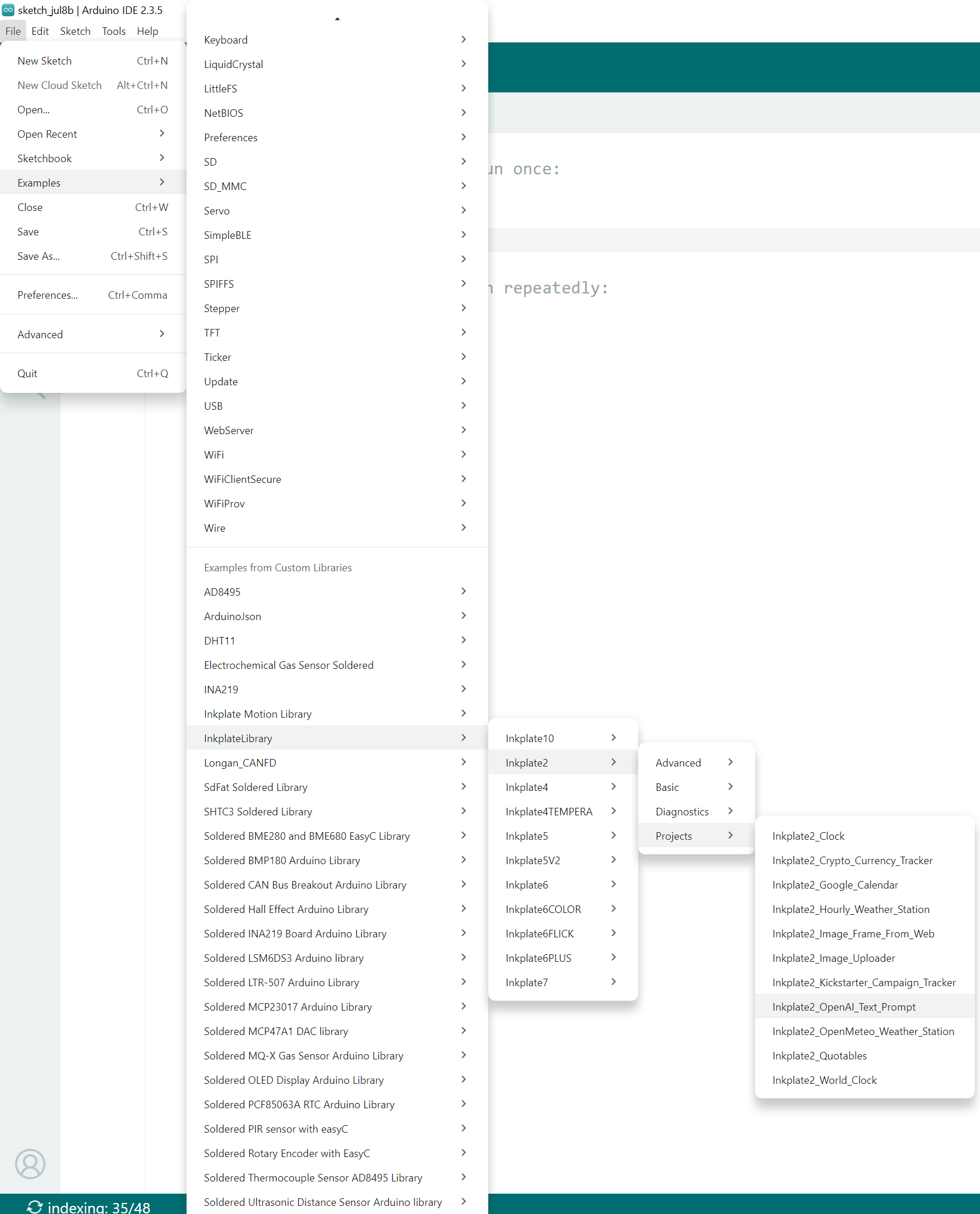
The Arduino sketch must be modified for this project to run. First, open the Arduino IDE and navigate to
File->Examples->InkplateLibrary->Your Inkplate Device->Projects->Inkplate_OpenAI_Text_Prompt:
Wi-Fi
Next, in the main .ino file of the project, enter the SSID and password for your Wi-Fi connection. This can be done in the following two lines:
const char *ssid = "YOUR_SSID";
const char *password = "YOUR_PASSWORD";
OpenAI API key
After obtaining an OpenAI API key at platform.openai.com/api-keys, insert it into the main .ino sketch of the project:
// OpenAI API key
const char* openai_key = "sk-proj-YourAPIkey";
Weather location
To get weather data for your specific location, you must enter your city as well as its coordinates in the main .ino sketch file of the project:
// Location and coordinates for weather query
String location = "Osijek";
const float latitude = 45.5600;
const float longitude = 18.6750;
Uploading the code
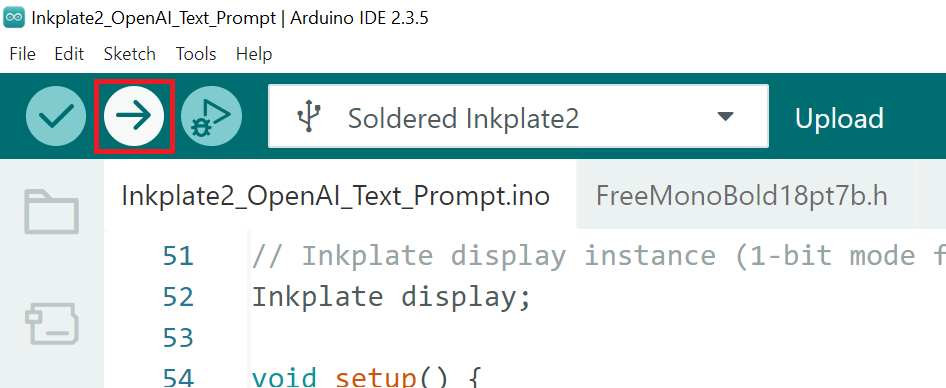
After completing all the previous steps, uploading the project to the Inkplate is as simple as pressing the upload button in the Arduino IDE:
If you are having trouble uploading the code, check out our in-depth upload tutorial:
Quick start guide
A full, comprehensive tutorial on how to fully set up and upload code to the Inkplate for the first time