MicroSD basics
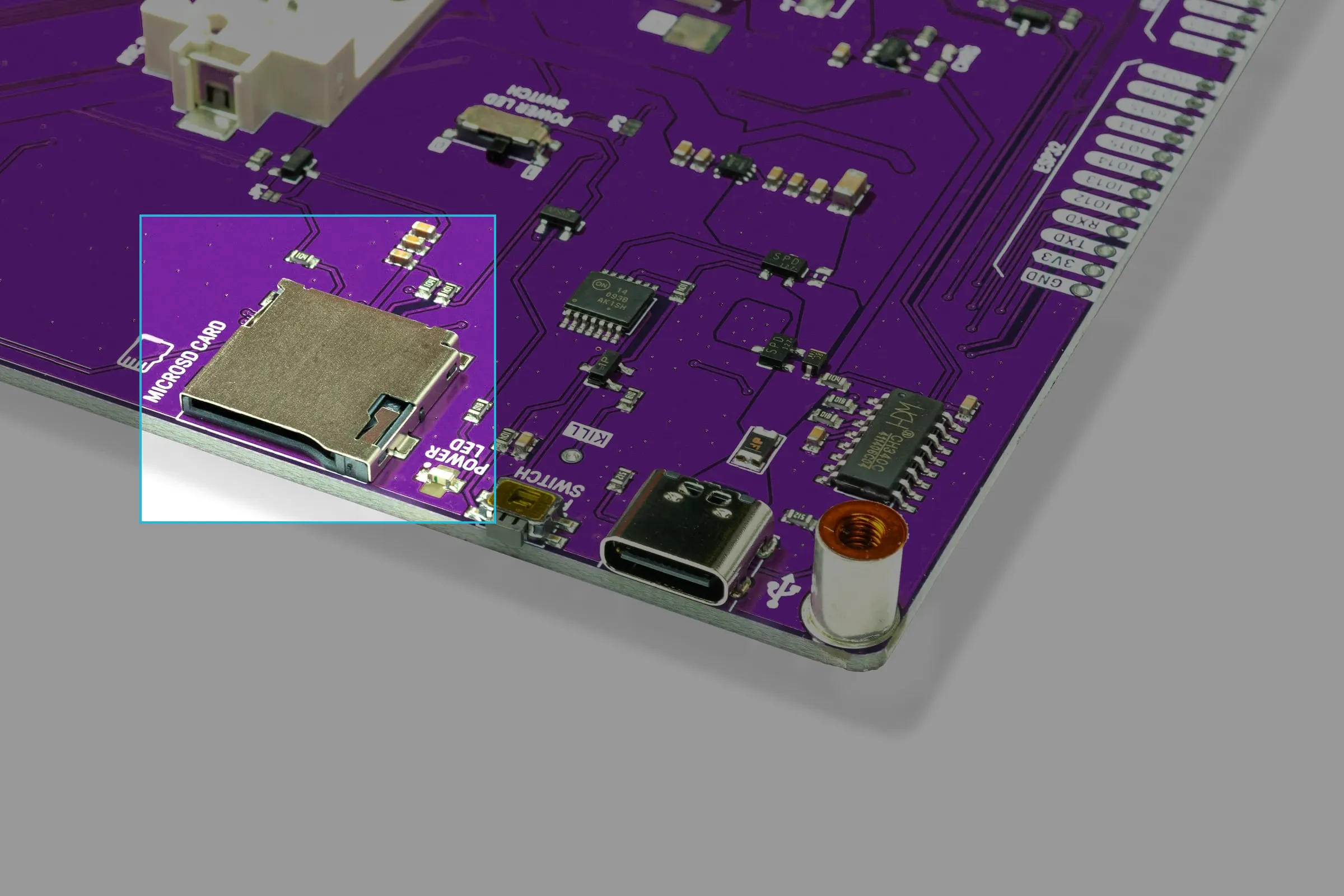
The built-in microSD card slot on Inkplate 5V2 can be extremely useful for your project. It can store a large number of high-quality image files for display and also allows reading and writing data between deep sleep cycles. This page contains basic examples to help you quickly get started with using the built-in microSD card slot.
Preparing the microSD card before usage
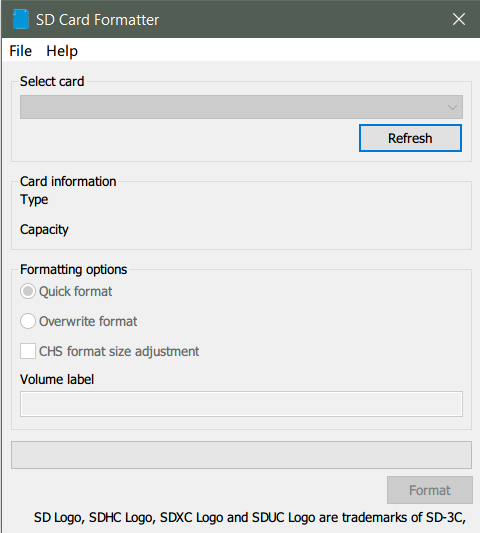
For best results, use the official SD card formatter to format the card to FAT32 before use.
Initializing
Before the microSD card can be used in code, it must first be initialized. This process powers on the microSD card circuitry and performs all the necessary memory allocations. In this code snippet, the microSD card is initialized and the result of the initialization is checked:
#include "Inkplate.h"            // Include Inkplate library in the sketch
Inkplate inkplate(INKPLATE_1BIT); // Create an Inkplate object and set the library to 1 Bit mode (BW)
SdFile file;                     // Create an SdFile object used for accessing files on the SD card

void setup()
{
    inkplate.begin();        // Initialize the Inkplate library (you should call this function ONLY ONCE)
    inkplate.clearDisplay(); // Clear the display's frame buffer
    inkplate.display();      // Display the cleared image on the screen
    inkplate.setTextSize(5);

    // Initialize SD card. Display whether the SD card was initialized properly or not.
    if (inkplate.sdCardInit())
    {
        inkplate.println("SD Card ok! Reading data...");
        inkplate.partialUpdate();
    }
    else
    { // If card initialization was not successful, display an error on screen, put the SD card in sleep mode, and stop the program (using an infinite loop)
        inkplate.println("SD Card error!");
        inkplate.partialUpdate();
        inkplate.sdCardSleep();
        while (true)
            ;
    }
}
void loop()
{
    // Nothing...
}
Initializes SD card through SPI.
Returns value: Returns true if the initialization was successful, otherwise returns false.
Reading and writing
Place a sample text.txt file on the microSD card with some content. This code snippet will read it and print it to the e-Paper display:
#include "Inkplate.h"            // Include Inkplate library in the sketch
Inkplate display(INKPLATE_1BIT); // Create an Inkplate object and set the library to 1 Bit mode (BW)
SdFile file;                     // Create an SdFile object used for accessing files on the SD card

void setup()
{
    display.begin();        // Initialize the Inkplate library (you should call this function ONLY ONCE)
    display.clearDisplay(); // Clear the display's frame buffer
    display.display();      // Display the cleared image on the screen
    display.setTextSize(5);

    // Initialize SD card. Display whether the SD card was initialized properly or not.
    if (display.sdCardInit())
    {
        display.println("SD Card ok! Reading data...");
        display.partialUpdate();

        // Try to load text with a maximum length of 200 characters.
        if (!file.open("/text.txt", O_RDONLY))
        { // If it fails to open, display an error message; otherwise, read the file.
            display.println("File open error");
            display.display();
            display.sdCardSleep();
        }
        else
        {
            display.clearDisplay();    // Clear everything stored in the e-Paper's frame buffer
            display.setCursor(0, 0);   // Set the print position at the beginning of the screen
            char text[201];            // Array where data from the SD card is stored (max 200 chars here)
            int len = file.fileSize(); // Get the size of the file being opened
            if (len > 200)
                len = 200;         // If it's more than 200 bytes (200 chars), limit to 200 bytes
            file.read(text, len);  // Read data from the file and store it in the text array
            text[len] = 0;         // Add a null-terminating character at the end of the data
            display.print(text);   // Print the text data
            display.display();     // Perform a full refresh of the display
            display.sdCardSleep(); // Put the SD card in sleep mode
        }
    }
    else
    { // If card initialization was not successful, display an error on screen, put the SD card in sleep mode, and stop the program (using an infinite loop)
        display.println("SD Card error!");
        display.partialUpdate();
        display.sdCardSleep();
        while (true)
            ;
    }
}

void loop()
{
    // Nothing...
}
file.open()
Opens a file in the current working directory.
Returns value: Returns true if the file was opened successfully; otherwise, returns false.
Function parameters:
| Type | Name | Description |
|---|---|---|
const char * | path | The path to the file to be opened. If it's in the root folder, just write the filename. |
oflag_t | oflag | The settings for opening the file. The different flags have to be OR'd, e.g., O_CREAT | O_RDWR. Below is a table of these flags and what they mean. |
| Flag | Hex Value | Description |
|---|---|---|
| O_RDONLY | 0x00 | Open for reading only. |
| O_WRONLY | 0x01 | Open for writing only. |
| O_RDWR | 0x02 | Open for reading and writing. |
| O_AT_END | 0x04 | Open at the end-of-file (EOF). |
| O_APPEND | 0x08 | Set append mode (writes are added to EOF). |
| O_CREAT | 0x10 | Create the file if it does not exist. |
| O_TRUNC | 0x20 | Truncate the file to zero length. |
| O_EXCL | 0x40 | Fail if the file already exists. |
| O_SYNC | 0x80 | Synchronized write I/O operations. |
file.fileSize()
Returns the total number of bytes in a file.
Returns type: uint32_t
file.read()
Reads data from the file into the provided buffer. The function attempts to read up to a specified number of bytes starting from the current file pointer.
Returns value: Returns the number of bytes read, or -1 if an error occurs.
Function parameters:
| Type | Name | Description |
|---|---|---|
void * | buf | A pointer to the buffer where the read file data will be stored. |
size_t | count | The maximum number of bytes to read from the file. |
file.print() will continue from where you left off.Inkplate5V2_SD_TXT_Read.ino
This example shows you how to open .txt files and display their content on the Inkplate e-Paper display.
Inkplate5V2_SD_TXT_Write.ino
This example shows you how to write to a .txt file.