Display Mode
Inkplate 2 uses a 2.13″ three-color e-paper display, which is capable of showing black, white, and red content. Unlike other Inkplate models with multiple display modes (e.g., 1-bit black/white or 3-bit grayscale), Inkplate 2 operates in a single native color mode designed specifically for tri-color rendering. This page explains how to use the display's three-color capabilities in your code.
ℹ️
Colors are defined using constants:
INKPLATE2_BLACK, INKPLATE2_WHITE, and INKPLATE2_RED. You can use these in standard drawing functions inherited from Adafruit GFX.Drawing in three colors
You can draw using fillRect(), drawLine(), drawRect(), and other GFX-compatible functions. Each accepts a color value from the Inkplate 2 color set:
#include "Inkplate.h"
Inkplate inkplate;

void setup() {
  inkplate.begin();
  inkplate.clearDisplay();
  inkplate.display();

  // Draw a black square
  inkplate.fillRect(50, 50, 10, 10, INKPLATE2_BLACK);

  // Draw a red square
  inkplate.fillRect(100, 50, 10, 10, INKPLATE2_RED);

  // Draw a white square (this clears the area)
  inkplate.fillRect(150, 50, 10, 10, INKPLATE2_WHITE);

  inkplate.display();
}

void loop() {}
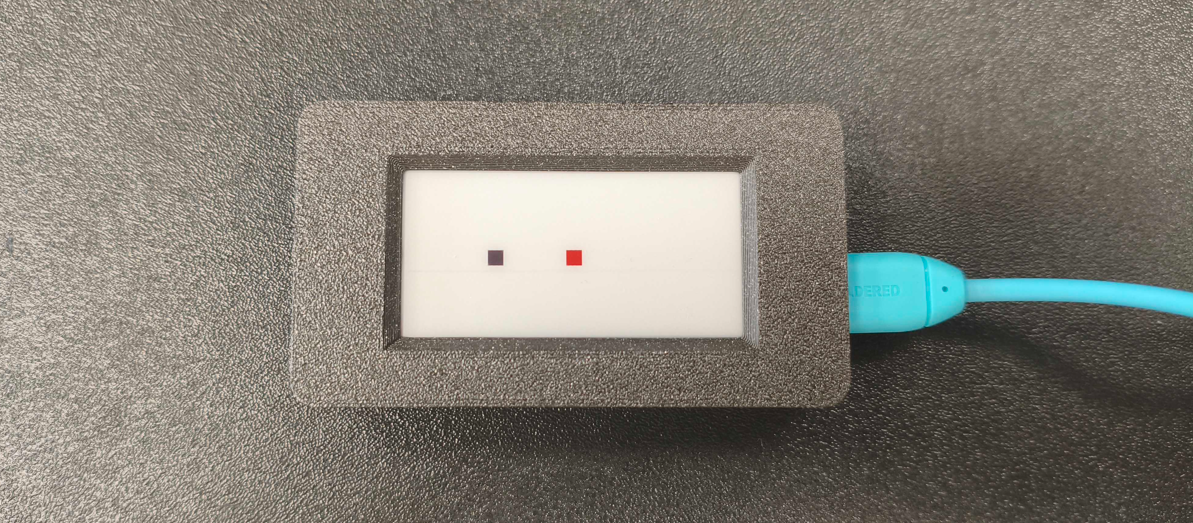
Expected output on the Inkplate display.
ℹ️
The display only consumes power when content changes.
inkplate.display() is required to push frame buffer changes to the screen.Rendering notes
- Red pixels take the longest to refresh, and updates to red elements may slow down the display slightly compared to pure black/white rendering.
- INKPLATE2_WHITE is the background color; drawing with this color will effectively "erase" content.
- Inkplate 2 has no grayscale support. Colors are strictly black, white, or red.
Example
Inkplate2_Black_White_Red.ino
Full example demonstrating how to draw in all three colors on Inkplate 2.
ℹ️
For additional examples and more advanced usage, visit the Inkplate 2 examples directory.