Inkplate 6COLOR – GET & POST requests
Now that Inkplate is connected to the internet, you will likely want to send and receive data from sensors, messages, or your custom APIs, etc. This page contains examples of how to send and receive data on Inkplate via the internet:
GET request
Using http.GET() enables you to easily download and handle data on Inkplate however you want. Here is an example of how to GET an .html file and print it on Inkplate:
#include "Inkplate.h"   // Include the Inkplate library in the sketch
#include <HTTPClient.h> // Include the HTTP library in this sketch
#include <WiFi.h>       // Include the ESP32 WiFi library in our sketch

#define ssid "" // Name of the WiFi network (SSID) that you want to connect Inkplate to
#define pass "" // Password of that WiFi network

Inkplate display; // Create an object from the Inkplate library and set the library into 1 Bit mode (BW)

void setup()
{
    Serial.begin(115200);                            // Begin Serial for debugging
    display.begin();                                 // Initialize Inkplate library (you should call this function ONLY ONCE)
    display.clearDisplay();                          // Clear frame buffer of display
    display.display();                               // Put clear image on display
    display.setTextSize(2);                          // Set text scaling to two (text will be two times bigger)
    display.setCursor(0, 0);                         // Set print position
    display.setTextColor(INKPLATE_BLACK);            // Set text color to black and background color to white
    Serial.println("Scanning for WiFi networks..."); // Write text

    int n =
        WiFi.scanNetworks(); // Start searching for WiFi networks and store the number of found networks in variable n
    if (n == 0)
    { // If no networks are found, show the message and stop the program.
        Serial.print("No WiFi networks found!");
        while (true)
            ;
    }
    else
    {
        if (n > 10)
            n = 10; // If networks are found, print the name (SSID), encryption, and signal strength of the first 10 networks
        for (int i = 0; i < n; i++)
        {
            display.print(WiFi.SSID(i));
            display.print((WiFi.encryptionType(i) == WIFI_AUTH_OPEN) ? 'O' : '*');
            display.print('\n');
            display.print(WiFi.RSSI(i), DEC);
        }
        display.display();
    }

    display.clearDisplay();         // Clear everything in the frame buffer
    display.setCursor(0, 0);        // Set print cursor to a new position
    Serial.print("Connecting to "); // Print the name of the WiFi network
    Serial.print(ssid);
    WiFi.begin(ssid, pass); // Try to connect to the WiFi network
    while (WiFi.status() != WL_CONNECTED)
    {
        delay(1000); // While connecting to the network, display a dot every second, just to know that Inkplate is alive.
        Serial.print('.');
    }
    Serial.print("connected"); // If it's connected, notify the user

    HTTPClient http;
    if (http.begin("http://example.com/index.html"))
    { // Now try to connect to some web page (in this example, www.example.com. And yes, this is a valid web page :))
        if (http.GET() > 0)
        { // If the connection was successful, try to read the content of the web page and display it on the screen
            String htmlText;
            htmlText = http.getString();
            display.setTextSize(1); // Set a smaller text size, so everything can fit on the screen
            display.clearDisplay();
            display.setCursor(0, 0);
            display.print(htmlText);
            display.display();
        }
    }
}

void loop()
{
    // Nothing
}
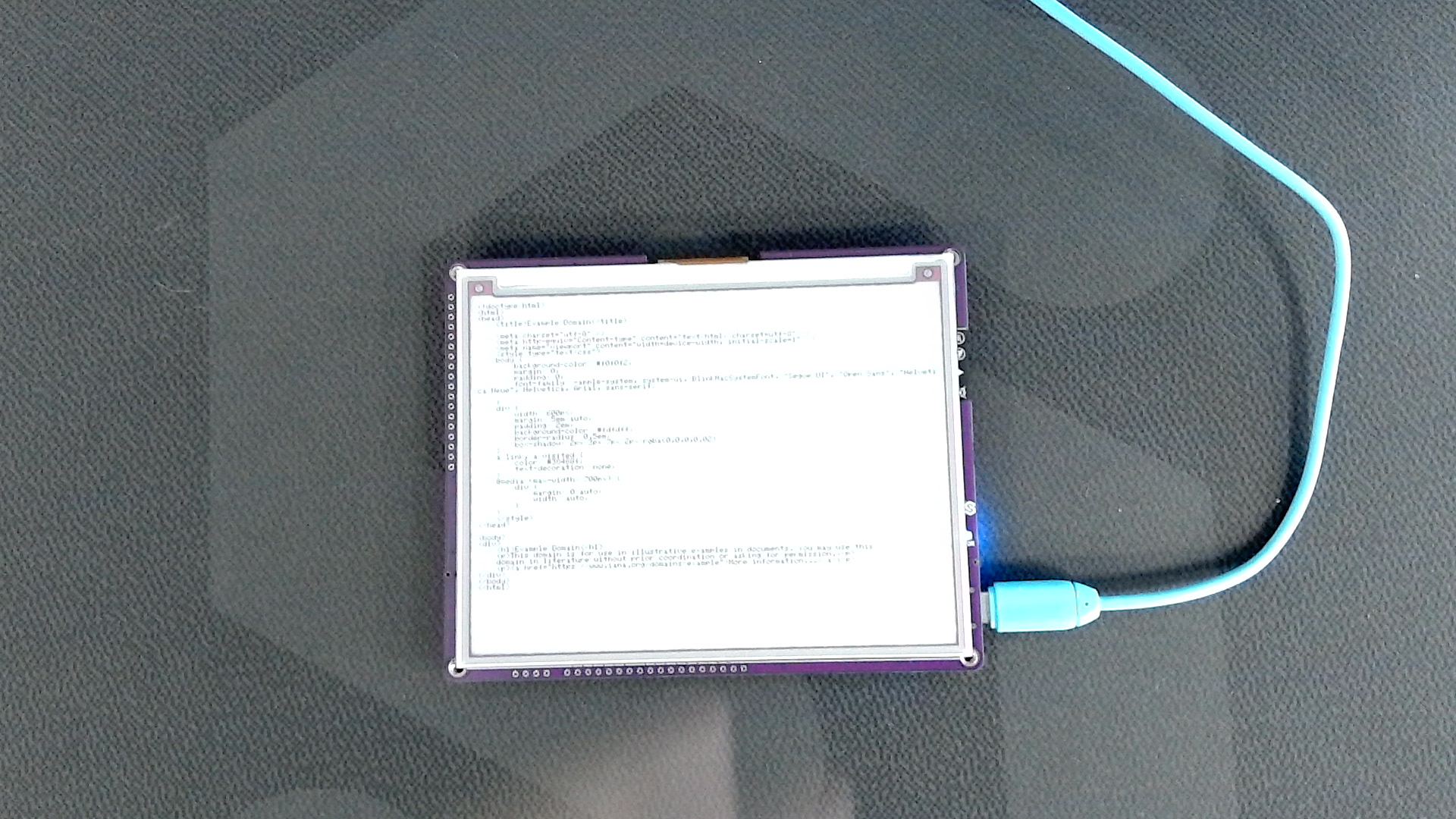
WiFi.begin()
This function attempts to connect to WiFi
Returns type: wl_status_t
Returns value: Returns wl_status_t enum value
Function parameters:
| Type | Name | Description |
|---|---|---|
const char* | ssid | Network SSID. |
const char* | passphrase | Optional, depends on WiFi network security certificate |
http.begin()
This function attempts to open an HTTP communication to a given URL
Returns type: bool
Returns value: Returns true if the communication is successful, otherwise returns false.
Function parameters:
| Type | Name | Description |
|---|---|---|
String | url | URL of the specified website |
http.GET()
This function handles GET requests.
Returns type: int
Returns value: Returns the size of available data
POST request
To send data from Inkplate to a web server, you can use the same built-in WiFiClient class. Let's use ThingSpeak.com, which is a great resource for testing POST and GET requests. By visiting the site, you get a unique URL to which you can send a POST request from Inkplate; the data will then be visible on the site:
/*
   This example will show you how to connect to a WiFi network and send a POST request via HTTP.
   We will use the ThingSpeak API to view POST requests. It's a free API that allows you to store and retrieve data using HTTP.
   1. Go to ThingSpeak.com and create a free account
   2. Open the Channels tab
   3. Create a new channel
   4. Create the fields you want to use (this example uses 1 field called field1 and this name must be used when sending data)
   5. Open the channel, go to the API Keys tab, and copy your Write API Key
   6. Enter your API key in the code below

   When you send a POST request, open your channel and you will see the graph showing your sent data.
*/

// Include needed libraries
#include "Inkplate.h"
#include "WiFi.h"

// Create objects from included libraries
Inkplate display;
WiFiClient client;

// Here you can change the interval of sending POST requests (minimum 15 seconds with a free license)
#define POSTING_INTERVAL_IN_SECS 20

// Enter your WiFi credentials
const char *ssid = "";
const char *pass = "";

// ThingSpeak settings
char *server = "api.thingspeak.com";
String writeAPIKey = ""; // Enter your Write API Key

// Variable that holds the last connection time
unsigned long lastConnectionTime = 0;

void setup()
{
    // Initialize serial communication
    Serial.begin(115200);

    // Initialize Inkplate library (you should call this function ONLY ONCE)
    display.begin();

    // Clear the frame buffer of the display
    display.clearDisplay();

    // Set text color and size
    display.setTextColor(BLACK, WHITE);
    display.setTextSize(6);

    // Display a message
    display.printf("HTTP POST request example\n\n");
    display.printf("Open Serial Monitor at \n115200 baud rate to see \nwhat's happening");
    display.display();

    // Connect to the WiFi network
    WiFi.mode(WIFI_MODE_STA);
    WiFi.begin(ssid, pass);
    Serial.print("Connecting to Wifi ");
    while (WiFi.status() != WL_CONNECTED)
    {
        delay(500);
        Serial.print(".");
    }
    Serial.println();
    Serial.print("Connected to WiFi network with IP Address: ");
    Serial.println(WiFi.localIP());
}

void loop()
{
    // Every POSTING_INTERVAL_IN_SECS seconds, make the POST request
    if ((unsigned long)(millis() - lastConnectionTime) > POSTING_INTERVAL_IN_SECS * 1000LL)
    {
        // Clear the frame buffer of the display
        display.clearDisplay();

        // Connect the WiFi client to the server via port 80
        if (!client.connect(server, 80))
        {
            // If it fails, print a message, record the time, stop the client, and reset the loop
            Serial.println("Connection failed");
            lastConnectionTime = millis();
            client.stop();
            return;
        }
        else
        {
            // If you have any sensor or something else, here you have to put data to send instead of a random number
            int field1Data = random(40);

            // Create data string to send to ThingSpeak
            String data = "field1=" + String(field1Data); // shows how to include additional field data in an HTTP POST

            // POST data to ThingSpeak
            if (client.connect(server, 80))
            {
                client.println("POST /update HTTP/1.1");
                client.println("Host: api.thingspeak.com");
                client.println("Connection: close");
                client.println("User-Agent: ESP32WiFi/1.1");
                client.println("X-THINGSPEAKAPIKEY: " + writeAPIKey);
                client.println("Content-Type: application/x-www-form-urlencoded");
                client.print("Content-Length: ");
                client.print(data.length());
                client.print("\n\n");
                client.print(data);

                Serial.print("The POST request is done: ");
                Serial.println(data);
                lastConnectionTime = millis();
                delay(250);
            }
        }
        client.stop();
    }
}
WiFi.mode()
This function sets the MCU WiFi chip as STA or AP.
Returns type: bool
Function parameters:
| Type | Name | Description |
|---|---|---|
wifi_mode_t | mode | WiFi mode value, can be either WIFI_MODE_STA or WIFI_MODE_AP |
WiFi.begin()
This function attempts to connect to WiFi
Returns type: wl_status_t
Returns value: Returns wl_status_t enum value
Function parameters:
| Type | Name | Description |
|---|---|---|
const char* | ssid | Network SSID. |
const char* | passphrase | Optional, depends on WiFi network security certificate |
http.begin()
This function attempts to open an HTTP communication to a given URL
Returns type: bool
Returns value: Returns true if the communication is successful, otherwise returns false.
Function parameters:
| Type | Name | Description |
|---|---|---|
String | url | URL of the specified website |