Inkplate 6COLOR – GET & POST requests
Now that Inkplate is connected to the internet, you will likely want to send and receive data from sensors, messages, or your custom APIs, etc. This page contains examples of how to send and receive data on Inkplate via the internet:
GET request
Using http.GET() enables you to easily download and handle data on Inkplate however you want. Here is an example of how to GET an .html file and print it on Inkplate:
#include "Inkplate.h"   //Include Inkplate library to the sketch
#include <HTTPClient.h> //Include HTTP library to this sketch
#include <WiFi.h>       //Include ESP32 WiFi library to our sketch

#define ssid "" // Name of the WiFi network (SSID) that you want to connect Inkplate to
#define pass "" // Password of that WiFi network

Inkplate display; // Create an object on Inkplate library

void setup()
{
    Serial.begin(115200);                            // Begin Serial for debugging
    display.begin();                                 // Init Inkplate library (you should call this function ONLY ONCE)
    display.clearDisplay();                          // Clear frame buffer of display
    display.display();                               // Put clear image on display
    display.setTextSize(2);                          // Set text scaling to two (text will be two times bigger)
    display.setCursor(0, 0);                         // Set print position
    display.setTextColor(INKPLATE_BLACK);            // Set text color to black and background color to white
    Serial.println("Scanning for WiFi networks..."); // Write text

    int n =
        WiFi.scanNetworks(); // Start searching WiFi networks and put the number of found WiFi networks in variable n
    if (n == 0)
    { // If you did not find any network, show the message and stop the program.
        Serial.print("No WiFi networks found!");
        while (true)
            ;
    }
    else
    {
        if (n > 10)
            n = 10; // If you did find, print name (SSID), encryption and signal strength of first 10 networks
        for (int i = 0; i < n; i++)
        {
            display.print(WiFi.SSID(i));
            display.print((WiFi.encryptionType(i) == WIFI_AUTH_OPEN) ? 'O' : '*');
            display.print('\n');
            display.print(WiFi.RSSI(i), DEC);
        }
        display.display();
    }

    display.clearDisplay();         // Clear everything in frame buffer
    display.setCursor(0, 0);        // Set print cursor to new position
    Serial.print("Connecting to "); // Print the name of WiFi network
    Serial.print(ssid);
    WiFi.begin(ssid, pass); // Try to connect to WiFi network
    while (WiFi.status() != WL_CONNECTED)
    {
        delay(1000); // While it is connecting to network, display dot every second, just to know that Inkplate is
                     // alive.
        Serial.print('.');
    }
    Serial.print("connected"); // If it's connected, notify user

    HTTPClient http;
    if (http.begin("http://example.com/index.html"))
    { // Now try to connect to some web page (in this example www.example.com. And yes, this is a valid Web page :))
        if (http.GET() > 0)
        { // If connection was successful, try to read content of the Web page and display it on screen
            String htmlText;
            htmlText = http.getString();
            display.setTextSize(1); // Set smaller text size, so everything can fit on screen
            display.clearDisplay();
            display.setCursor(0, 0);
            display.print(htmlText);
            display.display();
        }
    }
}

void loop()
{
    // Nothing
}
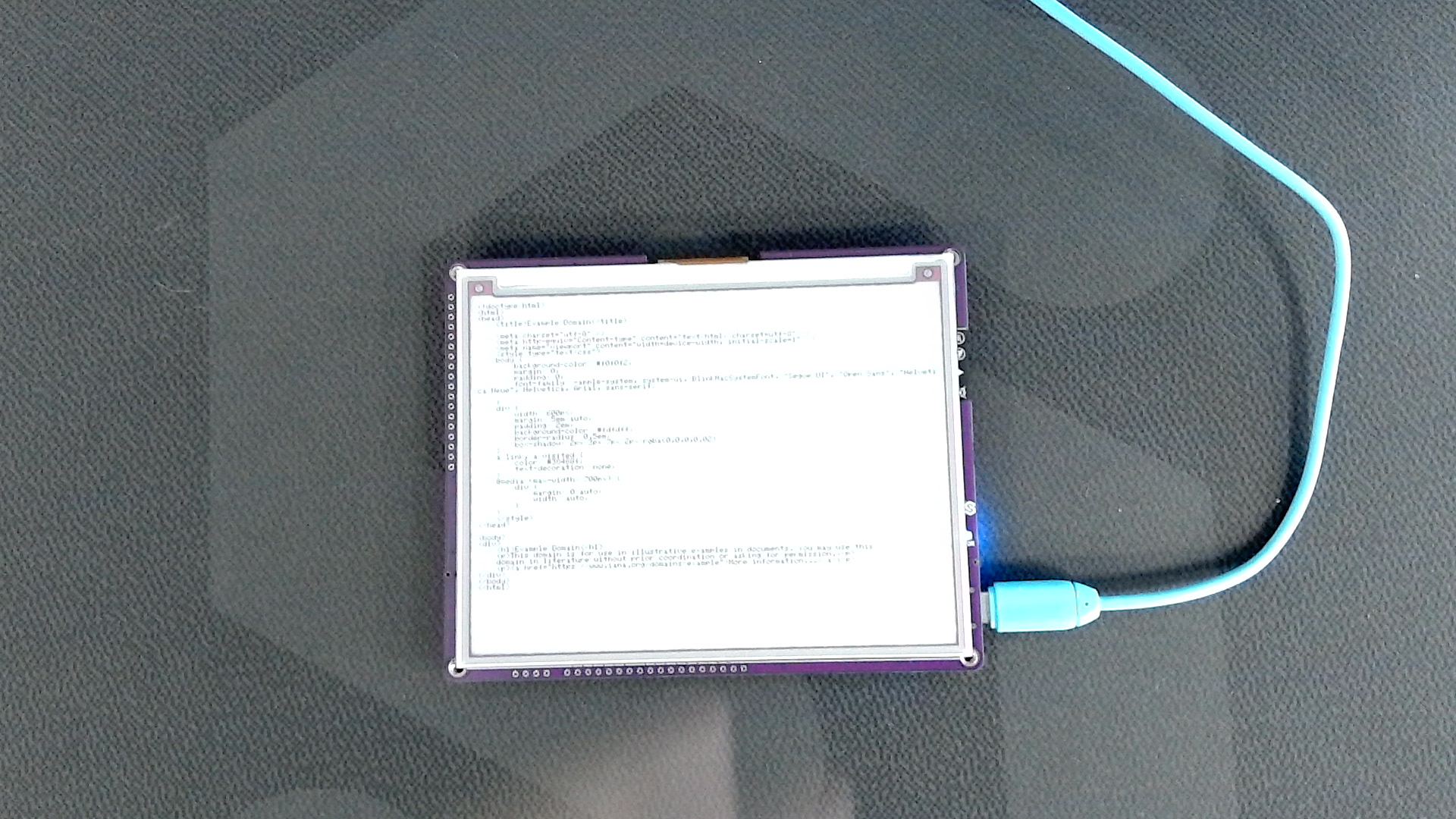
WiFi.begin()
This function attempts to connect to WiFi
Returns type: wl_status_t
Returns value: Returns wl_status_t enum value
Function parameters:
| Type | Name | Description |
|---|---|---|
const char* | ssid | Network SSID. |
const char* | passphrase | Optional, depends on WiFi network security certificate |
http.begin()
This function attempts to open an HTTP communication to a given URL
Returns type: bool
Returns value: Returns true if the communication is successful, otherwise returns false.
Function parameters:
| Type | Name | Description |
|---|---|---|
String | url | URL of the specified website |
http.GET()
This function handles GET requests.
Returns type: int
Returns value: Returns the size of available data
POST request
To send data from Inkplate to a web server, you can use the same built-in WiFiClient class. Let's use ThingSpeak.com, which is a great resource for testing POST and GET requests. By visiting the site, you get a unique URL to which you can send a POST request from Inkplate; the data will then be visible on the site:
// Include needed libraries
#include "Inkplate.h"
#include "WiFi.h"

// Create objects from included libraries
Inkplate display;
WiFiClient client;

// Interval between POST requests (seconds)
#define POSTING_INTERVAL_IN_SECS 20

// WiFi credentials
const char *ssid = "";
const char *pass = "";

// Webhook.site settings
const char *server = "webhook.site";
const char *WEBHOOK_PATH = "/YOUR-UNIQUE-WEBHOOK-ID"; // e.g. "/abcd-1234-efgh"

// Last connection time
unsigned long lastConnectionTime = 0;

void setup()
{
    Serial.begin(115200);

    // Init Inkplate
    display.begin();
    display.clearDisplay();
    display.setTextColor(BLACK, WHITE);
    display.setTextSize(6);

    display.printf("HTTP POST example\n\n");
    display.printf("Using webhook.site\n\n");
    display.printf("Open Serial Monitor\nat 115200 baud");
    display.display();

    // Connect to WiFi
    WiFi.mode(WIFI_MODE_STA);
    WiFi.begin(ssid, pass);

    Serial.print("Connecting to WiFi");
    while (WiFi.status() != WL_CONNECTED)
    {
        delay(500);
        Serial.print(".");
    }

    Serial.println();
    Serial.print("Connected, IP address: ");
    Serial.println(WiFi.localIP());
}

void loop()
{
    if ((unsigned long)(millis() - lastConnectionTime) > POSTING_INTERVAL_IN_SECS * 1000UL)
    {
        display.clearDisplay();

        if (!client.connect(server, 80))
        {
            Serial.println("Connection failed");
            lastConnectionTime = millis();
            client.stop();
            return;
        }

        // Example data (replace with sensor readings if needed)
        int value = random(40);

        // URL-encoded POST body
        String data = "value=" + String(value);

        // Send HTTP POST request
        client.print(String("POST ") + WEBHOOK_PATH + " HTTP/1.1\r\n");
        client.print(String("Host: ") + server + "\r\n");
        client.println("Connection: close");
        client.println("User-Agent: Inkplate-ESP32");
        client.println("Content-Type: application/x-www-form-urlencoded");
        client.print("Content-Length: ");
        client.println(data.length());
        client.println();
        client.print(data);

        Serial.print("POST sent: ");
        Serial.println(data);

        lastConnectionTime = millis();
        delay(250);

        client.stop();
    }
}
WiFi.mode()
This function sets the MCU WiFi chip as STA or AP.
Returns type: bool
Function parameters:
| Type | Name | Description |
|---|---|---|
wifi_mode_t | mode | WiFi mode value, can be either WIFI_MODE_STA or WIFI_MODE_AP |
WiFi.begin()
This function attempts to connect to WiFi
Returns type: wl_status_t
Returns value: Returns wl_status_t enum value
Function parameters:
| Type | Name | Description |
|---|---|---|
const char* | ssid | Network SSID. |
const char* | passphrase | Optional, depends on WiFi network security certificate |
http.begin()
This function attempts to open an HTTP communication to a given URL
Returns type: bool
Returns value: Returns true if the communication is successful, otherwise returns false.
Function parameters:
| Type | Name | Description |
|---|---|---|
String | url | URL of the specified website |
Full examples
Inkplate6COLOR_HTTP_Request.ino
Inkplate 6COLOR WiFi GET request example from the Inkplate library
Inkplate6COLOR_HTTP_POST_Request.ino
Inkplate 6COLOR WiFi POST request example from the Inkplate library