Inkplate 6COLOR – Draw Image from Web
Drawing an image from the web on Inkplate 6COLOR is simple using the draw function, which supports multiple image formats.
ℹ️
Supported formats: JPG, BMP, and PNG.
⚠️
JPG files without progressive encoding are supported.
ℹ️
If you experience issues displaying an image, try re-saving it with an image editing program. The issue is usually related to the image format.
Drawing an image from a URL
Let's draw this image on Inkplate 6COLOR:
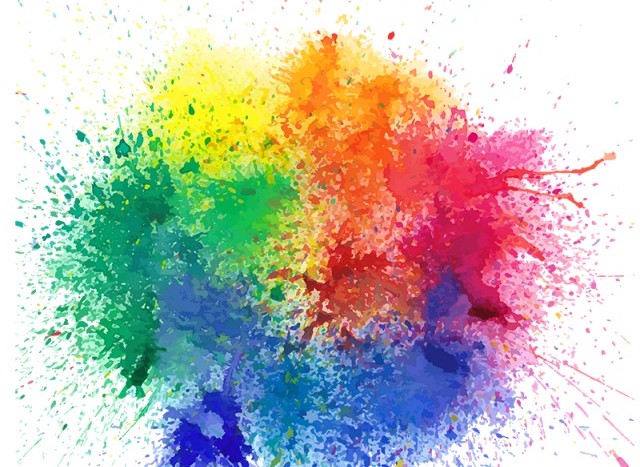
Example image
#include "HTTPClient.h" //Include library for HTTPClient
#include "Inkplate.h"   //Include Inkplate library to the sketch
#include "WiFi.h"       //Include library for WiFi
Inkplate display;       // Create an object on Inkplate library

const char ssid[] = ""; // Your WiFi SSID
const char *password = "";     // Your WiFi password

void setup()
{
    display.begin();        // Init Inkplate library (you should call this function ONLY ONCE)
    display.clearDisplay(); // Clear frame buffer of display
    display.display();      // Put clear image on display

    Serial.print("Connecting to WiFi...");

    // Connect to the WiFi network.
    WiFi.mode(WIFI_MODE_STA);
    WiFi.begin(ssid, password);
    while (WiFi.status() != WL_CONNECTED)
    {
        delay(500);
        Serial.print(".");
    }
    Serial.println("\nWiFi OK! Downloading...");

    // Draw the first image from web.
    // Monochromatic bitmap with 1 bit depth. Images like this load quickest.
    // NOTE: Both drawImage methods allow for an optional fifth "invert" parameter. Setting this parameter to true
    // will flip all colors on the image, making black white and white black. This may be necessary when exporting
    // bitmaps from certain softwares. Forth parameter will dither the image. Photo taken by: Roberto Fernandez
    if (!display.image.draw("https://varipass.org/neowise_mono.bmp", 0, 0, true, false))
    {
        // If is something failed (wrong filename or wrong bitmap format), write error message on the screen.
        // REMEMBER! You can only use Windows Bitmap file with color depth of 1, 4, 8 or 24 bits with no compression!
        display.println("Image open error");
        display.display();
    }
    display.display();

    if (!display.image.draw("https://varipass.org/neowise.bmp", 0, 0, true, false))
    {
        // If is something failed (wrong filename or wrong bitmap format), write error message on the screen.
        // REMEMBER! You can only use Windows Bitmap file with color depth of 1, 4, 8 or 24 bits with no compression!
        display.println("Image open error");
        display.display();
    }
    display.display();

    display.clearDisplay();
    delay(3000);

    // Try to load image and display it on e-paper at position X=0, Y=100
    // NOTE: Both drawJpegFromWeb methods allow for an optional fifth "invert" parameter. Setting this parameter to
    // true will flip all colors on the image, making black white and white black. forth parameter will dither the
    // image.
    if (!display.image.draw("https://varipass.org/destination.jpg", 0, 25, true, false))
    {
        // If is something failed (wrong filename or format), write error message on the screen.
        display.println("Image open error");
        display.display();
    }
    display.display();

    WiFi.mode(WIFI_OFF);
}

void loop()
{
    // Nothing...
}
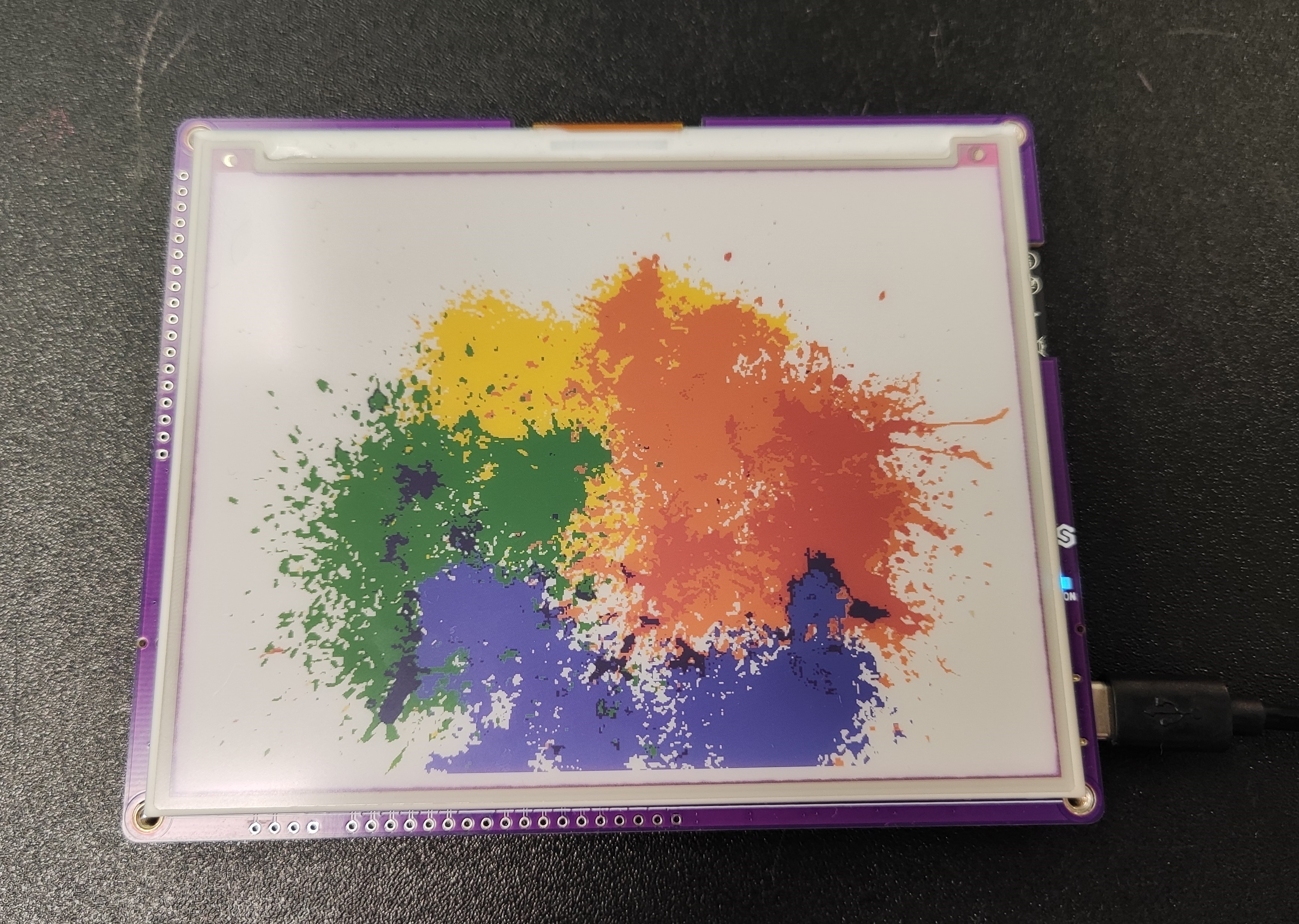
Example image
display.image.draw()
This function draws an image from the specified char path.
Returns value: Returns true if the image was successfully drawn, otherwise false.
Function parameters:
| Type | Name | Description |
|---|---|---|
const char* | path | Path and filename of the image. Can be a URL (for web images) or a file path (on the microSD card). |
int | x | X-coordinate of the image's upper-left corner in the framebuffer. |
int | y | Y-coordinate of the image's upper-left corner in the framebuffer. |
bool | dither | Dithering mode: false (disabled), true (enabled). Defaults to true. |
bool | invert | If true, inverts colors. |
Full example
Inkplate6COLOR_Show_Pictures_From_Web.ino
Connect to WiFi and draw an image from the web.