FAQ and troubleshooting
These are the questions we get asked most often about Inkplate 6COLOR, with answers. Have a look through before writing in. There is a good chance yours is already here.
If you're having trouble uploading code, try the following troubleshooting steps.
Restart device
- Disconnect the device and power it off completely.
- Reconnect via USB.
Make sure that the device is turned ON
Easy one to miss. Check that the ON LED is lit.
Verify Arduino IDE version
Inkplate 6COLOR requires Arduino IDE 2.0+ for proper board and library support.
If you're using an older version, update to Arduino 2.0 or later to avoid compatibility issues.
Still having issues?
If none of these steps resolve the issue, contact our support team here with details of your setup and the troubleshooting steps you've tried.
If your Inkplate 6COLOR display is not refreshing, follow these steps to diagnose and resolve the issue.
1. Verify that the code is uploading correctly
- Enable verbose output in Arduino under File → Preferences, then check the compile and upload logs.
- When uploading, a successful upload should print:
Leaving...
Hard resetting via RTS pin...
2. Test with an official example
Make sure you're testing with an unmodified Arduino example from the Inkplate library. Running custom code might be almost correct but could still prevent the display from refreshing properly.
Try uploading these tested examples:
Inkplate6COLOR_Hello_Wold.ino
Writing 'Hello world' to the Inkplate 6COLOR.
Inkplate6COLOR_Full_Screen_Colors.ino
Example of showing all of the colors of the Inkplate 6COLOR.
3. Check your power source
- Some laptop or PC USB ports provide insufficient current, which may cause Inkplate to get stuck while refreshing.
- Try a different USB port, power adapter, or USB cable to ensure the board is receiving stable power.
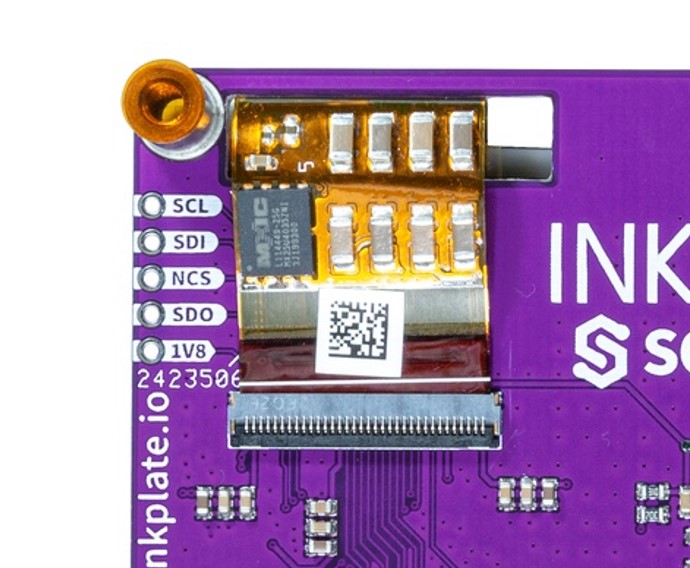
4. Inspect the e-paper flat cable and panel
- Examine the flat-flex cable connector to ensure it's properly seated.
- Check the edges of the e-paper panel for any visible damage or cracks.
5. Still having issues?
If none of these steps resolve the issue, contact our support team here with details of your setup and troubleshooting steps taken.
If you notice artifacts, streaks, or ghosting on your Inkplate 6COLOR display, follow these steps to clean the screen and check for potential connection issues.
1. Run a display cleaning cycle
Try running the following sketch, which performs 30 full refresh cycles to remove any persistent artifacts:
#include <Inkplate.h>
Inkplate display;
int cleanTimes = 30;

void setup()
{
    display.begin();
    for(int i = 0; i < cleanTimes; i++)
    {
        display.clearDisplay();
        display.display();
        delay(500);
        display.fillRect(0, 0, 600, 448, INKPLATE_BLACK);
        display.display();
        delay(500);
    }
}

void loop()
{
    // Do nothing
}
2. Check the e-paper flat cable connector
If artifacts persist after cleaning or appear as long vertical lines or streaks, it may indicate a loose, improperly connected, or possibly damaged flat cable.
Try re-seating the e-paper flat cable by carefully disconnecting and reconnecting it.
3. Still having issues?
If none of these steps resolve the issue, contact our support team here with details of your setup and the troubleshooting steps you've tried.
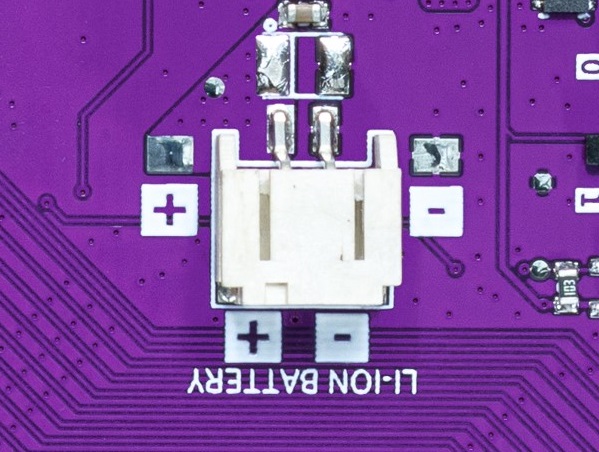
All Inkplate models have a 2-pin 2.0mm JST connector for connecting a 3.7V Li-ion battery. Inkplate 6COLOR has an onboard MCP73831 charger, so the battery charges whenever USB is connected, and the board switches over to battery power on its own when you unplug it.
All hardware design files, including schematics, KiCad project files, gerber files, and more, are available in the Inkplate 6COLOR hardware repository on GitHub.
Additionally, this documentation contains detailed hardware design insights on the hardware design page.
The printable enclosure files are in the Inkplate 6COLOR hardware repository, under OUTPUTS/V1.2.1/3D printable files.
A .step model of the PCB is in the same OUTPUTS/V1.2.1 folder if you would rather design your own enclosure around the board.
Short answer: No.
Inkplate 6COLOR is an e-paper development platform and functions similarly to an Arduino with an integrated e-paper display. While it is not designed to be a plug-and-play e-reader or monitor, you could write your own Arduino sketch to display data sent from a PC via USB.
However, if you're looking for a true e-ink monitor experience, Inkplate 6COLOR is not the right choice.
At this time, Inkplate 6COLOR is not officially supported by ESPHome.
There is currently no ESPHome display component for this model, but we are actively working on expanding ESPHome compatibility for all Inkplate devices. Stay tuned for future updates!