Display Images from SD Card
The Inkplate6FLICK_microSD_Pictures example demonstrates how to load and display image files from a microSD card on the Inkplate 6FLICK. This is ideal for dynamic content such as photo slideshows or interface elements loaded at runtime.
Drawing images from the microSD card
The Inkplate library can render BMP and JPG images directly from an SD card. This allows you to present rich graphical content without hardcoding images into your firmware.
⚠️
Ensure your SD card is formatted as FAT32 and that image filenames use the 8.3 filename format (e.g.,
image1.bmp, photo.jpg). Only baseline JPEGs and uncompressed 24-bit BMPs are supported.ℹ️
By default, the SD card must be inserted before power-up or reset. If hot-swapping is necessary, reinitialize the SD card interface using
SD.begin().#include "Inkplate.h" // Include Inkplate library to the sketch
Inkplate display(INKPLATE_3BIT); // Create an object on Inkplate library and also set library into 3 Bit mode
SdFile file; // Create SdFile object used for accessing files on SD card
void setup()
{
display.begin(); // Init Inkplate library (you should call this function ONLY ONCE)
display.clearDisplay(); // Clear frame buffer of display
display.setTextColor(BLACK); // Set text color to black
display.setTextSize(3); // Set font size to 3
// Init SD card. Display if SD card is init propery or not.
if (display.sdCardInit())
{
display.println("SD Card OK! Reading image...");
display.display();
// If card is properly init, try to load image and display it on e-paper at position X=0, Y=0
// NOTE: Both drawImage methods allow for an optional fifth "invert" parameter. Setting this parameter
// to true will flip all colors on the image, making black white and white black. This may be necessary when
// exporting bitmaps from certain softwares.
if (!display.image.draw("image1.bmp", 0, 0, 1))
{
// If is something failed (wrong filename or wrong bitmap format), write error message on the screen.
// REMEMBER! You can only use Windows Bitmap file with color depth of 1, 4, 8 or 24 bits with no
// compression! You can turn of dithering for somewhat faster image load by changing the last 1 to 0, or
// removing the 1 argument completely
display.println("Image open error");
}
display.display();
delay(5000);
// Now try to load image using SdFat library class (for more advanced users) and display image on epaper.
display.clearDisplay();
if (file.open("image2.bmp", O_RDONLY))
{
display.image.drawBitmapFromSd(&file, 0, 0);
}
else
{
display.println("Image open error");
}
display.display();
delay(5000);
// Now draw a JPEG
display.clearDisplay();
if (!display.image.draw("pyramid.jpg", 100, 0, true, false))
{
// If is something failed (wrong filename or wrong format), write error message on the screen.
// You can turn off dithering for somewhat faster image load by changing the fifth parameter to false, or
// removing the parameter completely
display.println("Image open error");
}
display.display();
}
else
{
// If SD card init not success, display error on screen
display.println("SD Card error!");
display.display();
}
// Turn off the MOSFET that powers the SD card
display.sdCardSleep();
}
void loop()
{
// Nothing...
}
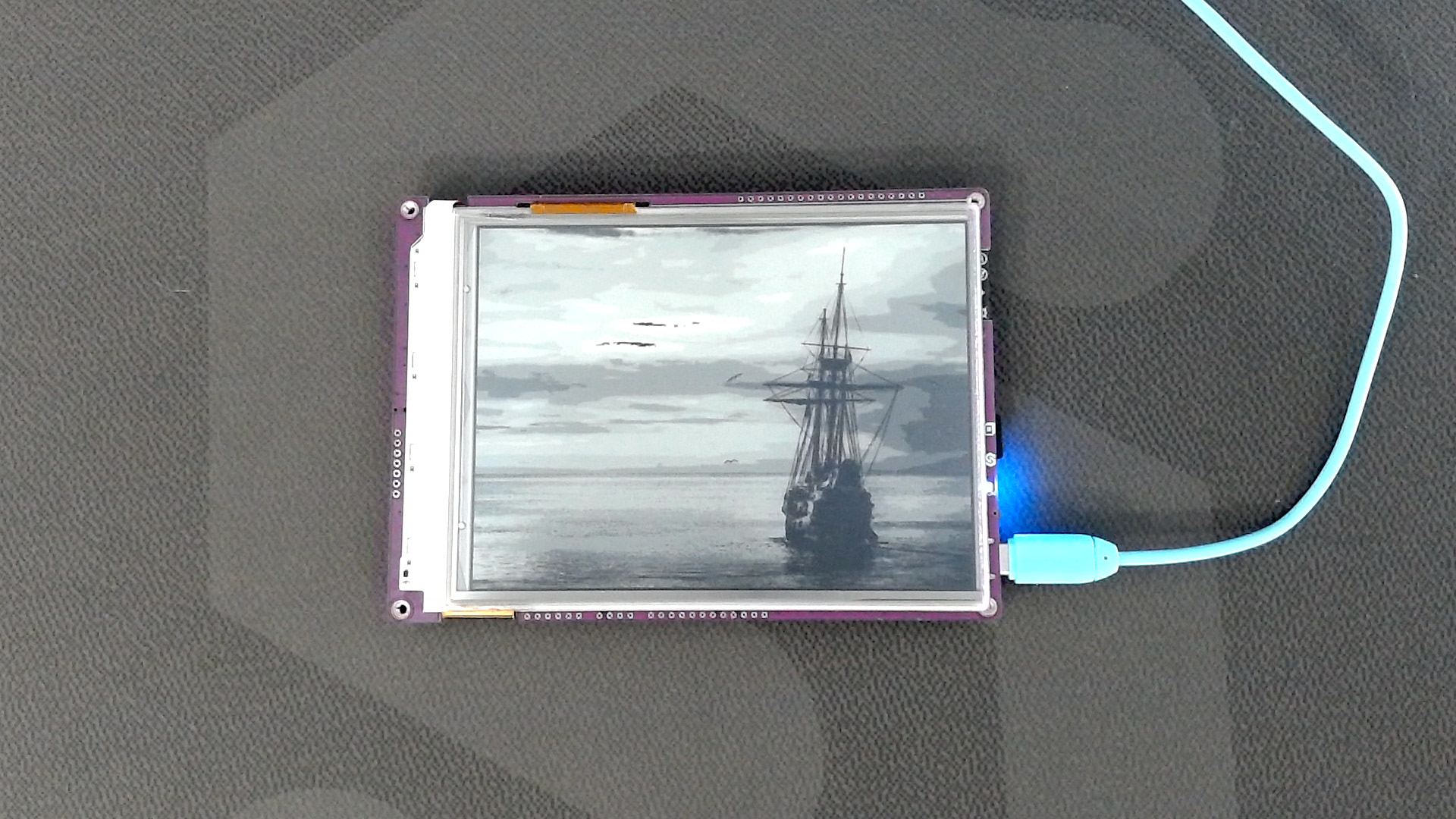
Example Image
display.image.draw()
This function draws an image from a char path.
Returns value: Returns true if the image was successfully drawn, otherwise false.
Function parameters:
| Type | Name | Description |
|---|---|---|
const char* | path | Path and filename of the image. Can be a URL (for web images) or a file path (on the microSD card). |
int | x | X-coordinate of the image's upper-left corner in the framebuffer. |
int | y | Y-coordinate of the image's upper-left corner in the framebuffer. |
uint8_t | dither | Dithering mode: 0 (disabled), 1 (enabled). |
bool | invert | If true, inverts colors. |
Full example
Inkplate6FLICK_microSD_Pictures.ino
This example will show you how to read .bmp and .jpeg files (pictures) from an SD card and display the image on an e-paper display.