Quick start guide
To get started with Arduino on Inkplate 6MOTION, a few simple steps need to be completed to install the required software.
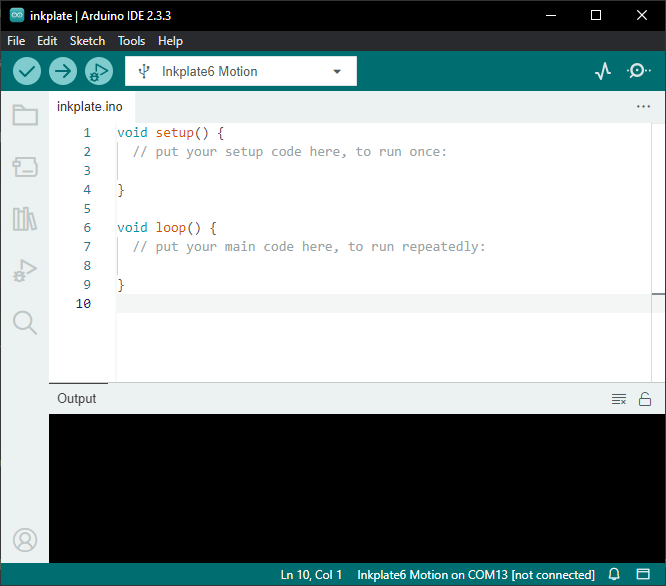
1. Install STM32CubeProgrammer
This software is required to upload code to Inkplate 6MOTION. Download it from the official website and install it.
2. Install Arduino IDE
If you haven't installed it yet, download and install the Arduino IDE from the official website.
3. Install Inkplate 6MOTION board definition
Copy the following URL:
https://github.com/SolderedElectronics/Inkplate-Board-Definitions-for-Arduino-IDE/raw/refs/heads/main/package_Inkplate_Boards_index.json
And add it to the Additional boards manager URLs in Arduino settings:
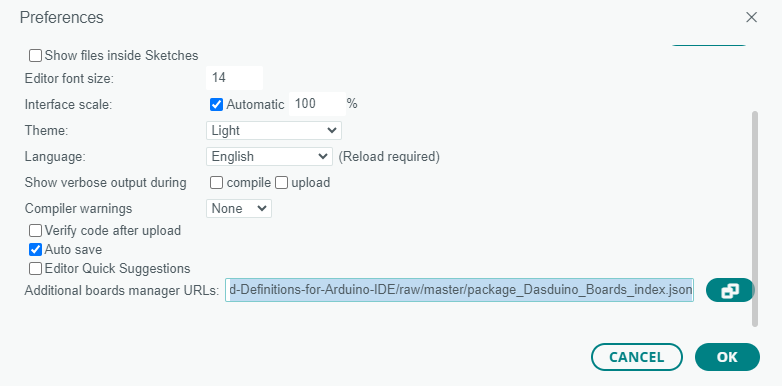
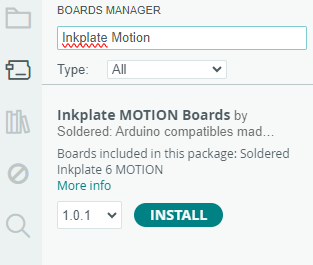
Now, you can open the Boards Manager, search for Inkplate 6MOTION, and install the Inkplate 6MOTION board definitions.
Click Install here:
4. Install the Inkplate Motion library
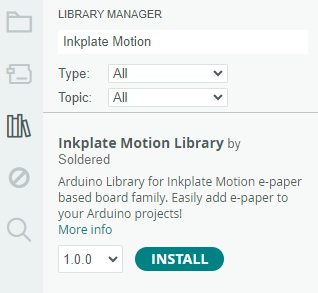
In the Arduino Library Manager, search for the Inkplate Motion library and click Install:
5. Install CH340 driver
The CH340 is an onboard chip that enables serial communication over USB. If the driver is not installed, download it from this link. Start the installation and follow the instructions:

Done!
Inkplate 6MOTION setup is complete. Now, try out some examples from the Arduino library, upload them and see the results for yourself! See the next page in the documentation for details on how to upload code:
Uploading code
Detailed tutorial on how to upload code for Inkplate 6MOTION
If you experience any issues, check the FAQ:
F.A.Q. and troubleshooting
Solve the most common issues with using Inkplate 6MOTION