Inkplate 6FLICK MicroPython - Frontlight
Inkplate 6FLICK includes a built-in frontlight that can be enabled, disabled, and adjusted in brightness. This example shows how to control the frontlight programmatically.
⚠️
Excessive use of maximum brightness can reduce battery life. Adjust brightness based on your application needs.
Controlling the frontlight
# Include required libraries
from inkplate6_flick import Inkplate
import time

# Create Inkplate object in 1-bit (black and white) mode
display = Inkplate(Inkplate.INKPLATE_1BIT)

# Initialize the display, needs to be called only once
display.begin()

# Enable the frontlight
display.set_frontlight(True)

# Frontlight brightness can be set from 0 (dimmest) to 63 (brightest)
display.set_frontlight_brightness(0)

# Gradually increase the brightness, then decrease it back down
for i in range(0, 64):
    display.set_frontlight_brightness(i)
    time.sleep(0.05)
for i in range(63, -1, -1):
    display.set_frontlight_brightness(i)
    time.sleep(0.05)

# Turn the frontlight off
display.set_frontlight(False)
display.frontlight(state)
Enable or disable the frontlight on the Inkplate board.
Function parameters:
| Type | Name | Description |
|---|---|---|
bool | state | Pass True to turn on the frontlight, or False to turn it off. |
display.set_frontlight(level)
Set the frontlight brightness level.
Function parameters:
| Type | Name | Description |
|---|---|---|
int | level | Brightness value between 0 (off) and 64 (maximum brightness). |
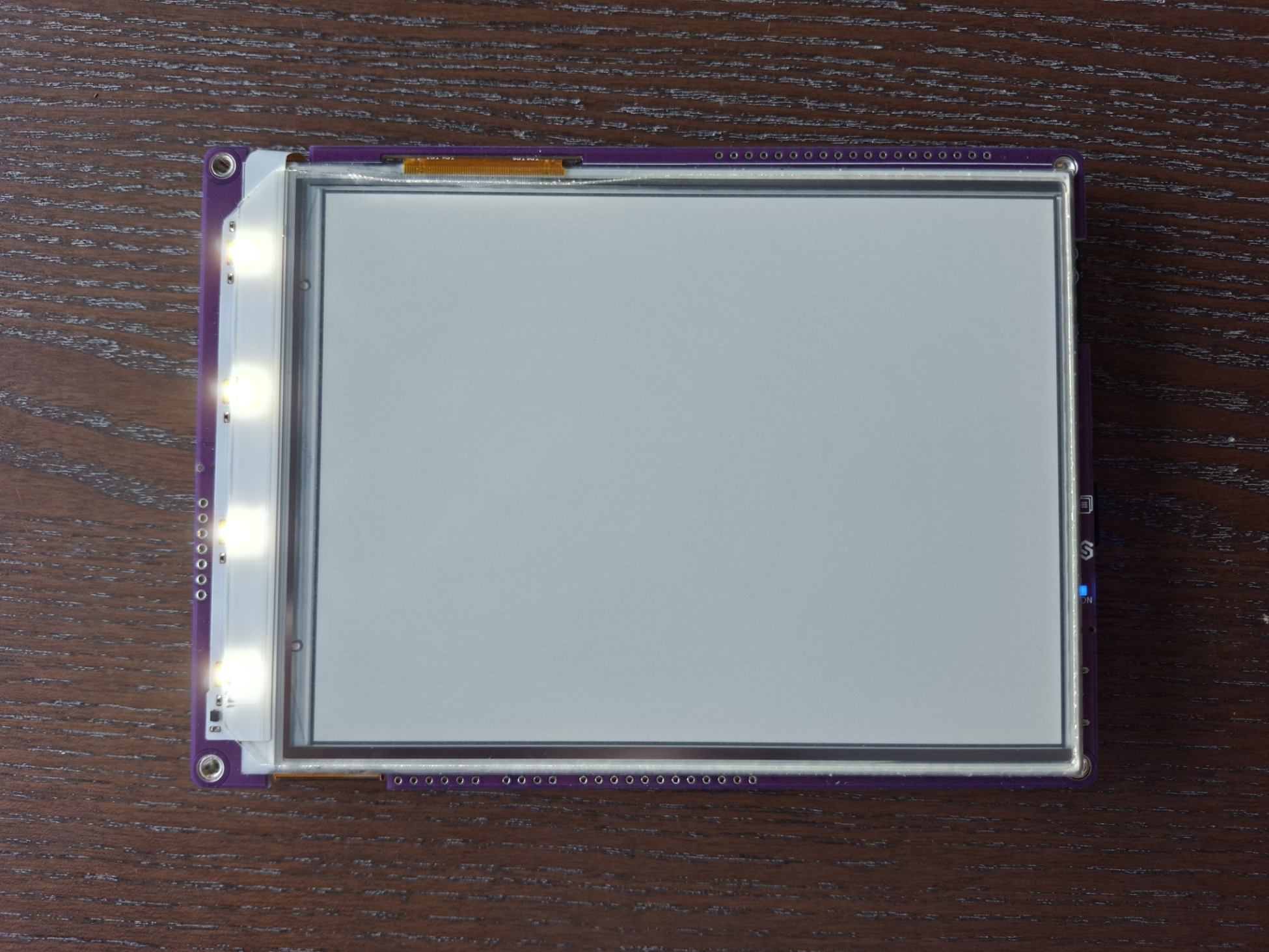
Displaying battery and temperature data on Inkplate display.
Full example
frontlight.py
Turn on the frontlight and ramp its brightness up and down.