Inkplate 6FLICK MicroPython - Draw Image from WiFi
Inkplate 6FLICK can connect to WiFi and fetch images directly from the internet. This example demonstrates downloading a JPEG file from a URL and rendering it on e-paper display.
Downloading and displaying an image
Below is a complete example that connects to WiFi and loads an image from the web. Make sure to replace the SSID and password with your own WiFi credentials.
# Include needed libraries
import network
import time
from inkplate6_flick import Inkplate

# WiFi credentials (replace with your own)
SSID = "YOUR_SSID_HERE"
PASSWORD = "YOUR_PASSWORD_HERE"


# Connects to a WiFi network using given SSID and PASSWORD.
#
# Returns:
# - True if successfully connected
# - False if connection fails within the timeout period
#
# Notes:
# - Timeout is set to 30 seconds
# - Prints network IP config on success
def do_connect():
    sta_if = network.WLAN(network.STA_IF)
    if not sta_if.isconnected():
        print("Connecting to network...")
        sta_if.active(True)
        sta_if.connect(SSID, PASSWORD)

        timeout = 30  # seconds
        start = time.ticks_ms()
        while not sta_if.isconnected():
            if time.ticks_diff(time.ticks_ms(), start) > timeout * 1000:
                print("Failed to connect within timeout")
                return False
            time.sleep(0.5)
    print("Network config:", sta_if.ifconfig())
    return True


# Create Inkplate object in 2-bit (real 8-level GS3) grayscale mode
inkplate = Inkplate(Inkplate.INKPLATE_2BIT)

# Initialize the display, needs to be called only once
inkplate.begin()

# Connect to WiFi
if not do_connect():
    raise SystemExit("WiFi connection failed")

# Draw an image on the screen.
#
# Parameters:
# - path: File path to the image. Supports local paths (e.g., from SD card) or URLs.
#         Supported formats: JPG, PNG, BMP.
#
# - x0: X-coordinate of the top-left corner where the image will be displayed.
#
# - y0: Y-coordinate of the top-left corner where the image will be displayed.
#
# - invert (bool, default=False): If True, inverts the image colors.
#
# - dither (bool, default=False): If True, applies a dithering algorithm to
#   the image for better grayscale rendering.
#
# - kernel_type (int): Specifies the dithering algorithm to use.
#     Available options:
#       Inkplate.KERNEL_FLOYD_STEINBERG = 0
#       Inkplate.KERNEL_JJN             = 1
#       Inkplate.KERNEL_STUCKI          = 2
#       Inkplate.KERNEL_BURKES          = 3
#
# Performance Notes:
# - JPG: ~3 seconds (or ~7s with dithering)
# - PNG: ~10 seconds (or ~14s with dithering)
# - BMP: ~15 seconds (or ~20s with dithering)
# - Maximum image file size: ~800kB
#
# Example usage:
inkplate.draw_image(
    "https://i.imgur.com/Uo8DDL5.jpeg",  # URL to image
    0,
    0,  # X, Y position
    invert=False,  # Do not invert colors
    dither=True,  # Enable dithering
    kernel_type=Inkplate.KERNEL_FLOYD_STEINBERG,  # Dithering algorithm
)

# Show the image from the internal buffer
inkplate.display()
inkplate.draw_image()
Download and draw an image from a URL or local file path onto the display buffer.
Function parameters:
| Type | Name | Description |
|---|---|---|
String | path | Image URL or local file path. |
Number | x | X coordinate of top-left corner where image will be placed. |
Number | y | Y coordinate of top-left corner where image will be placed. |
Boolean | invert | If True, invert black and white colors. |
Boolean | dither | Enable or disable dithering for grayscale images. |
Constant | kernel_type | Dithering algorithm to use (e.g., Inkplate.KERNEL_FLOYD_STEINBERG). |
ℹ️
Available options for dithering algorithm:
| Algorithm | Value |
|---|---|
Inkplate.KERNEL_FLOYD_STEINBERG | 0 |
Inkplate.KERNEL_JJN | 1 |
Inkplate.KERNEL_STUCKI | 2 |
Inkplate.KERNEL_BURKES | 3 |
Performance Notes
- JPG: ~3 seconds (or ~14s with dithering)
- PNG: ~9 seconds (or ~19s with dithering)
- BMP: ~20 seconds (or ~40s with dithering)
- Maximum image file size: ~800kB
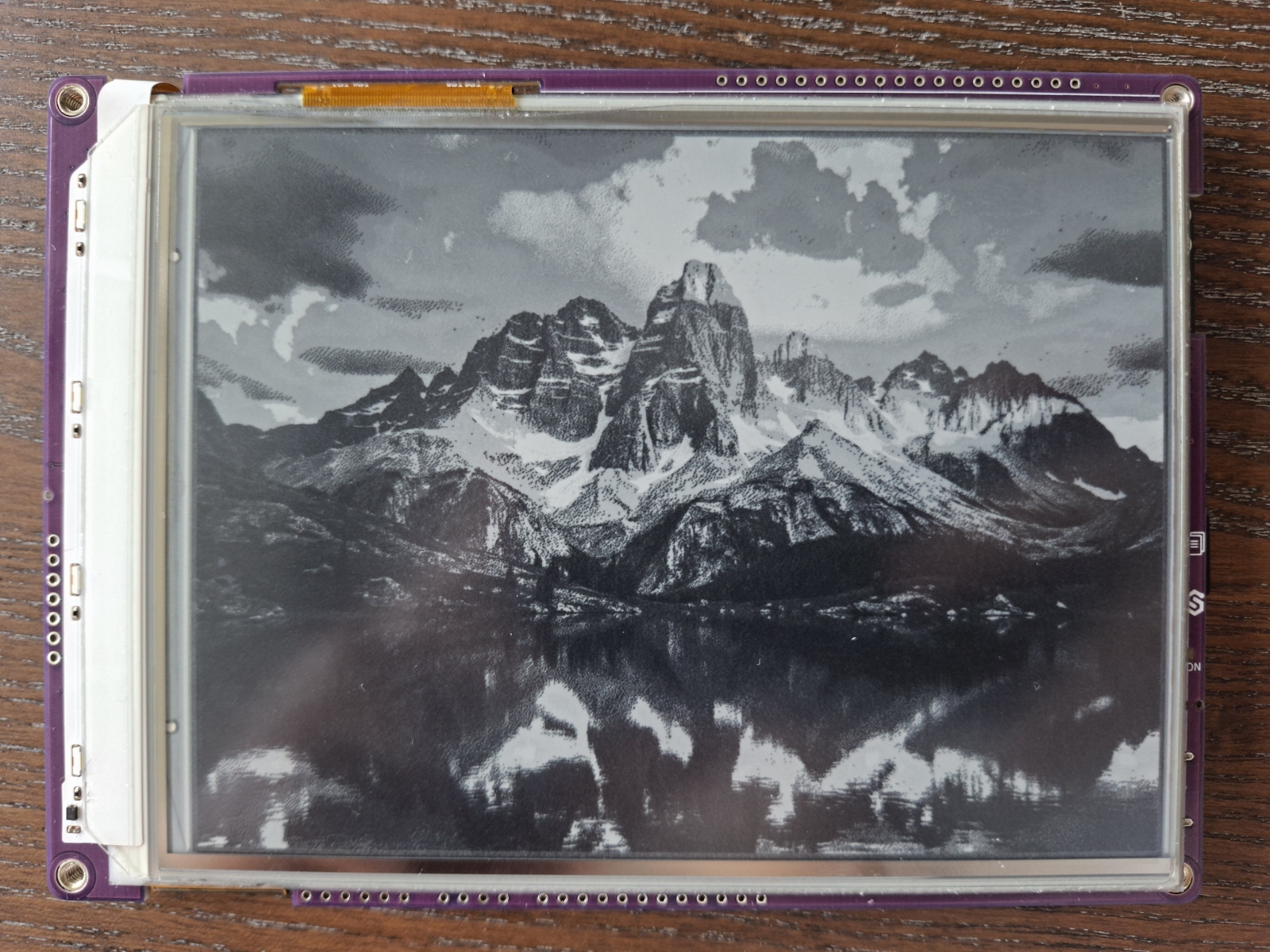
Displaying an image from web.
Full example
display_image_web.py
Connect to WiFi and render an image from a URL.