Inkplate 6MOTION - Soldered Image Converter
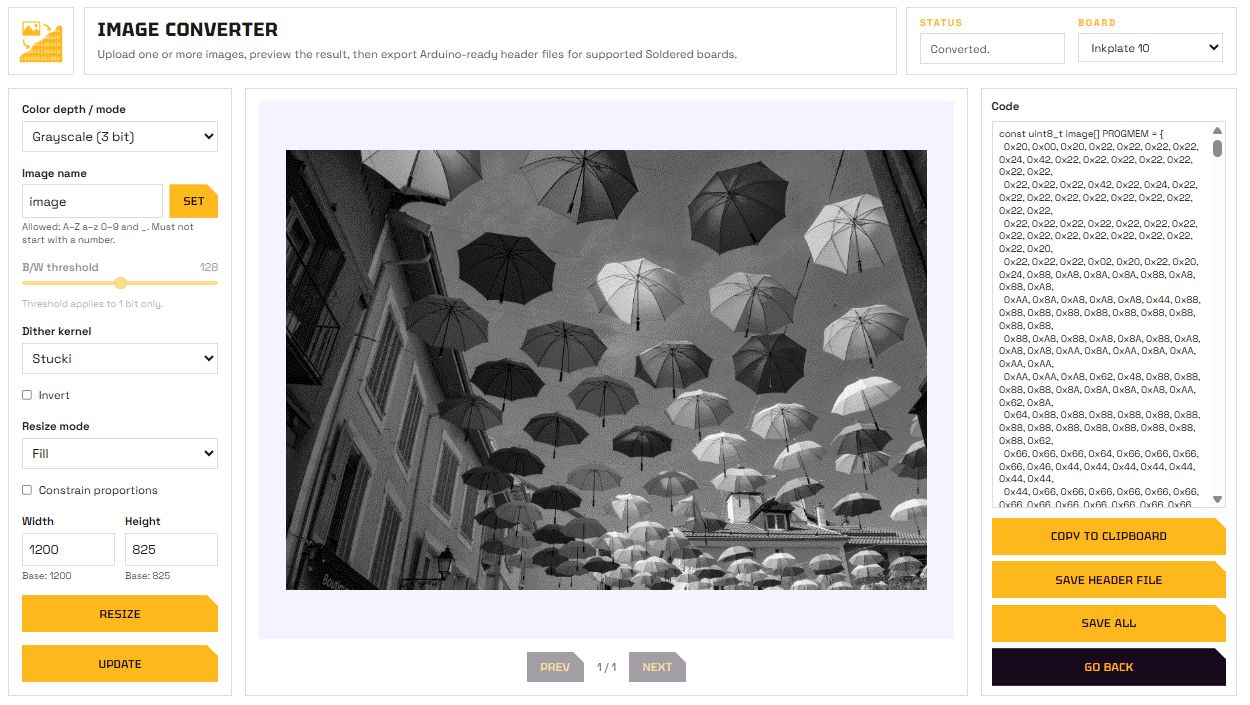
The Soldered Image Converter is a free web tool that converts images into .h header files ready to include in your Arduino sketch and display on Inkplate.
Soldered Image Converter
Open the web-based image converter tool.
After converting images, export the .h files and save them in your Inkplate sketch's project folder. To find this folder, go to Sketch -> Show Sketch Folder in Arduino.
Place the exported .h files in that folder, then include them in the sketch and draw them with drawBitmap() for 1-bit images or drawBitmap4Bit() for 4-bit grayscale ones.
Black and white bitmap
// Include Inkplate Motion library
#include <InkplateMotion.h>
// Include converted image, make sure to use 1-bit mode in conversion
#include "images/imageBW.h"
Inkplate inkplate; // Create Inkplate object
void setup()
{
    // Initialize Inkplate in black and white mode
    inkplate.begin(INKPLATE_BLACKWHITE);

    // Draw the black and white image at (0, 0)
    // The last parameter determines the color of the bitmap
    // The image is pre-dithered using Floyd-Steinberg in the image converter
    inkplate.drawBitmap(0, 0, imageBW, imageBW_w, imageBW_h, BLACK);
    inkplate.display(); // Update the display
}
void loop()
{
  // Do nothing here
}
inkplate.drawBitmap()
Draws a 1-bit image stored in RAM that was converted by the Soldered Image Converter. The function places the image into the framebuffer at the specified (x, y) position. A call to display() or partialUpdate() is required to render it on the screen. This function stamps the bitmap in the specified color, while unset bits remain transparent. It is recommended to call clearDisplay() before drawing a full-screen image to prevent artifacts.
Returns value: None
Function parameters:
| Type | Name | Description |
|---|---|---|
int16_t | x | Top-left x-coordinate. |
int16_t | y | Top-left y-coordinate. |
const uint8_t[] | bitmap | Byte array containing the monochrome bitmap. |
int16_t | w | Width of the bitmap in pixels. |
int16_t | h | Height of the bitmap in pixels. |
uint16_t | color | Color used for drawing the bitmap pixels. Can be BLACK or WHITE. |
Grayscale image
// Include Inkplate Motion library
#include <InkplateMotion.h>
// Include converted image, make sure to use 4-bit mode in conversion
#include "images/imageGrayscale.h"
Inkplate inkplate; // Create Inkplate object
void setup()
{
    // Initialize Inkplate in grayscale mode - required for 4-bit images
    inkplate.begin(INKPLATE_GRAYSCALE);

    // Draw the grayscale image at (0, 0)
    // The image is pre-dithered using Floyd-Steinberg in the image converter
    inkplate.drawBitmap4Bit(0, 0, imageGrayscale, imageGrayscale_w, imageGrayscale_h);
    inkplate.display(); // Update the display
}
void loop()
{
  // Do nothing here
}
inkplate.drawBitmap4Bit()
Draws a 4-bit grayscale bitmap at the specified (x, y) position. The bitmap should be stored in memory and formatted as a 4-bit grayscale image, where each pixel is represented by 4 bits (16 grayscale levels). The function places the image into the framebuffer, and display() or partialUpdate() must be called to render it on the screen.
Returns value: None
Function parameters:
| Type | Name | Description |
|---|---|---|
int16_t | _x | Top-left x-coordinate. |
int16_t | _y | Top-left y-coordinate. |
const unsigned char* | _p | Pointer to the byte array containing the 4-bit grayscale bitmap data. |
int16_t | _w | Width of the bitmap in pixels. |
int16_t | _h | Height of the bitmap in pixels. |
Full example
Inkplate_6_Motion_Image_Converter.ino
The full example for drawing images using the Soldered Image Converter.