Inkplate 10 MicroPython - Printing text
Inkplate 10 allows you to print text on a 1200 x 825 px canvas.
Displaying basic information
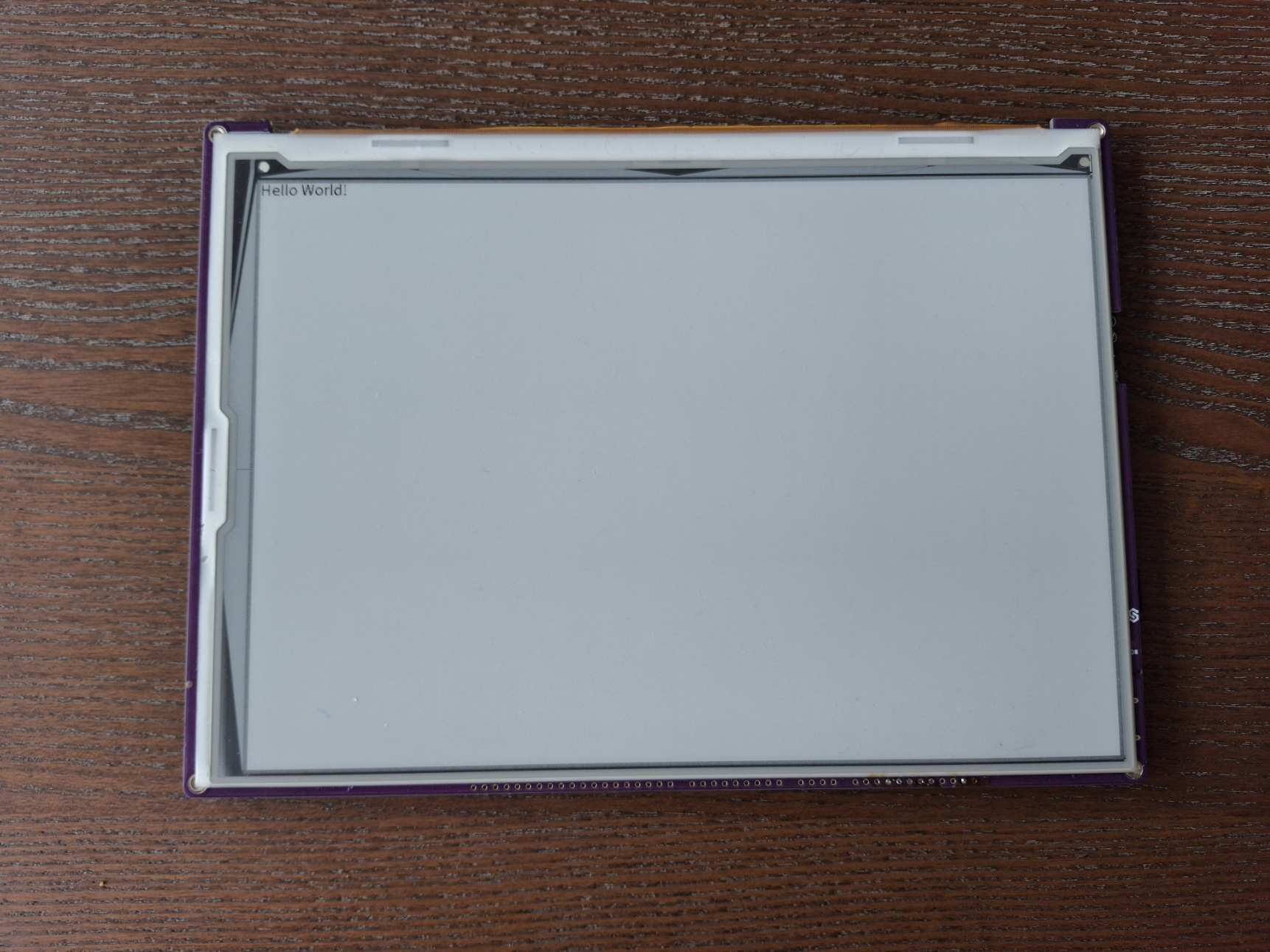
Below is a simple example demonstrating the simple way of displaying the information on the Inkplate display.
from inkplate10 import Inkplate
import time

inkplate = Inkplate(Inkplate.INKPLATE_1BIT)
inkplate.begin()
inkplate.clear_display()
inkplate.display()

#Putting the text in display buffer
inkplate.print("Hello World!")
inkplate.display()
inkplate.print()
Puts the text in display buffer at the current position on display
Function parameters:
| Type | Name | Description |
|---|---|---|
String | text | String to render. |
Displaying text in grayscale and more text parameters
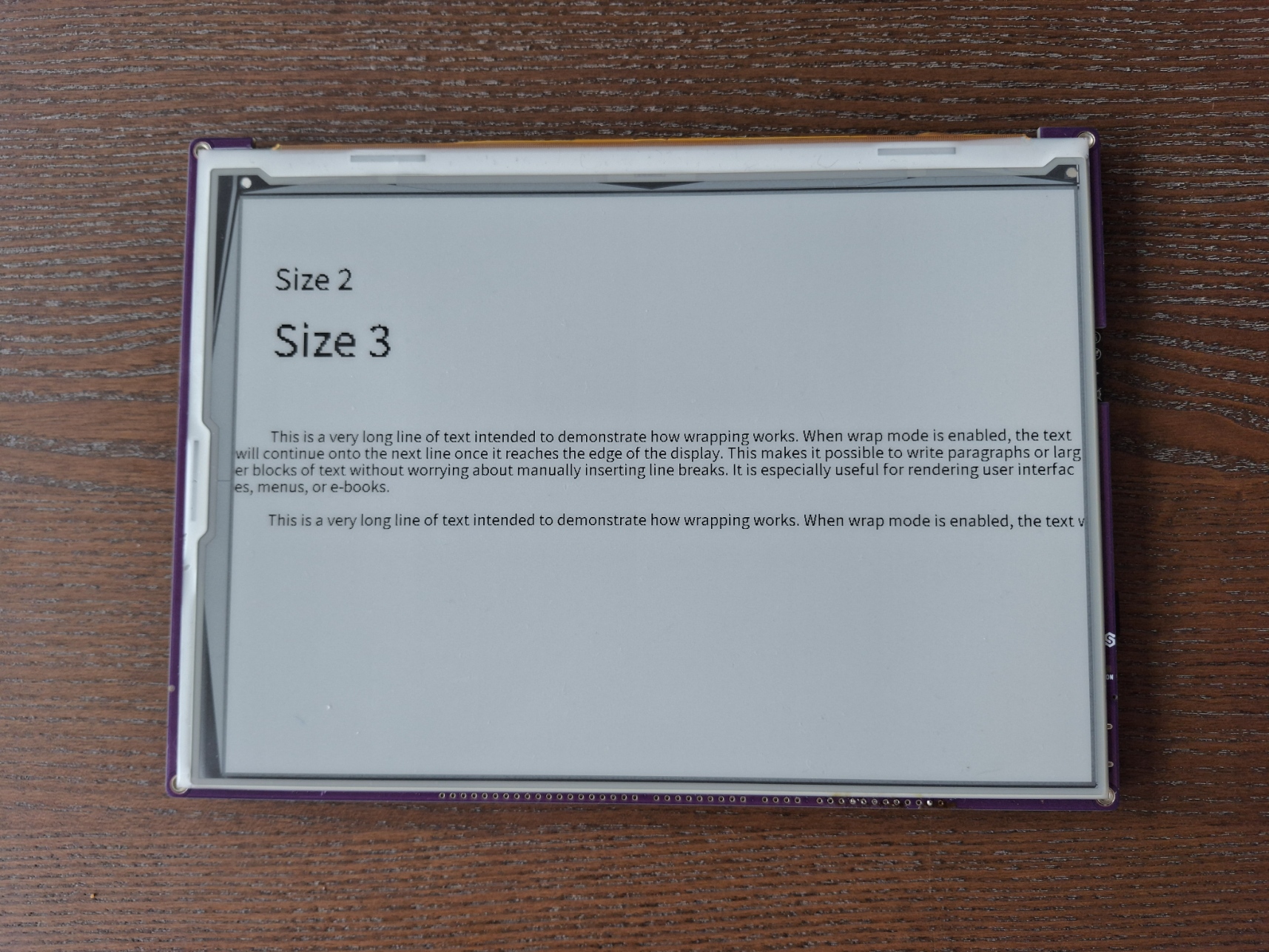
Inkplate 10 also lets you render grayscale graphics on its canvas, with 8 levels from 0 to 7. You can also modify different text parameters, such as: text color, text size and text wrapping. Below is a simple example demonstrating different text colors using grayscale and different text styles:
INKPLATE_2BIT, but the panel actually gives you 8 levels of gray, not 4. Values run from 0 to 7.The color parameter in set_text_color() changes text color as per the table below:
| VALUE | COLOR |
|---|---|
| 0 | Black |
| 1 | Very dark grey |
| 2 | Dark grey |
| 3 | Mid dark grey |
| 4 | Mid light grey |
| 5 | Light grey |
| 6 | Very light grey |
| 7 | White |
from inkplate10 import Inkplate
import time

# Create Inkplate object in 2-bit grayscale mode
inkplate = Inkplate(Inkplate.INKPLATE_2BIT)

# Initialize the display, needs to be called only once
inkplate.begin()

# Clear the frame buffer
inkplate.clear_display()
inkplate.display()


inkplate.set_cursor(50, 50)
inkplate.set_text_size(1)
inkplate.set_text_color(0)         # darkest text (black)
inkplate.print("Size 1")

inkplate.set_cursor(50, 100)
inkplate.set_text_size(2)
inkplate.set_text_color(1)         # very dark gray
inkplate.print("Size 2")

inkplate.set_cursor(50, 180)
inkplate.set_text_size(3)
inkplate.set_text_color(2)         # dark gray
inkplate.print("Size 3")

inkplate.set_text_color(3)         # mid gray
long_text = (
    "This is a very long line of text intended to demonstrate how wrapping works. "
    "When wrap mode is enabled, the text will continue onto the next line once it "
    "reaches the edge of the display. This makes it possible to write paragraphs "
    "or larger blocks of text without worrying about manually inserting line breaks. "
    "It is especially useful for rendering user interfaces, menus, or e-books."
)
inkplate.set_cursor(50, 340)
inkplate.set_text_size(1)
inkplate.set_text_wrapping(True)
inkplate.print(long_text)

inkplate.set_cursor(50, 460)
inkplate.set_text_size(1)
inkplate.set_text_wrapping(False)
inkplate.print(long_text)

inkplate.display()
inkplate.set_cursor()
Set the cursor position for the next text to be rendered.
Function parameters:
| Type | Name | Description |
|---|---|---|
Number | x | X coordinate for the text start. |
Number | y | Y coordinate for the text baseline. |
inkplate.set_text_size()
Set the text size scaling factor.
Function parameters:
| Type | Name | Description |
|---|---|---|
Number | size | Scale factor (1 = normal, 2 = double, 3 = triple, …). |
inkplate.set_text_color()
Set the text color (grayscale level) used for text rendering.
Function parameters:
| Type | Name | Description |
|---|---|---|
Number | color | Grayscale value for text, from 0 (black) to 7 (white) in grayscale mode. |
inkplate.set_text_wrapping()
Enable or disable automatic text wrapping when reaching the display edge.
Returns value: Nothing
Function parameters:
| Type | Name | Description |
|---|---|---|
Boolean | wrap | True to wrap text, False to let it continue off-screen. |
Full examples
hello_world.py
Display text on the screen.
custom_font.py
Swap in one of the extra typefaces shipped under fonts/ instead of the default font.