Inkplate 6 MicroPython - Draw Image from microSD card
Inkplate 6 can load and render images directly from the onboard microSD card. This example shows how to initialize the SD card, list its contents and display a JPEG, PNG or BMP image on screen.
Displaying an image from the SD card
Before running this example, make sure your SD card is formatted as FAT16, FAT32 or exFAT and inserted into Inkplate 6. To learn how to format the microSD card click here
The picture used in the example can be downloaded directly from the Inkplate MicroPython Library.
# Include needed libraries
from inkplate6 import Inkplate

from os import listdir, stat

# Create Inkplate object in 2-bit (real 8-level GS3) grayscale mode
inkplate = Inkplate(Inkplate.INKPLATE_2BIT)

# Initialize the display, needs to be called only once
inkplate.begin()

# Initializes the SD card.
#
# Parameters:
# - fastboot (bool, default=False):
#     If True, performs a soft reboot immediately after SD card initialization
#     (only on cold start or hard reset). This significantly improves SD card
#     read speeds—typically doubling performance.
#
# Note:
# - This function must be called before accessing files on the SD card.
# - The fastboot option has no effect if the device is already running.
inkplate.init_sd_card(fast_boot=True)

# This prints all the files on card
print(listdir("/sd"))


# Draw an image on the screen.
#
# Parameters:
# - path: File path to the image. Supports local paths (e.g., from SD card) or URLs.
#         Supported formats: JPG, PNG, BMP.
#
# - x0: X-coordinate of the top-left corner where the image will be displayed.
#
# - y0: Y-coordinate of the top-left corner where the image will be displayed.
#
# - invert (bool, default=False): If True, inverts the image colors.
#
# - dither (bool, default=False): If True, applies a dithering algorithm to
#   the image for better grayscale rendering.
#
# - kernel_type (int): Specifies the dithering algorithm to use.
#     Available options:
#       Inkplate.KERNEL_FLOYD_STEINBERG = 0
#       Inkplate.KERNEL_JJN             = 1
#       Inkplate.KERNEL_STUCKI          = 2
#       Inkplate.KERNEL_BURKES          = 3
#
# Performance Notes:
# - JPG: ~3 seconds (or ~7s with dithering)
# - PNG: ~10 seconds (or ~14s with dithering)
# - BMP: ~15 seconds (or ~20s with dithering)
# - Maximum image file size: ~800kB
#
# Example usage:
IMAGE_PATH = "sd/image.jpg"
try:
    stat(IMAGE_PATH)
except OSError:
    print("Image not found on SD card: {}".format(IMAGE_PATH))
    print("Copy an image to that path on the SD card, or change IMAGE_PATH above.")
else:
    inkplate.draw_image(
        IMAGE_PATH,
        0,
        0,
        invert=False,
        dither=True,
        kernel_type=Inkplate.KERNEL_FLOYD_STEINBERG,
    )

# Show the image from the buffer
inkplate.display()

inkplate.sd_card_sleep()
# To turn it back on, use:
# inkplate.sd_card_wake()
inkplate.draw_image()
Draw an image from a file path or URL into the display buffer.
Function parameters:
| Type | Name | Description |
|---|---|---|
String | path | Path to image (e.g. "sd/mountain.jpg") or URL. |
Number | x0 | X coordinate of the top-left corner. |
Number | y0 | Y coordinate of the top-left corner. |
Boolean | invert | If True, invert image colors. |
Boolean | dither | If True, apply dithering for better grayscale rendering. |
Constant | kernel_type | Dithering algorithm. Options: Inkplate.KERNEL_FLOYD_STEINBERG, Inkplate.KERNEL_JJN, Inkplate.KERNEL_STUCKI, Inkplate.KERNEL_BURKES. |
ℹ️
Available options for dithering algorithm:
| Algorithm | Value |
|---|---|
Inkplate.KERNEL_FLOYD_STEINBERG | 0 |
Inkplate.KERNEL_JJN | 1 |
Inkplate.KERNEL_STUCKI | 2 |
Inkplate.KERNEL_BURKES | 3 |
Performance Notes
- JPG: ~3 seconds (or ~7s with dithering)
- PNG: ~10 seconds (or ~14s with dithering)
- BMP: ~15 seconds (or ~20s with dithering)
- Maximum image file size: ~800kB
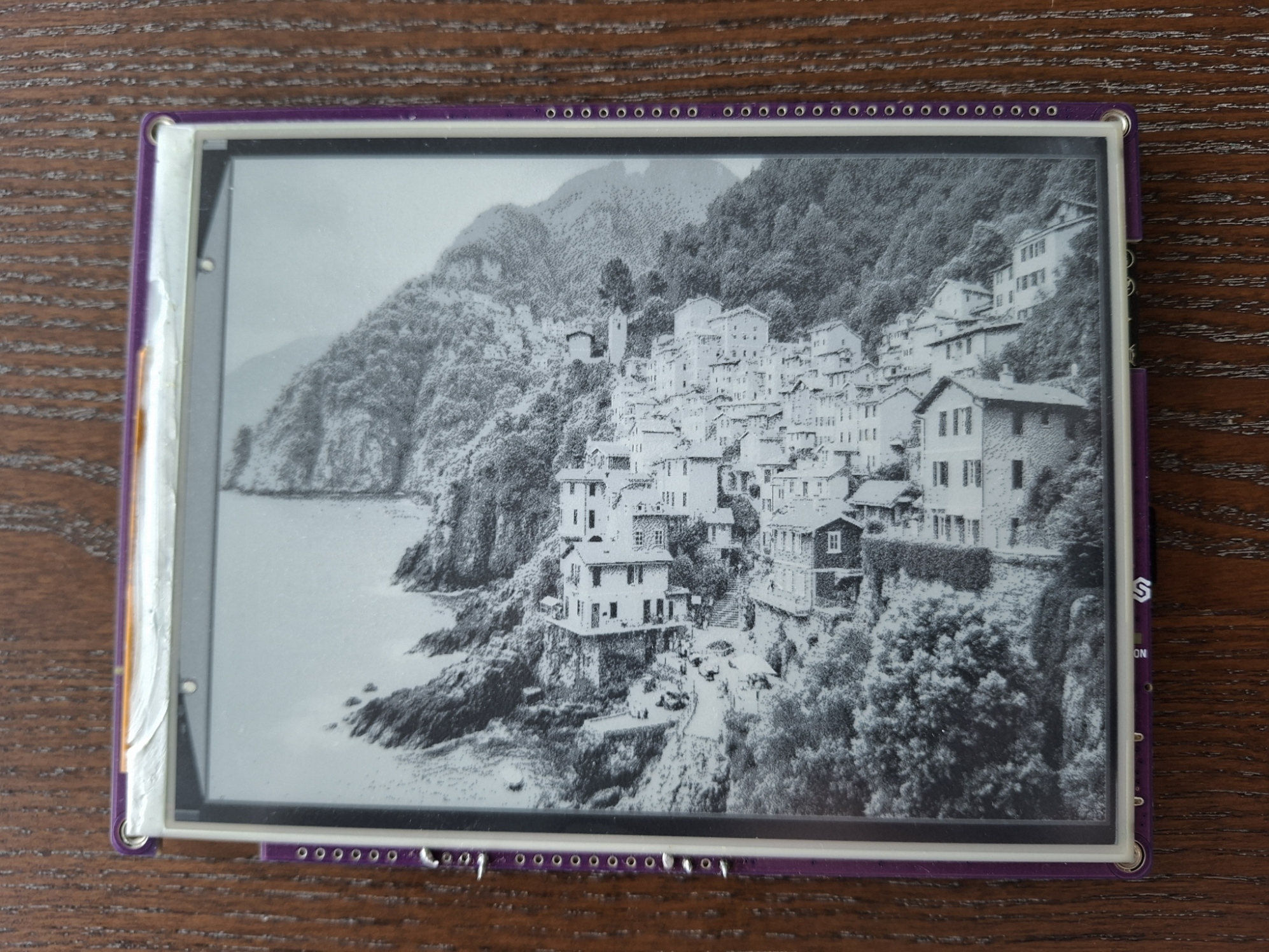
Displaying an image from SD card.
Full example
display_image_sd.py
Initializes the microSD card, lists its contents and renders an image from it with dithering.