1.1 Hello World
The goal of this example is to introduce you to the console shared by the Soldered NULA MINI board and your computer. This allows the board to "talk back" to you, making it possible to debug, monitor sensor values, or simply print text.
It is the "Hello World" of microcontrollers, and the quickest way to confirm the board is working and talking to your computer.
In this documentation you will learn:
- How the board talks to your computer over the USB cable.
- How to print a message to the console with
print().
Hardware required:
- 1x Soldered NULA MINI board
- 1x USB-c cable
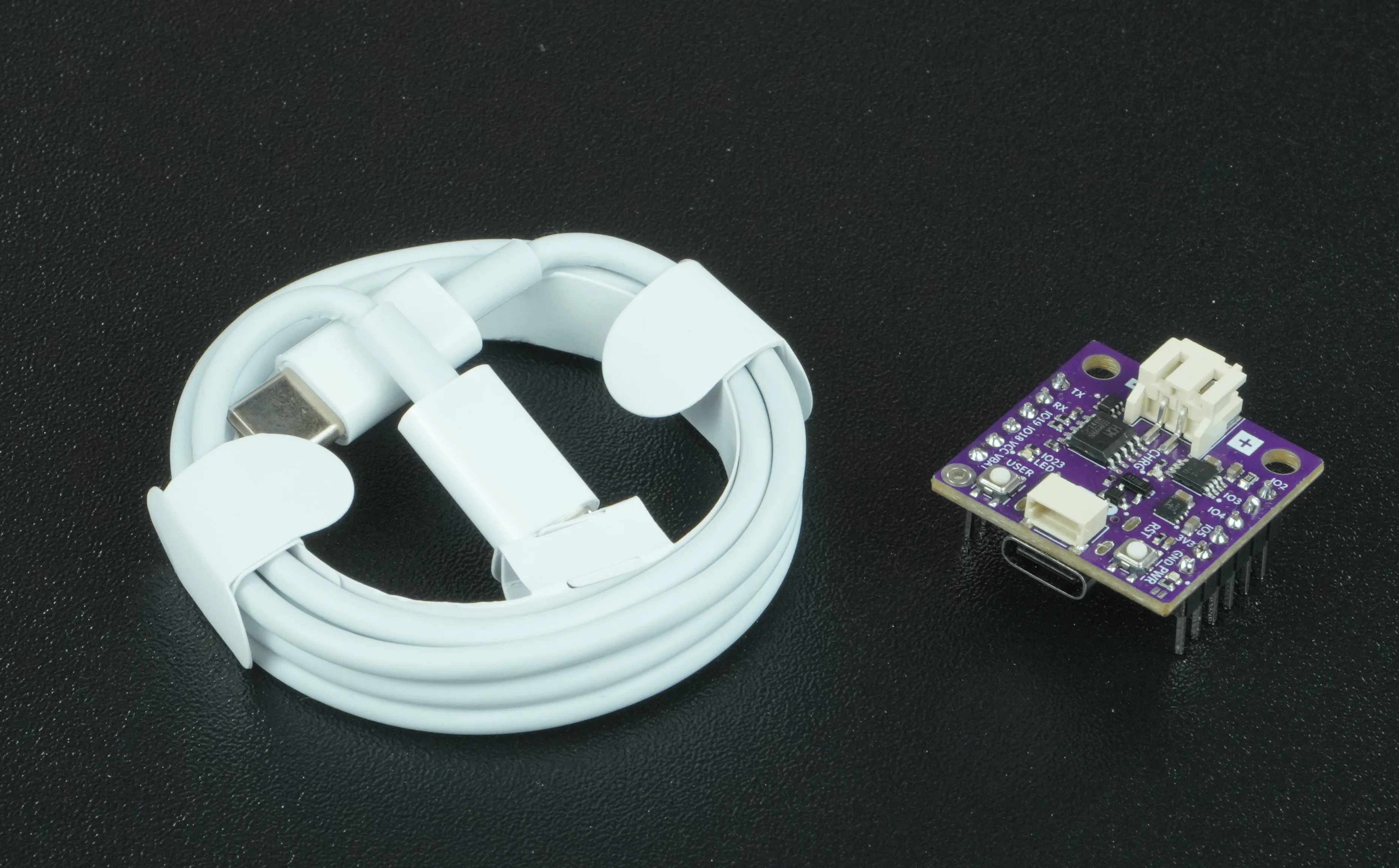
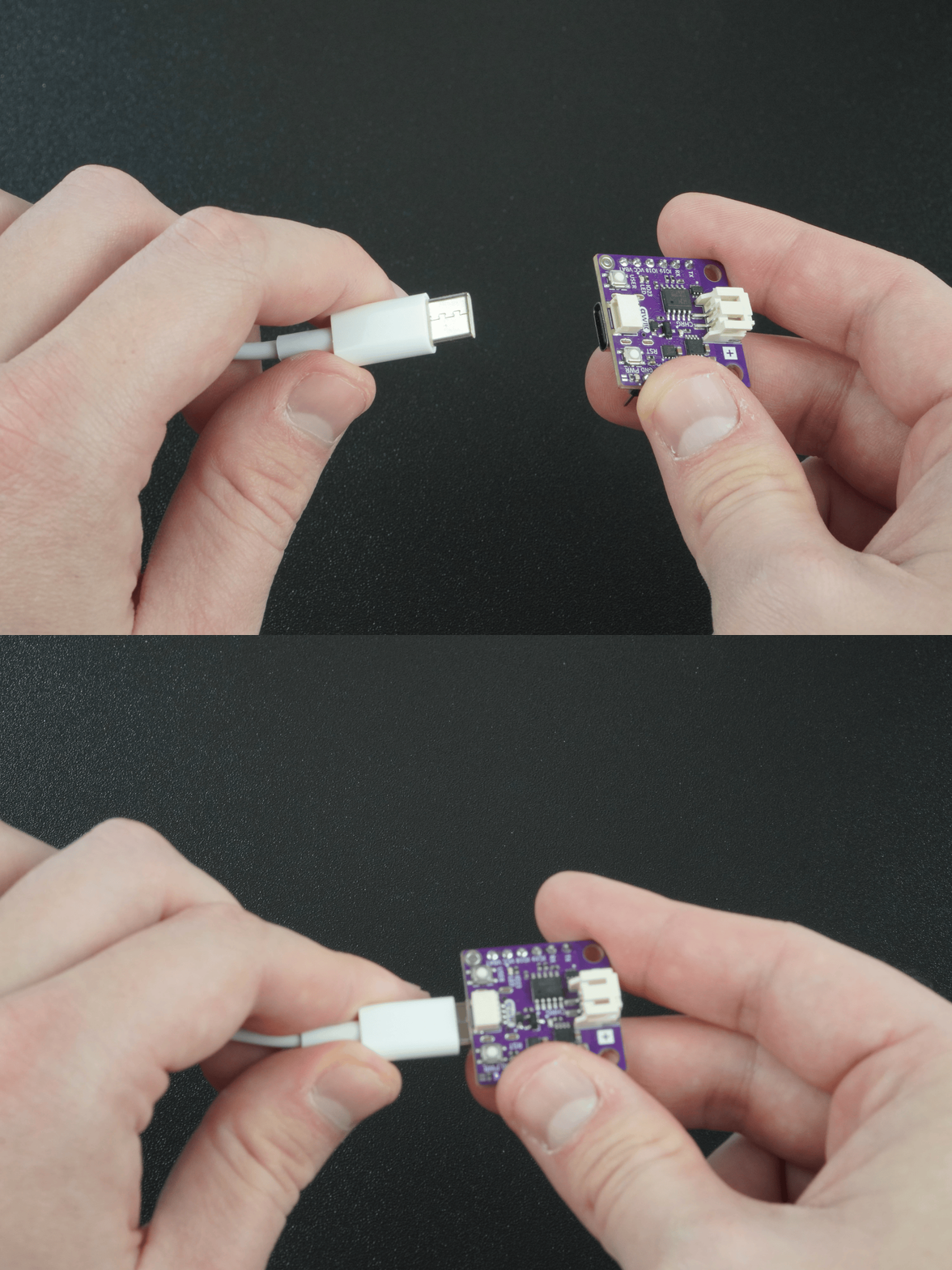
Connecting the board
Simply connect your Soldered NULA MINI to your computer using a USB-c cable. Once connected, select the correct port in Thonny, as described on the Setting up MicroPython page.
How the board talks to your computer
The board and your computer exchange text messages over the USB cable. Imagine you and your friend are passing notes in class, but instead of giving the whole note at once, you send it one letter at a time in the right order. That is what serial means: information is sent one piece after another, very quickly. Your board sends characters like 'H','e','l','l','o' to your computer, and your editor puts them together so you can read "Hello".
In MicroPython that conversation happens through the REPL, which stands for Read-Evaluate-Print Loop. It is an interactive prompt: the board reads what you send, runs it, prints the answer, and waits for the next thing. Thonny shows it as the Shell panel at the bottom of the window.
Serial.begin(115200) before it can print anything, but on a MicroPython board the connection is already open the moment the board powers up, so a single line of code is enough.Printing a message
We use the print() function to send a line of text to the console. It adds a new line at the end, so each print() call starts on its own line.
print("Hello, World!")
That is the whole program. There is no setup() and no loop() the way an Arduino sketch needs: MicroPython runs the file from the first line to the last and then stops. Because there is nothing to repeat here, the message is printed once and the program ends.
end="", like print("Hello", end=""). To print several things at once, separate them with commas: print("Temperature:", 24).When you press Run, the Shell shows:
Hello, World!
Full example
Check out the full example code on the link below:
1.1_Hello_World.py
Example that shows how to print data to the MicroPython console