Inkplate 6COLOR – Basic RTC usage
This page shows how to use the onboard PCF85063A RTC to measure and keep track of time.
Setting time and date
# Include all the required libraries
from inkplate6_color import Inkplate
import time

# Create Inkplate object
inkplate = Inkplate()

# Initialize the display, needs to be called only once
inkplate.begin()

inkplate.set_text_size(3)

# This is how to set the RTC's time
# Arguments are hour, minute, seconds
inkplate.rtc_set_time(9, 39, 10)
# And this is the date
# Arguments are weekday, day in month, month and year
inkplate.rtc_set_date(5, 9, 2, 2024)

# Infinite loop
while True:
    inkplate.clear_display()
    rtc_data = inkplate.rtc_get_data()

    hour = rtc_data["hour"]
    minute = rtc_data["minute"]
    second = rtc_data["second"]

    if hour < 10:
        hour = "0" + str(hour)
    if minute < 10:
        minute = "0" + str(minute)
    if second < 10:
        second = "0" + str(second)

    inkplate.set_cursor(200, 200)
    current_time = str(hour) + ":" + str(minute) + ":" + str(second)
    inkplate.print(current_time)

    # No partial_update() on this board -- display() is the only refresh path
    inkplate.display()

    # Let's wait 10 seconds
    time.sleep(10)
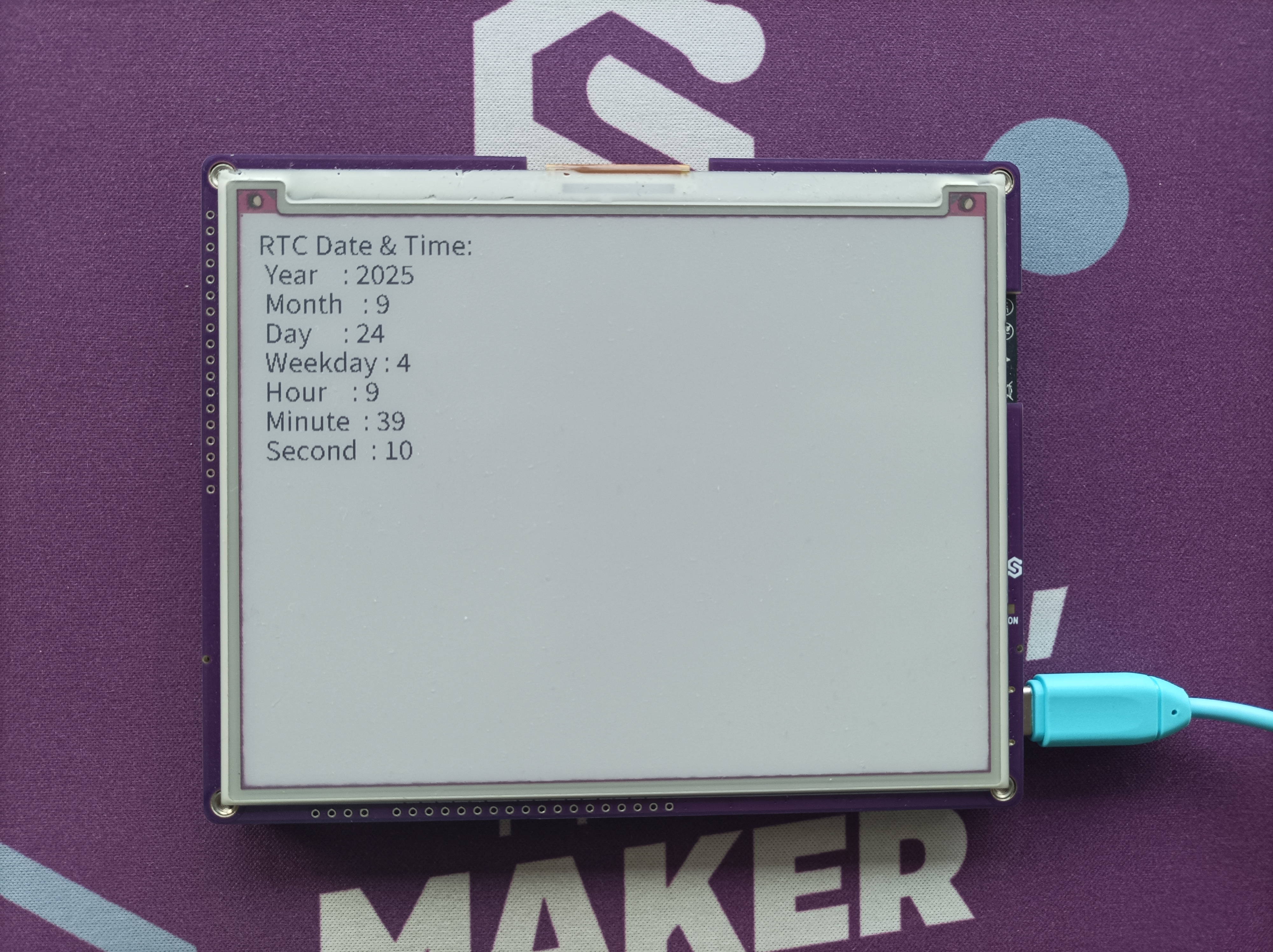
Time and date shown on Inkplate 6COLOR
inkplate.rtc_set_time()
Sets the RTC's time
Function parameters:
| Type | Name | Description |
|---|---|---|
int | rtc_hour | Set hour |
int | rtc_minute | Set minutes |
int | rtc_second | Set seconds |
inkplate.rtc_set_date()
Sets the RTC's specified date
Function parameters:
| Type | Name | Description |
|---|---|---|
int | rtc_weekday | Set weekday |
int | rtc_day | Set day in a month |
int | rtc_month | Set month |
int | rtc_yr | Set year |
inkplate.rtc_get_data()
Returns current RTC time values
Returns type: Dictionary
Returns value: Return dictionary with RTC time values as integers
Full example
rtc.py
Example showing how to use the onboard RTC to preserve time across reboots.